📌 Key Takeaways
- •[A-S1] [B-S15] MDPI, "Swelling Mechanisms, Diagnostic Applications, and Mitigation Strategies in Lithium-Ion Batteries" (Batteries, 28 Sep 2025) — https://www.mdpi.com/2313-0105/11/10/356
- •[A-S2] IOPscience, H. Michael et al., "A Dilatometric Study of Graphite Electrodes during Cycling with X-ray Computed Tomography", J. Electrochem. Soc. 168 (2021) 010507 — https://iopscience.iop.org/article/10.1149/1945-7111/abd648/meta
- •[A-S3] IOPscience, "Influence of Initial Porosity on the Expansion Behavior of Electrodes in Lithium-Ion Batteries" — https://iopscience.iop.org/article/10.1149/1945-7111/acd2fe
- •[A-S4] Ossila, "What is Lithium Plating?" — https://www.ossila.com/pages/lithium-plating
- •[A-S5] MDPI, "Challenges and Issues Facing Ultrafast-Charging Lithium-Ion Batteries" (Batteries, 2025) — https://www.mdpi.com/2313-0105/11/6/209
The 30-Second Verdict: What a Swollen Battery Is and Why You Must Not Wait
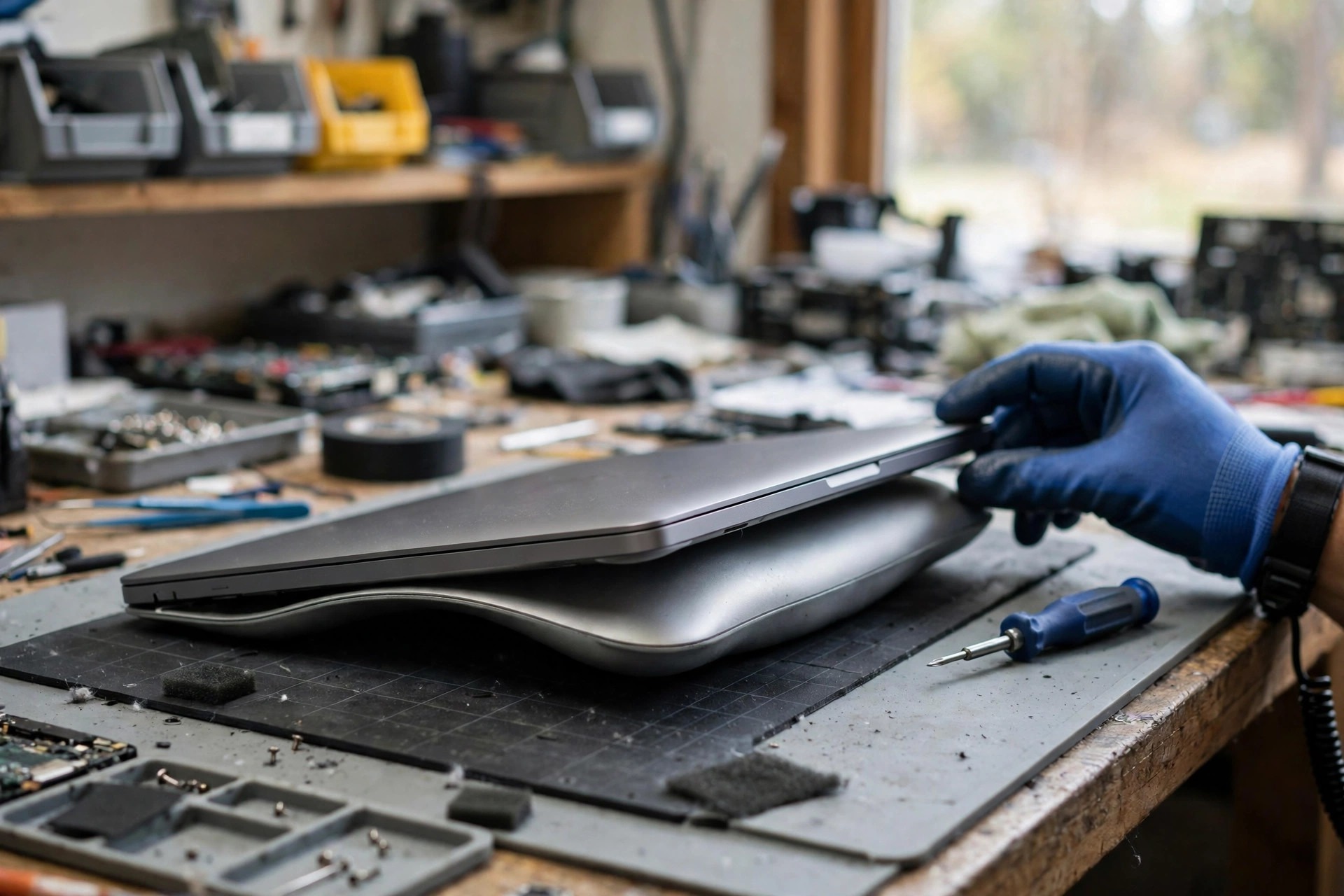
A swollen laptop battery is not a cosmetic fault, not a battery that has simply got a little tired, and not a problem that improves if you leave it alone. It is a physical failure inside a sealed cell. Electrochemical processes inside a lithium-ion battery cause the electrodes to expand and generate gas, and that gas has nowhere to go, so the battery grows in size and, in serious cases, creates reliability and safety problems [A-S1]. The swelling you can see on the outside — a base that no longer sits flat, a trackpad that has risen, a keyboard that has lifted in the middle, a lid that will not close — is the visible end of chemical damage that has already happened inside the sealed pouch [A-S1][B-S1].
The single most important fact to carry away from this guide is that swelling is irreversible. Gas comes from electrolyte and electrode material that has already decomposed; it is not trapped air that can be let out, and pressing the battery flat, freezing it, or puncturing it cannot restore the chemistry that has been lost [B-S19][B-S40]. Dell states plainly that a swollen battery should no longer be used and must be replaced and disposed of properly [B-S2], and iFixit puts the same point in even plainer language: you cannot heal a swollen or defective battery, you can only remove it [B-S19]. The only safe resolution for a swollen battery is replacement of the whole battery by a trained person, with the old battery handled as damaged goods and sent for proper recycling rather than thrown away [A-S17][B-S19].
The signs that mean stop now
You do not need a tool, a test, or a second opinion to recognise the common signs. Dell lists the warning signs as bulging or swelling in the battery compartment area [A-S7], and the same set of signs appears across the manufacturer guidance and independent repair guidance collected in the research for this guide [B-S38][B-S39]. Look for a base that rocks when you press its corners on a flat table, a gap opening between the base cover and the rest of the chassis, especially near the battery area, a trackpad that has risen above the palm rest, feels stiff, will not click, or clicks by itself, a keyboard that has arched in the middle or has individual keys sitting higher than their neighbours or feeling different under your fingers, and a lid that no longer closes cleanly or a screen that touches the keyboard when shut [A-S7][B-S38]. Any one of those signs is enough. You do not need two or three of them to agree before you act, and you do not need a software reading to confirm what your eyes and hands have already told you.
Heat, smoke, smell, and leaking: the leave-now level
There is a sharp line between a swollen battery that is cold, stable, and silent, and a swollen battery that is showing danger signals. The danger signals are abnormal heat at the battery area even when the laptop is idle, smoke, a burning smell, a sweet or chemical or acetone-like smell that suddenly becomes stronger, a hissing or crackling sound, liquid leaking from the battery area, or discolouration of the casing [A-S26][B-S18][B-S19]. If any one of those appears, stop thinking about the laptop and think about leaving. Do not try to save files, do not try to shut the machine down neatly, do not pick the laptop up and carry it close to your body, and do not try to put the fire out yourself. Leave the area and call 999, which is the emergency number in Hong Kong. The United States guidance that the research cites says the same thing in its own terms: leave immediately and call the emergency number, and do not attempt to extinguish the fire yourself, because a lithium-ion battery fire spreads quickly, burns fiercely, can explode, and can reignite, while water may not stop the battery burning and an extinguisher may not be effective against a lithium-ion battery fire [A-S26]. The Hong Kong number is 999, and the principle is identical.
What to do in the first minute when there is no smoke, no fire, and no smell
If the battery is swollen but cold, stable, and silent, the first minute is still a stop-and-isolate minute, not a carry-on minute. Stop using the laptop, shut it down, and unplug the charger [A-S7][A-S8][A-S11][A-S17]. Do not charge it again, and do not switch it on again except for a brief, carefully judged backup of irreplaceable files if the machine is stable and shows no heat or smell, and even then without the charger connected, with the backup finished as quickly as possible and the machine shut down immediately afterwards. Do not press the swollen area to test how soft it is, do not squeeze it, do not bend it, and do not try to prise out a battery that is stuck because it has swollen [A-S8][A-S9][A-S17]. Move the laptop to a hard, flat, non-flammable surface, away from flammable material and away from heat, in a ventilated and dry place [B-S4]. Do not put it in a bag, a handbag, a drawer, or any other place where it will be squeezed or left unwatched [A-S8]. Then contact the manufacturer support team or a professional repair service and say the words "battery swelling" at the start of the conversation, so the case is handled at safety priority rather than as an ordinary performance complaint [A-S7][A-S8].
Dell service manuals add a discharge step for trained handling: unplug the alternating-current adapter and run the laptop on battery power until it will no longer switch on, to confirm the battery is fully discharged before it is handled, and do not use that battery again after it has been discharged [A-S8][A-S9][B-S2]. That instruction has a clear boundary, and it matters that it is not read as permission to keep using the laptop. It applies only to a cold, stable swollen battery with no danger signals, and it is part of a stop-using procedure, not a reason to carry on working. If the battery is already hot, smoking, smelling, or leaking, do not try to discharge it by switching the machine on. Leave it alone, leave the area, and call 999 [B-S2].
What not to do, in one place
The list of things not to do is short, and every item on it has caused real harm when people have tried it. Do not puncture the battery to release gas. The gas is flammable and toxic, and puncturing can cause an immediate internal short circuit and fire [A-S1][A-S8]. Do not squeeze the battery flat or press it back into shape. Do not try to prise out a battery that is stuck [A-S8]. Do not put a swollen battery in a fridge or immerse it in water to cool it down. Cold does not reverse swelling, and condensation can cause a short circuit [B-S19]. Do not throw a swollen battery into household rubbish or an ordinary recycling bin [A-S17][A-S29]. Do not post it or ship it without authorised packaging and declaration, because a damaged or swollen battery is prohibited from air transport [A-S22]. Do not keep charging it to see whether it gets better. It will not get better, and charging increases heat and pressure inside a deformed cell [A-S1][A-S8]. Do not open the cell to look inside. The four manufacturers whose guidance was reviewed for this guide — Apple, Dell, Lenovo, and HP — all point in the same direction: stop using it, do not charge it, do not press it, and hand it to a professional [A-S7][A-S8][A-S11][A-S17].
Cost and where to get help in Hong Kong
A replacement battery is available from HK$580, and every other charge is subject to a written quote after inspection. That is the only price this guide states for a battery, and it is stated here so that you can plan without being misled by a guessed figure. If you are in Hong Kong and you need a professional assessment, the shop details are: Shek Mun, Dalton Plaza Room 1209, Shatin; phone +852 2186 8010; WhatsApp +852 6558 6806; hours 12:00–19:00. When you call or message, say that the battery is swollen, describe whether there is any heat, smell, smoke, or leaking, and do not bring the laptop in a squeezed bag or leave it charging on the way. If there is any danger signal at all, do not travel with it. Leave the area and call 999 first.
Inside a Lithium-Ion Cell: Pouch-Cell Structure and Which Layer Fails
A laptop battery is not a single solid block. It is a small chemical system sealed inside a package, and understanding swelling means understanding the parts of that system, what each part does, and which part fails first when things go wrong. A typical lithium-ion cell is made up of a positive electrode, a negative electrode, an electrolyte, a separator, current collectors, and a sealed outer casing [A-S1][A-S43]. The negative electrode is most often graphite coated onto a copper current collector, and the positive electrode uses a lithium metal oxide such as lithium manganese oxide, lithium iron phosphate, lithium cobalt oxide, nickel manganese cobalt, or nickel cobalt aluminium, coated onto an aluminium current collector [A-S1]. The separator is a thin, porous material that allows lithium ions to pass through while preventing the positive and negative electrodes from touching each other directly and causing a short circuit [A-S43].
In normal operation, lithium ions move back and forth between the positive and negative electrodes as the battery charges and discharges. When the battery degrades abnormally, side reactions produce gas, and because the cell is sealed, the gas has nowhere to go, pressure rises, and the battery pack swells [A-S43]. That single sentence is the whole mechanism in miniature. Everything else in this chapter is a closer look at the parts, so that you can see why the gas forms, why it cannot escape, and why the soft outer casing of a modern laptop battery makes swelling visible while a harder casing can hide it.
The electrodes: where lithium lives
The two electrodes are the active heart of the cell. The positive electrode, often called the cathode, is the source of lithium ions when the battery discharges. The negative electrode, often called the anode, is usually graphite, a form of carbon arranged in layers with spaces between them that lithium ions can slip into and out of. When you charge a laptop, lithium ions leave the positive electrode, travel through the electrolyte and through the pores of the separator, and insert themselves between the graphite layers of the negative electrode. When you use the laptop, the process reverses, and the ions travel back to the positive electrode, releasing energy as they do. The current collectors — copper on the negative side and aluminium on the positive side — carry electrons around the external circuit to your laptop, while the ions move inside the cell [A-S1].
The graphite negative electrode is important for swelling for two reasons. First, it physically expands when lithium ions insert themselves into its crystal structure, and contracts when they leave. That is normal, and it is covered in detail in the chapter on reversible and irreversible swelling. Second, its surface is where the solid electrolyte interphase layer forms, and where metallic lithium can deposit instead of inserting into the graphite if the conditions are wrong. Both of those processes produce gas or consume lithium, and both are covered in the mechanisms chapter. The positive electrode matters for swelling in a different way: at high voltage, high temperature, or high state of charge, the metal oxide can release oxygen and can oxidise the electrolyte, producing gas, and its surface layer can also grow and thicken [A-S1][B-S11].
The electrolyte: the liquid that carries ions and also breaks down
The electrolyte is the liquid inside the cell that allows lithium ions to move between the electrodes. In most laptop cells it is a lithium salt, usually lithium hexafluorophosphate, dissolved in an organic carbonate solvent such as ethylene carbonate and diethyl carbonate [A-S43][B-S11]. It is not water, and it is not inert. It is chemically active, and it is the main source of the gas that causes swelling. Under normal conditions it is stable enough to last for hundreds of cycles. Under abuse — overcharge, overheating, over-discharge, or an internal short circuit — it decomposes, and that decomposition produces carbon dioxide, hydrogen, carbon monoxide, and light hydrocarbons [A-S43][A-S1]. Those gases are the direct cause of the visible bulge, and they are discussed in full in the chapter on what gas is inside.
The separator: a thin barrier that must never fail
The separator is the thinnest and most safety-critical part of the cell. It is a thin, porous polymer film, typically 20 to 30 micrometres thick, which is far thinner than the electrodes, which are typically 50 to 200 micrometres thick [A-S1]. Its job is contradictory: it must let lithium ions pass freely, so the battery can charge and discharge, while at the same time keeping the positive and negative electrodes physically apart, so they never touch and short-circuit [A-S43]. It does that through microscopic pores that are large enough for ions but small enough to block direct contact.
The separator is also one of the layers that fails in thermal runaway. Its polymer material has a much higher thermal expansion coefficient than the electrodes — the research cites about 44 to 130 millionths per degree Celsius for the polymer separator, against about 2.1 to 15 millionths per degree Celsius for the electrode materials [A-S1] — and at high temperature it softens and then melts. The temperature ladder in a later chapter places separator melting in the range of about 130 to 190 degrees Celsius, depending on the material [B-S14]. Once the separator melts, the electrodes can touch, an internal short circuit follows, and the cell heats rapidly. That is why a dendrite, a sharp needle of metallic lithium growing from the negative electrode, is so dangerous: it can pierce the separator and create exactly that short circuit [A-S4][A-S6].
The pouch: why laptop swelling is visible
Modern thin laptops, including MacBook models and most ultrabooks, use pouch cells, which are also called lithium polymer cells [A-S7]. A pouch cell is sealed inside a flexible multi-layer aluminium plastic film, rather than inside a hard metal can [A-S7]. That flexibility is the reason laptop swelling is so often visible to the naked eye. When gas builds up inside a pouch cell, the flexible casing expands directly, like a balloon, and that expansion pushes up against the base cover, the trackpad, and the keyboard [A-S7][B-S1]. In that sense, visible swelling is a warning you can see, and it is better to have a warning you can see than a failure you cannot.
The table below compares the three common cell packages, so that the difference is clear.
| Package | Structure | How visible is swelling | How common in laptops |
|---|---|---|---|
| Pouch cell, also called lithium polymer | Flexible multi-layer aluminium plastic film | High — the flexible casing expands directly like a balloon | Most common: modern thin laptops, MacBook models, and ultrabooks mostly use pouch cells (the distribution across brands and models has not been verified model by model) |
| Prismatic cell | Aluminium hard casing | Medium — the aluminium casing can deform, but the casing limits how far it can expand | Some business and gaming laptops |
| Cylindrical cell, such as the 18650 | Steel hard casing | Low — the steel casing hides expansion, so it is hard to see from outside | More common in older removable batteries and external battery packs |
The key distinction to remember is that a cylindrical cell can be swollen and still look normal from the outside, because the steel casing hides the expansion until a pressure valve or a more serious failure occurs. A pouch cell that is swollen is visible, and that visibility is a gift. Do not treat it as a reason to wait, on the grounds that the laptop still works. Treat it as the warning it is.
The battery management system and the protection board
A laptop battery pack is not only cells. It also contains a battery management system and a protection circuit, which monitor voltage, temperature, and current, and are designed to prevent overcharge, over-discharge, and short circuits [A-S19]. The standards that govern those systems are layered: UL 2054 is the battery-pack standard, and it sits on top of the UL 1642 cell standard, verifying the whole pack, including the ability of the management system to detect faults, the ability of the pack casing to resist pressure, and the consistency between multiple cells [A-S19][A-S20]. The management system is a genuine safety layer, and it does prevent many electrical abuses. It cannot, however, prevent the internal chemical degradation of the cell itself. Solid electrolyte interphase thickening and electrolyte decomposition are material-level ageing processes, and the management system cannot see them and cannot block them.
How the layers interact when swelling begins
Put the parts together and the sequence of swelling becomes clear. A cell starts healthy, with clean electrodes, a stable interface layer, an intact separator, and a sealed pouch. Over time, or under abuse, side reactions begin at the electrode surfaces. The interface layer grows, cracks, and regrows, exposing fresh electrode surface to the electrolyte and triggering further side reactions that consume lithium and electrolyte and produce gas as a by-product [A-S1]. The electrolyte decomposes, especially at high temperature or high voltage, and produces more gas [A-S1][A-S43]. The electrodes themselves expand as lithium inserts into them, and the pouch has to accommodate that expansion. As long as the pouch can stretch a little and the gas volume is small, the change is not visible. Once the gas volume grows beyond what the pouch can accommodate without deforming, the pouch bulges, and that bulge presses on everything around it.
Why the cell cannot vent safely
A natural question is why a battery cannot simply have a vent that lets the gas out. The answer is that the cell is sealed for a reason. The electrolyte reacts with moisture and air, and the lithium inside the cell reacts violently with water. Opening the cell to the outside world would let moisture in and let flammable, toxic gas out, and it would not restore the decomposed chemistry. Some cylindrical cells have a pressure valve designed to open in a controlled way during a severe failure, but that is an emergency pressure release, not a routine vent, and it does not make the cell safe to keep using. Pouch cells in laptops do not have a user-serviceable vent, and puncturing one to release gas is not venting. It is creating a hole in a sealed, pressurised, flammable system, and it can cause an immediate short circuit and fire [A-S1][A-S8].
Swelling Mechanisms: Electrolyte Decomposition and Gas, SEI Growth, Lithium Plating, Overcharge / Heat / Ageing
The research review that underpins this guide divides swelling mechanisms into two broad categories: electrode expansion, which includes thermal expansion, lithium insertion, interface layer growth, and lithium deposition, and gas generation, which comes from electrolyte decomposition during formation and during operation [A-S1]. This chapter works through each mechanism in turn, at mechanism level, with the numbers that the research provides and with a citation for every number. Where a number comes from a specific laboratory condition, that condition is stated, because a number without its condition is misleading.
Thermal expansion: mostly reversible
Every part of a cell expands when it gets hot and contracts when it cools. The electrode materials have a thermal expansion coefficient of about 2.1 to 15 millionths per degree Celsius, while the polymer separator has a much higher coefficient of about 44 to 130 millionths per degree Celsius [A-S1]. The electrodes are thicker, at 50 to 200 micrometres, while the separator is only 20 to 30 micrometres thick, so the electrodes contribute more to the overall size change despite having a lower expansion coefficient [A-S1]. Within the normal working temperature range, which the research describes as about minus 20 degrees Celsius to 60 degrees Celsius, thermal expansion is generally reversible [A-S1]. The cell gets a little larger when it is hot and returns to its original size when it cools.
Lithium insertion expansion: the normal breathing of a cell
When a battery charges, lithium ions insert themselves between the layers of the graphite negative electrode, and the graphite crystal lattice expands along its c-axis. Calculations predict that the graphite lattice expands by about 14 percent, and experimental measurement of fully lithiated graphite, written as LiC6, gives about 10 percent [A-S1]. At the electrode level, counting the porosity and the binder that cushions the expansion, the whole electrode grows by about 3 to 4 percent [A-S1]. A separate study measured a graphite electrode thickness change close to 9 percent on the first cycle, and found that the electrode did not fully return to its original thickness on discharge [A-S2].
Silicon makes the picture more dramatic. Silicon fully lithiated expands in volume by up to 300 percent, with a theoretical capacity of 3579 milliampere-hours per gram, against 372 milliampere-hours per gram for graphite [A-S1][A-S3]. A separate comparison gives graphite expansion at about 13.2 percent and silicon at 280 percent [A-S3]. Commercial cells now mostly use only 5 to 15 percent silicon mixed into the negative electrode [A-S1], and that figure explains why newer high-energy-density batteries breathe more, and why they place higher demands on the packaging and on heat management. A cell that contains silicon is not automatically unsafe, but it is a cell in which the mechanical stresses from breathing are larger, and in which the interface layer has more work to do.
SEI and CEI growth: the silent capacity killer
The solid electrolyte interphase, usually shortened to SEI, is a layer that forms on the surface of the negative electrode, and the cathode electrolyte interphase, shortened to CEI, is the corresponding layer on the positive electrode. The SEI is originally a protective layer: it allows lithium ions to pass through, while limiting further decomposition of the electrolyte [A-S43]. The problem is that the SEI does not stay the same thickness. It grows, cracks, and regrows with cycling, and each cycle of growth consumes lithium and electrolyte and produces gas [A-S1].
The mechanism is a cycle. SEI and CEI growth directly increase electrode thickness and produce gas [A-S1]. Expansion creates mechanical strain, which cracks active material particles and delaminates composite layers, exposing fresh electrode surface to the electrolyte, which triggers parasitic side reactions, consuming lithium and electrolyte, producing gas as a by-product, and causing capacity loss [A-S1]. That is a vicious cycle: swelling leads to cracking, cracking leads to more side reactions, more side reactions lead to more gas, and more gas leads to more swelling. The SEI is therefore not only a cause of capacity loss, which is the slow shortening of battery life that most users notice first, but also a cause of the gas that makes the battery swell.
Lithium plating and dendrites: the most dangerous path
Lithium plating means that metallic lithium deposits on the surface of the negative electrode, usually graphite, instead of inserting into the crystal lattice [A-S4]. It is triggered by fast charging, where the lithium ion flux is too high for insertion to keep up, and by low temperature, where lithium ion diffusion is slow and electrode kinetics are sluggish [A-S4][A-S5][A-S6]. When the negative electrode potential falls to near or below the lithium metal equilibrium potential of 0 volts, lithium deposits in metallic form [A-S4].
The consequences fall into three levels [A-S4][A-S6]. First, capacity loss, because the deposited metallic lithium is dead lithium that cannot be converted back into usable capacity, and because the SEI constantly regrows on the deposited lithium, increasing internal resistance. Second, dendrite growth, because lithium prefers to keep growing where it has already deposited, forming sharp, tree-like dendrites. Third, internal short circuit, because a dendrite can pierce the separator, touch the positive electrode, and create an internal short circuit, which causes rapid self-discharge, sharp heating, and even thermal runaway [A-S4][A-S6].
Hong Kong winters are not severely cold, but the research notes that an air-conditioned room at about 18 to 20 degrees Celsius, combined with high-current fast charging and high state of charge, is already a combination that mildly favours deposition, and it notes that charging below 0 degrees Celsius is identified in practical guidance as a cause of permanent lithium plating [A-S5]. That last point is labelled as second-hand practical guidance in the research, and it is presented here as unverified in its absolute form: the safe statement is that low-temperature charging increases the risk of lithium plating [A-S4][A-S6], and that charging below 0 degrees Celsius should be avoided. The general guidance for charging temperature is an ideal range of about 5 to 45 degrees Celsius, with a preferred range of about 10 to 30 degrees Celsius [A-S6].
Electrolyte decomposition and gas generation: the direct cause of swelling
The electrolyte, which is an organic solvent such as ethylene carbonate and diethyl carbonate plus a lithium salt, decomposes under high temperature, overcharge, over-discharge, or internal short circuit, producing carbon dioxide, hydrogen, carbon monoxide, and light hydrocarbons [A-S43][A-S1]. During overcharge, the cathode releases excess lithium ions, metallic lithium deposits on the anode, and the deposited lithium reacts with the electrolyte to produce carbon dioxide, ethane, and methane [A-S1]. The gas composition depends on the cell chemistry and the failure conditions, and a user does not need to identify the gas type [A-S43]. The important point is that once gas is produced, it is trapped inside the sealed cell, pressure only rises and never falls, and swelling is irreversible.
The five mechanisms in one table
| Mechanism | Where it happens | Reversible | Main drivers | Consequence |
|---|---|---|---|---|
| Thermal expansion | All parts of the cell | Mostly reversible | Temperature change | Size fluctuation; repeated cycling causes fatigue |
| Lithium insertion | Graphite or silicon negative electrode crystal lattice | Reversible, the normal breathing of a cell | Charging and discharging, state of charge | About 3 to 4 percent electrode thickness change per cycle [A-S1] |
| SEI and CEI thickening | Negative and positive electrode surfaces | Irreversible | Cycle count, high temperature, high state of charge | Thickness plus gas plus capacity loss |
| Lithium plating and dendrites | Negative electrode surface | Irreversible | Fast charging, low temperature, high state of charge | Dead lithium, higher internal resistance, separator pierced leading to internal short circuit |
| Electrolyte decomposition and gas generation | Electrolyte and electrode interface | Irreversible | Overcharge, overheating, over-discharge, ageing, manufacturing defect | Gas trapped in a sealed pack leading to swelling and thermal runaway risk |
How the mechanisms combine
In a real laptop, the mechanisms do not happen in isolation. They happen together, and they reinforce each other. A battery that is kept at high state of charge and high temperature will have faster SEI growth, faster electrolyte decomposition, and a higher risk of lithium plating if it is then fast-charged. A battery that has already swollen a little will have more mechanical strain on its electrodes, which will crack more particles, expose more fresh surface, and produce more gas. A battery that has a manufacturing defect, such as a metal particle or a flaw in the separator, may have a local hotspot where the reactions run faster than elsewhere, and that hotspot can become the point where swelling starts and where thermal runaway begins.
Reversible vs Irreversible Swelling: Normal "Breathing" vs Pathology
Not all swelling is the same, and the distinction between reversible and irreversible swelling is the distinction between a healthy battery doing its job and a damaged battery that must be replaced. The confusion between the two is common, and it is the reason some people wait too long. They have heard that batteries swell a little when they charge, which is true, and they assume that the bulge they can see is the same thing, which is not true.
Reversible swelling: the breathing of a healthy cell
Reversible swelling follows the state of charge. When the battery charges, the electrodes expand, and the cell gets a little larger. When the battery discharges, the electrodes contract, and the cell returns to close to its original size. The research describes the amplitude as a few percent in normal cycling [A-S1]. Temperature has the same effect: the cell expands a little when it is warm and contracts when it cools, within the normal working range of about minus 20 degrees Celsius to 60 degrees Celsius [A-S1]. If you discharge a healthy battery to 0 percent, its size will be broadly back to where it started.
Irreversible swelling: growth that does not go back
Irreversible growth is different in kind, not only in degree. Even when the battery is fully discharged to 0 percent, its size remains larger than it was originally, and it keeps growing with cycling. A study of prismatic cells cited in the research found that 2000 complete cycles can accumulate 5 to 15 percent permanent thickness growth [A-S44]. The review cited in the research states that the size change of an aged cell can exceed 45 percent [A-S1]. The 45 percent figure is a serious figure. It is not a normal breathing amplitude. It is a cell that has grown by almost half its original size because gas has accumulated inside it and because the electrodes have thickened permanently.
A practical test that needs no tools
The practical judgement that a user can make without opening the laptop is simple, and it does not require a ruler or a diagnostic tool. If the base is arched, the trackpad is raised, the keyboard is lifted, or the lid will not close, and that change is present at any charge level and is getting worse, it is irreversible. Do not reassure yourself with the thought that discharging the battery fully will make it shrink back. It will not, because the gas is still inside the sealed cell, and the electrode thickening is permanent.
That is also why a software health figure cannot overrule a visible bulge. A battery can have a health figure above 80 percent and still be swollen, because capacity and gas pressure are two different degradation paths. The health figure measures how much charge the battery can still hold. Swelling measures how much gas has been produced inside a sealed cell. A battery can lose little capacity and still produce enough gas to bulge, and a battery can lose much capacity and never bulge visibly. The two numbers are not interchangeable, and the visible sign wins.
The threshold that matters is visibility, not a percentage
It is tempting to ask for a number: how many millimetres of bulge is safe, and how many is dangerous. The research does not provide such a number, and this guide does not invent one. The reason is that the safe threshold is not a measurement. It is visibility. If you can see or feel that the base, the trackpad, or the keyboard has changed shape, the battery has already grown beyond what the laptop was designed to accommodate, and it is already pressing on parts that were not designed to be pressed. The correct response is not to measure the bulge and decide whether it is small enough to ignore. It is to stop using the laptop, stop charging it, and have it assessed by a professional.
Causes: The Five Accelerators (overcharge / over-discharge / heat / ageing / physical damage, plus aftermarket cells, chargers, BMS failure)
Swelling rarely has a single cause. It has accelerators that multiply each other, and the research lists them as a set of factors that can combine in a single laptop on a single day. This chapter works through the five main accelerators — overcharge and long-term full charge, over-discharge and long-term low charge, heat, ageing and cycle count, and physical damage — and then covers the three additional factors that the second research file adds: aftermarket cells, chargers, and battery management system failure, plus manufacturing defects and cell imbalance.
Overcharge and long-term full charge
Overcharge means charging beyond the specified maximum voltage for a cell, which the research gives as about 4.2 volts per cell [B-S44]. Beyond that limit, the cathode structure degrades, lithium deposits on the anode, and the electrolyte decomposes and produces gas [A-S1]. In modern laptops, a working battery management system will stop charging when the battery is full, and will not allow the charger to keep pushing current into a full battery. Lenovo states that the battery is designed to stop using the charger when it is full and will not overcharge, but that keeping it at 100 percent for a long time will accelerate degradation and increase the possibility of swelling, and it recommends that long-term plugged-in users set the charging limit to 80 percent or below [B-S8].
That distinction is important, and it is easy to get wrong. The risk today is not usually that a charger will force a battery beyond its voltage limit. It is that a battery will be kept at high state of charge, at high temperature, for a long time, and that the slow calendar ageing that happens at high state of charge will accelerate SEI growth and electrolyte decomposition. HP community staff, speaking officially, have noted that keeping a laptop plugged into alternating current 24 hours a day, with the battery at 100 percent for a long time, can lead to battery swelling [A-S16][A-S41]. The research from the second file adds a quantitative illustration, with a clear condition: Zhang, in 2014, found that in graphite and lithium cobalt oxide cells stored at 90 degrees Celsius, the swelling ratio was broadly unchanged when the state of charge was below 80 percent, and rose sharply above 80 percent [B-S11][B-S41]. That is a laboratory condition at 90 degrees Celsius, and it cannot be directly applied to daily use at room temperature, but it illustrates the direction of the effect: high state of charge plus high temperature is worse than either factor alone.
Over-discharge and long-term low charge
Over-discharge is the opposite problem, and it is just as damaging. Below a safe voltage, which the research gives as generally about 3.0 volts per cell [B-S44], the electrolyte and the electrodes degrade, and the copper current collector can dissolve. When the battery is recharged afterwards, the dissolved copper ions can form dendrites that pierce the separator and create a micro short circuit [B-S11][B-S40][B-S15]. Over-discharge can also damage the SEI protective layer and cause the negative electrode material to collapse, and if a battery is left unused for a long time and its voltage falls below about 2 volts, internal chemical reactions can produce gas [A-S43]. That last point comes from a manufacturer blog-level source in the research, and it is presented here with that qualification.
Lenovo guidance also warns against storing a lithium-ion battery in a discharged state for a long time [A-S18]. The practical rule is simple: do not leave a laptop at 0 percent for weeks or months, and do not store a spare battery empty. If a laptop will not be used for more than a month, it should be stored at about 30 to 50 percent charge, at room temperature, and not left empty [A-S18]. The research from the second file gives a similar figure for long-term storage, at about 40 percent, with a note that Lenovo recommends not storing above 40 percent and recharging to 40 percent every four months [B-S8][B-S19]. The figures differ slightly because they come from different sources, and this guide does not present a single figure as a hard rule. The principle is consistent across them: store at a moderate charge, not full and not empty.
Heat
Heat accelerates every side reaction in a cell. Apple states that the ideal ambient temperature is 16 to 22 degrees Celsius, and that the battery should not be used or charged in an environment above 35 degrees Celsius, because that can permanently damage battery capacity, and that charging in a high-temperature environment causes greater damage [A-S13][A-S14]. Apple also gives the best working environment temperature for a MacBook as 10 to 35 degrees Celsius [A-S13]. Those numbers are not arbitrary. They are the range in which the chemical reactions that produce gas run slowly enough for the battery to last its designed life.
In Hong Kong, the heat accelerator is not theoretical. The research cites Hong Kong Observatory data showing that 2024 was the hottest year on record in Hong Kong, with an annual average temperature of 24.8 degrees Celsius, which is 1.3 degrees Celsius above the 1991 to 2020 normal value [A-S32]. The second research file adds that the Hong Kong Observatory station at Tai Po recorded a July average maximum temperature of 31.6 degrees Celsius, an average temperature of 28.7 degrees Celsius, and a relative humidity of about 82 percent over the period from 2000 to 2025 [B-S36], and that 2024 had 52 days classified as very hot days, with temperatures at or above 33 degrees Celsius [B-S37]. A laptop left in a parked car, placed in direct sunlight by a window, or used on a bed or sofa where the ventilation openings are blocked, can easily exceed the 35 degrees Celsius limit that Apple gives, and the battery temperature inside the machine can be higher still when the processor is working hard and the battery is charging at the same time.
Ageing and cycle count
Ageing is the factor that no user can avoid, because it happens even when a battery is not being used. Calendar ageing is the slow degradation that occurs over time, even if the battery is idle, and cycle ageing is the degradation that occurs with each charge and discharge [B-S11][B-S15][B-S40]. After several hundred cycles, the SEI thickens, the electrolyte slowly decomposes, and internal resistance rises [B-S11][B-S15]. Apple design target is that most Mac laptop batteries retain up to 80 percent of their original capacity at their rated maximum cycle count, which for most models is 1000 cycles [A-S10]. That figure is a design target, not a deadline. A battery that has passed 1000 cycles can still be used, but its capacity will be lower, and its risk of swelling will be higher, because the irreversible processes have had more time to accumulate.
Dell cycle count is a point where the research is careful to mark a limit. A common citation in secondary guidance is that Dell batteries show a clear capacity drop after 300 to 500 cycles, but the research states that this figure could not be verified directly in Dell official text, and it is presented here as unverified: the common citation is 300 to 500 cycles, but it has not been verified in Dell official wording [A-S42]. The safe statement is that capacity falls with cycle count, and that the rate depends on temperature, state of charge, and charging habits. HP guidance, as summarised in secondary sources in the research, puts laptop battery life at about 2 to 4 years and about 300 to 1000 cycles before capacity falls clearly, with a health figure below about 80 percent treated as clear ageing [A-S40]. That is also a secondary summary, and it is presented here with that qualification.
Physical damage and manufacturing defects
A drop, a squeeze, or a puncture can immediately damage the separator or the pouch, and can cause an internal short circuit even if the outside of the laptop looks undamaged. Dell official guidance lists age, charge cycle count, and high-temperature exposure as causes of swelling [A-S8][A-S9], and the second research file adds physical damage as a separate cause, noting that a drop can tear the separator or pierce the pouch, causing an internal short circuit, local heating, and gas generation, and that internal damage can be present even when the casing shows no crack [B-S18][B-S19][B-S40]. Manufacturing defects can also lie dormant for months before they cause a problem. A metal particle inside the cell, a flaw in the separator, or an imbalance between cells can create a local hotspot or a local overcharge, and the swelling may only appear weeks or months after the laptop was made [B-S3].
Aftermarket cells, chargers, and battery management system failure
The second research file adds three factors that are not about how the user treats the battery, but about what is inside the battery and what is plugged into it. Aftermarket cells of poor quality may lack adequate protection circuits, may have imbalanced cells, and may contain more impurities, and a mismatched charger that supplies unstable power increases the risk of overcharge and overheating [B-S20][B-S22][B-S44]. Counterfeit batteries are a sharper version of the same problem. A United States Department of Justice case from 2019 involved counterfeit laptop batteries sold on eBay and Amazon under Apple, Dell, HP, and Toshiba trademarks, which lacked the necessary internal safety devices and posed a risk of extreme heat, fire, and explosion [B-S20]. UL research notes that counterfeit batteries often lack or have only the most basic safety mechanisms [B-S20][B-S42].
Battery management system failure is the third factor, and it removes the last line of defence. The management system is supposed to monitor each cell voltage, current, and temperature, and to cut off charging when a limit is exceeded [B-S20][B-S44]. If the protection board fails, overcharge, over-discharge, and short circuit lose their last protection. Some battery management chips will lock permanently when they suffer a serious fault, and the whole pack must be replaced rather than unlocked and reused [B-S44]. That lock is a safety feature, and it should not be bypassed.
The table below summarises the accelerators and the additional factors, so that the whole picture is in one place.
| Accelerator | How it drives swelling | What makes it worse |
|---|---|---|
| Overcharge and long-term full charge | Beyond about 4.2 volts per cell, electrolyte oxidises at the positive electrode and produces gas; lithium deposits on the negative electrode [B-S11][B-S40] | Keeping the laptop plugged in at 100 percent for long periods, especially in heat [A-S16][A-S41] |
| Over-discharge and long-term low charge | Below about 3.0 volts per cell, electrolyte and electrodes degrade; copper dissolves and can form dendrites on recharge [B-S11][B-S40] | Leaving the laptop at 0 percent for weeks, storing a battery empty [A-S18] |
| Heat | Accelerates all side reactions, including electrolyte decomposition and SEI growth [B-S11][B-S14] | Direct sunlight, parked cars, blocked ventilation, heavy work plus charging in summer |
| Ageing and cycle count | SEI thickens, electrolyte slowly decomposes, internal resistance rises over hundreds of cycles [B-S11][B-S15] | High temperature and high state of charge during ageing, which accelerate calendar ageing |
| Physical damage | Tears the separator or pierces the pouch, causing internal short circuit and gas [B-S18][B-S19] | Drops, squeezes in a bag, pressure on a swollen battery |
| Aftermarket cells and chargers | Poor protection, imbalanced cells, unstable power increase overcharge and overheating risk [B-S20][B-S22] | Counterfeit cells that lack internal safety devices [B-S22] |
| Battery management system failure | Loss of voltage, current, and temperature monitoring, so overcharge and short circuit are not cut off [B-S20][B-S44] | A serious fault that locks the pack permanently, which must not be bypassed |
What Gas Is Inside?
The gas inside a swollen battery cannot be identified by looking at the battery, by smelling it, or by guessing from the brand or model. It can only be identified by laboratory gas analysis, such as gas chromatography and mass spectrometry, and the composition varies widely with the chemistry, the state of charge, the temperature, and the design of the cell [B-S11][B-S13]. This chapter grades the claims about gas composition by confidence, and it marks the uncertain items as unverified, because a fixed percentage or a confident identification from a smell is not supported by the research.
High confidence: the gases that appear consistently
The gases that appear consistently across multiple studies are carbon dioxide, carbon monoxide, hydrogen, and hydrocarbons such as methane, ethane, ethylene, and propylene [B-S11][B-S13][B-S14]. Carbon dioxide is produced by chemical and oxidative decomposition of the carbonate solvent in the electrolyte, mainly at the positive electrode, and also by decomposition of the SEI layer [B-S11][B-S13][B-S14]. Carbon monoxide is produced when carbon dioxide is reduced at the negative electrode, and the two gases often appear together [B-S11][B-S13]. Hydrogen is the main reductive gas at the negative electrode, and trace moisture can also produce hydrogen [B-S11][B-S12][B-S47][B-S14]. Hydrocarbons, including methane, ethane, ethylene, and propylene, are reductive gases at the negative electrode and products of solvent reduction [B-S11][B-S13][B-S16].
Medium confidence: gases that appear at high temperature
Two further groups of gases appear at high temperature or during thermal runaway, and they are graded as medium confidence because they are condition-dependent and because their proportion is low but their toxicity is high. Hydrogen fluoride, phosphorus oxyfluoride, and phosphorus pentafluoride arise from decomposition of the lithium hexafluorophosphate conducting salt when it meets water or high temperature: lithium hexafluorophosphate decomposes to lithium fluoride and phosphorus pentafluoride, and phosphorus pentafluoride plus water produces phosphorus oxyfluoride and hydrogen fluoride [B-S14][B-S16][B-S17]. Hydrogen fluoride is present in a low proportion but is highly toxic and corrosive, and it must not be ignored because its proportion is low [B-S16]. The 2025 study of 18650 cells found that hydrogen fluoride accounted for only 0.03 percent to 0.21 percent of the total gas, but stressed that it is highly toxic [B-S16]. Oxygen is the other gas in this group. A metal oxide positive electrode can release oxygen when it decomposes at high temperature, and that oxygen can then react with the electrolyte to produce carbon dioxide and water [B-S14]. The release of oxygen inside the cell is one of the reasons a lithium-ion battery fire can sustain itself without outside oxygen, as discussed in the first chapter and in the thermal runaway chapter.
The table below grades the gases by confidence, so that the reader can see at a glance which claims are well supported and which are conditional.
| Confidence | Gas | Source and mechanism |
|---|---|---|
| High, multiple studies agree | Carbon dioxide, CO2 | Electrolyte carbonate solvent chemical and oxidative decomposition, mainly at the positive electrode; SEI decomposition also produces it [B-S11][B-S13][B-S14] |
| High | Carbon monoxide, CO | Carbon dioxide reduced at the negative electrode; carbon dioxide and carbon monoxide often coexist [B-S11][B-S13] |
| High | Hydrogen, H2 | Main reductive gas at the negative electrode; trace moisture can also produce hydrogen [B-S11][B-S12][B-S14] |
| High | Hydrocarbons, methane, ethane, ethylene, propylene | Negative electrode reductive gases; electrolyte solvent reduction products; carbon monoxide, carbon dioxide, and methane together account for more than 90 percent of total gas in a high state of charge 18650 study [B-S11][B-S13][B-S16] |
| Medium, appears at high temperature or during thermal runaway | Hydrogen fluoride, phosphorus oxyfluoride, phosphorus pentafluoride | Lithium hexafluorophosphate meets water or high temperature and decomposes; hydrogen fluoride is low in proportion but highly toxic and corrosive [B-S14][B-S16][B-S17] |
| Medium | Oxygen, O2 | Metal oxide positive electrode decomposes at high temperature and releases oxygen, which then reacts with electrolyte to produce carbon dioxide and water [B-S14] |
What is unverified, and what must not be written as fact
Several statements about gas are common online, and the research explicitly marks them as unverified or as statements that must not be written as fact. The first is any fixed proportion, such as a claim that swelling gas is a specific percentage of carbon dioxide and a specific percentage of hydrogen. That is unverified: the proportion varies with the chemistry, the state of charge, the temperature, and the cell design, and there is no universal proportion [B-S11][B-S13]. Any writing that gives a fixed percentage for a laptop battery is inventing a number.
The practical consequence of the gas chapter is simple. Do not try to identify the gas. Do not breathe it in. If you smell a sweet or chemical smell, ventilate the area by opening a window, do not breathe deeply near the battery, and leave if the smell becomes stronger or if there is smoke or heat [B-S19]. The gas is a sign that the chemistry has already decomposed, and the battery must be replaced.
Thermal Runaway Temperature Ladder: From Swelling to Fire
Need a laptop repair expert?
Free diagnosis · Transparent pricing · No fix, no fee · 180-day warranty
Thermal runaway is a self-sustaining chain reaction. An initial trigger — an internal short circuit, overheating, or physical damage — causes the temperature inside the cell to rise sharply, and the rise in temperature accelerates the chemical decomposition of the electrolyte, which produces more heat and flammable gas, which raises the temperature further [A-S28]. Once it starts, it is extremely difficult to stop [A-S28]. The battery material itself is consumed in the reaction, and the heat produced can exceed 600 degrees Celsius, which is 1100 degrees Fahrenheit [A-S28]. Another source cited in the research states that a lithium battery fire can exceed 1000 degrees Celsius, but that figure is from a secondary source and is marked as unverified in the research, so it is presented here as unverified and not as a confirmed temperature [A-S43].
The temperature ladder below is a synthesis of the MDPI review, the Royal Society of Chemistry study, and the PassivX thermal runaway guide, and the research stresses that the numbers are ranges, not single points, because they vary with the chemistry, the state of charge, and the design of the cell [B-S14][B-S17][B-S43].
| Temperature range | What happens |
|---|---|
| About 60 to 80 degrees Celsius | The conducting salt begins to decompose; the SEI layer decomposes and reorganises, with initial heat release [B-S14][B-S17] |
| About 90 to 130 degrees Celsius | The SEI collapses; the lithiated negative electrode reacts with the electrolyte and produces gas, including ethylene, ethane, and propylene [B-S14] |
| About 130 to 190 degrees Celsius | The separator melts, depending on the material, causing an internal short circuit; the electrolyte vaporises, internal pressure rises, and the cell first vents at its weakest point [B-S14] |
| About 150 to 250 degrees Celsius | The positive electrode decomposes and releases oxygen; the solvent oxidises; self-heating accelerates [B-S14] |
| About 200 to 300 degrees Celsius | The electrolyte decomposes exothermically; a second violent venting occurs [B-S14] |
| Above 300 degrees Celsius | Full thermal runaway; the cell surface temperature can exceed 600 degrees Celsius, and an individual study recorded a maximum temperature of 1082.1 degrees Celsius on the positive side of a 18650 cell at 100 percent state of charge [B-S16]; ejected gas and particles can reach 1000 degrees Celsius [B-S14] |
Step by step: SEI breakdown, separator melt, and runaway
The first step, at about 60 to 80 degrees Celsius, is the breakdown of the SEI layer [B-S17]. The SEI is the protective layer on the negative electrode, and when it decomposes, it exposes fresh electrode surface to the electrolyte and releases heat. That heat is small at first, but it is the start of the self-heating chain. The conducting salt, lithium hexafluorophosphate, also begins to decompose at this stage, producing gases that include hydrogen fluoride [B-S17].
The second step, at about 90 to 130 degrees Celsius, is the collapse of the SEI layer and the reaction of the intercalated lithium with the electrolyte [B-S14]. Once the protective layer has broken down, the lithium stored in the negative electrode is exposed and reacts directly with the electrolyte, producing more gas and more heat, and the pressure inside the cell rises as the gas accumulates.
The third step, at about 130 to 190 degrees Celsius, is the melting of the separator [B-S14]. The separator is the thin polymer film that keeps the electrodes apart, and once it melts, the electrodes can touch and create an internal short circuit. That short circuit releases a large amount of heat in a very short time, and the electrolyte vaporises, raising the internal pressure further, until the cell vents for the first time at its weakest point. That first venting releases flammable gas, and if that gas meets a spark or a hot surface, it can ignite.
The fourth step, at about 150 to 250 degrees Celsius, is the decomposition of the positive electrode and the release of oxygen [B-S14]. The oxygen reacts with the solvent and produces more carbon dioxide and water, and the self-heating accelerates. This is the step that makes a lithium-ion battery fire different from an ordinary fire, because the cell is now supplying its own oxygen. Covering the fire to cut off outside air does not stop the reaction inside the cell [A-S28].
Reignition: why a fire that looks out is not safe
A lithium-ion battery fire can reignite hours after it appears to have gone out, because the internal chemical reactions are not finished [B-S26]. That is why the idea that a fire is safe once the flames are gone is an illusion. A cell that has been through thermal runaway may still contain unreacted material that can heat up again, and a neighbouring cell in the same pack may have been heated enough to start its own chain reaction later. Firefighters treat a lithium-ion battery fire as a long-duration incident that needs cooling for hours, not minutes, and members of the public should treat it the same way: even if the flames appear to have stopped, do not go back into the area, do not handle the battery, and call 999 so that professionals can assess it.
Safety Grading and Immediate Response: Four-Level Grading, Emergency Steps and Fire Truth
This chapter brings together the safety advice from the earlier chapters into a single grading system and a single set of emergency steps. The grading system is stated clearly at the start, because it is important not to mistake it for an official standard.
The four-level grading in this chapter is a synthesised recommendation, compiled by the researchers for this guide from Dell, HP, Lenovo, Apple, iFixit, and National Fire Protection Association guidance. It is not an official standard, and it is not the official grading of any single manufacturer. No manufacturer publishes a unified four-level system, and this guide does not claim that any of them does. The grading is a practical tool to help a user judge how urgent the situation is and what to do next, and it should be read as the guide's own synthesis, not as a manufacturer rule.
Four-level grading
| Level | Indicators: if any one applies, treat the case as that level | What to do |
|---|---|---|
| Level 1 — Slight swelling, observe and book an assessment | Base slightly arched; laptop rocks slightly on a flat table; trackpad slightly stiff when pressed; battery life slightly shorter; software health still shows normal | Do not charge overnight; back up data; do not put the laptop in a bag or a drawer for long-term storage; book an assessment as soon as possible; check daily for any worsening |
| Level 2 — Moderate swelling, stop using immediately | Trackpad clearly risen or will not click; keyboard arched in the middle; gap in the base cover widening; lid will not close; base cover cracked | Stop using immediately, shut down, unplug the charger; do not switch on again except for a brief backup if the machine is stable and shows no heat or smell; place on a hard, flat, non-flammable surface, away from flammable material; send for repair |
| Level 3 — Dangerous, do not touch | Body abnormally hot when idle, not normal gaming heat; sweet, chemical, or acetone smell; hissing or crackling sound; leaking liquid; casing discolouration | Do not touch, do not move close to your body, do not charge; open a window for ventilation, but do not inhale smoke; move away from flammable material only if it is safe and you do not need to touch the battery itself; tell people nearby; contact a professional; if the situation worsens, call 999 |
| Level 4 — Emergency, fire | Smoke, visible flame, cracking sound, sustained high temperature | Leave the area, call 999; do not use a lift; do not go back inside to collect belongings; only consider using an extinguisher if it is absolutely safe, the fire is small, and you have been trained, and even then only as set out in the fire truth section below |
Emergency steps for Level 2: stop using
For a Level 2 case, the steps are short and should be done in order. Unplug the charger, unplugging from the wall socket first if it is safe to do so [B-S2]. Shut the laptop down, and do not use sleep or hibernation as a substitute for shutting down. Do not charge it again, and do not switch it on again, except for a brief backup as described above. Place it on a hard, flat, non-flammable surface, such as a tiled surface, a metal tray, or a stone surface, away from a bed, a sofa, curtains, or paper [B-S4]. Do not put it in a bag, a drawer, or a car boot. Contact a professional repair service as soon as possible, and say at the start that the battery is swollen, so that the technician can prepare for safe handling [B-S1][B-S38].
Dell service manuals add a discharge step for trained handling, as discussed in the first chapter: unplug the alternating-current adapter and run the laptop on battery power until it will no longer switch on, to confirm the battery is fully discharged before it is handled, and do not use that battery again after it has been discharged [B-S2]. iFixit also recommends discharging to below 25 percent before a teardown (from iFixit's phone battery replacement guide, applied here to laptop teardown as a reference), to reduce the risk of a heat event if the battery is accidentally damaged [B-S48]. Both instructions have the same boundary: they apply only to a cold, stable swollen battery at Level 1 or Level 2, with no danger signals. If the battery is already hot, smoking, smelling, or leaking, do not try to discharge it by switching the machine on. That is a Level 3 or Level 4 case, and the correct response is to leave and call 999, not to discharge.
Emergency steps for Level 3: do not touch
For a Level 3 case, the steps are different, because the battery is already showing that it is unstable. Do not touch the laptop, do not move it close to your body, and do not charge it. Open a window for ventilation, but do not inhale smoke, and do not breathe deeply near the battery [B-S19]. Move away from flammable material only if it is safe and you do not need to touch the battery itself. Tell people nearby, so that they can also leave the area. Contact a professional, and if the situation worsens — if smoke appears, if the heat increases, if there is a cracking sound — leave the area and call 999. Do not try to cool the battery by putting it in water, do not put it in a fridge, and do not try to move it to a sink or a bath. Those actions require touching the battery, and touching a hot, leaking, or hissing battery is the risk itself.
Emergency steps for Level 4: leave and call 999
For a Level 4 case, the steps are the shortest of all. Leave the area, call 999, do not use a lift, and do not go back inside to collect belongings. The United States guidance cited in the research says to leave immediately and call the emergency number, and not to attempt to extinguish the fire yourself [A-S26]. The Emergency Response Guidebook, Guide 147, also requires calling the emergency number and isolating a leak area by at least 25 metres; in a fire, the isolation distance is larger and is a matter for firefighters [A-S27]. In Hong Kong, the number is 999, and the isolation principle is the same: get away, stay away, and let professionals handle it.
Fire truth: water, extinguishers, and what firefighters actually do
First, for a member of the public, do not use water to try to put out a lithium-ion battery fire. The New York State guidance states that water may not stop the battery burning and that an extinguisher may not be effective against a lithium-ion battery fire, and that the safest decision is to leave the area and call for help [A-S26]. A small amount of water poured onto a hot lithium-ion battery will instantly evaporate into steam, may splash flammable electrolyte, and may react with lithium metal to produce hydrogen [A-S28]. That is why the advice to a member of the public is not to try.
Second, for a firefighter, large volumes of water are the main cooling method. The Emergency Response Guidebook, Guide 147, instructs that a small fire or a small battery fire should be dealt with using a large amount of water spray, and not with dry powder, carbon dioxide, or Halon [A-S27]. Fire professional guidance also notes that large, sustained water cooling is the method used to stop thermal runaway from spreading, and that it requires thousands of gallons of water, sustained for hours [A-S28]. The phrase "large volumes of water" in that context means a firefighter operation, with a hose, a water supply, protective equipment, and a team. It does not mean a cup of water, a bottle of water, or a bucket poured onto a laptop by a member of the public. The two uses of water are not the same, and they must not be confused.
Third, lithium-ion and lithium metal are different. A lithium metal battery, which is not the type used in a laptop, reacts violently with water and must never be dealt with using water, and can only be dealt with using a Class D extinguisher [A-S28]. A laptop uses a lithium-ion battery, not a lithium metal battery, and the conclusion for a member of the public is the same in both cases: do not try to put it out yourself, evacuate, and call 999. Do not use the difference between the two chemistries as a reason to try water at home.
Extinguishers: what they can and cannot do
The table below summarises the extinguisher picture, with the conflicts in online sources noted, because the research found that sources disagree on this point and that the latest guidance should be followed.
| Extinguisher or method | For a lithium-ion laptop battery | Basis |
|---|---|---|
| Large volumes of water or water mist, for cooling | Supported for firefighters: water can cool cells and slow thermal runaway spreading; National Fire Protection Association notes that a lithium-ion battery contains lithium salt electrolyte, not pure lithium metal, so water is a suitable medium for firefighters [B-S18]; Federal Aviation Administration guidance from 2025 also identifies large volumes of water as the main response to thermal runaway [B-S26] | [B-S18][B-S26] |
| ABC dry powder | Can only suppress surface flames, cannot cool the inside of the cell, high reignition risk; can be used on surrounding flammable material, but do not assume that spraying means the battery is safe [B-S26][B-S27] | [B-S26][B-S27] |
| Carbon dioxide, CO2 | Same as ABC dry powder: suppresses surface flames, but has no cooling ability, and the fire can easily reignite [B-S26][B-S27] | [B-S26][B-S27] |
| Class D, for metal fires | Not suitable for lithium-ion batteries: Class D is designed for combustible metals such as sodium, potassium, and magnesium; a lithium-ion battery does not contain metallic lithium, and Class D agents are not listed for lithium [B-S26] | [B-S26][B-S27] |
| Sand or soil covering | iFixit suggests sand can be used to cover a small fire [B-S19]; can be used as emergency suppression, but cannot cool, and must be combined with evacuation | [B-S19] |
| Fireproof bag or metal container covering | iFixit suggests a fireproof container can be used to cover and then move away [B-S19]; the purpose is isolation, not extinguishing | [B-S19] |
| Specialist lithium-ion extinguishing agents, such as aqueous vermiculite dispersion and F-500 | Products claim to be effective, but as of October 2026, no handheld extinguisher in the United States had a UL rating specifically for lithium-ion battery fires [B-S26]; do not write that buying a particular brand makes you safe | [B-S26] |
Getting help after the emergency
The mechanism, the grading and the emergency steps are now set out. The guide continues from the point where a professional assessment begins: how to diagnose without opening the machine, how to read health figures, how charging behaviour can mislead, what a professional teardown should look like, how swelling is misdiagnosed as a trackpad or keyboard fault, how to decide between repair and replacement, what Hong Kong heat, commuting, and recycling mean in practice, how to prevent the next swelling, and what the costs are. The safety rule that runs through the whole guide does not change: if you can see swelling, stop using the laptop, do not charge it, do not press it, and hand it to a professional.
Layered Diagnosis: Appearance → Touch → Health Metrics → Charging Behaviour → Teardown Inspection (L1–L5)
The opening chapters explained what swelling is: gas trapped inside a sealed cell, produced by electrolyte decomposition, SEI growth and lithium plating, with the pouch of a modern thin laptop ballooning because nothing constrains it [A-S1][A-S43][B-S15]. The practical question for a reader standing in front of a laptop that looks wrong is different: how do I confirm what I am looking at, and how far should I go before I stop and hand the machine to a professional? The answer is a layered diagnosis, L1 to L5, working from the outside in, from no tools at all to a trained technician opening the machine. The ordering matters as much as the checks themselves. Each layer is cheaper and safer than the next, and any layer that returns a positive sign for swelling ends the process immediately. You do not proceed to the next layer to "confirm" a finding you already have. A laptop that is visibly bulging does not need a battery report to prove it is dangerous, and a healthy-looking battery report does not overrule a bulging bottom case.
L1 — Appearance: thirty seconds, no tools, no power needed
Start with the bottom case. Turn the laptop over and look at it from the side, at eye level. A healthy bottom case is flat. A swollen battery pushes the bottom case outward into a gentle arch, most pronounced over the battery compartment, which in most modern laptops occupies the half of the base nearest the front edge, directly beneath the palm rests and the trackpad. Look for a gap opening between the bottom cover and the rest of the chassis, especially along the front and side edges near the battery.
Next, the trackpad. In most MacBook and ultrabook designs the battery sits directly underneath the trackpad, so the trackpad is very often the first component to show swelling, and the Mac Response Centre notes exactly this: the battery is immediately below the trackpad, so the trackpad tends to show swelling first [B-S39]. Look at the trackpad from the side. Is it flush with the palm rest, or is one edge raised? Press it gently. A healthy trackpad clicks with a consistent feel across its surface. A trackpad being pushed up from below feels stiff, unresponsive, or refuses to click at all, and in some cases it begins to register phantom clicks on its own.
Then the keyboard. Look along the keyboard from the side. Is the middle of the keyboard deck raised? Are individual keys sitting higher than their neighbours, or does the key feel change across the board? Swelling pushes the keyboard deck upward from underneath, and a raised keyboard deck is a classic secondary sign [B-S38].
Then the lid. Close the laptop. Does it close fully, or does something now hold it slightly open? Does the screen touch the keyboard when closed and leave marks? A swollen battery can deform the palm rest enough that the lid no longer seats [B-S38][B-S39].
L2 — Touch and smell: gentle, and never forceful
L2 adds touch and smell, but it is a restrained layer. The rule is simple: feel, do not press. Run a fingertip lightly along the bottom edge of the case and feel for a seam that is wider on one side than the other, or a spot where the case bows outward. Place the laptop on a known flat, hard surface — a glass table or a stone worktop is ideal — and press each corner down very lightly, one at a time. If the machine rocks, if one corner will not touch the surface while the other three do, the bottom case has almost certainly arched [B-S38]. This flat-surface rocking test is the single most useful home test in this guide. Two cautions apply. First, press lightly: the test is about detecting a rock, not measuring how far the case deflects, and pressing hard on a swollen battery increases the risk of puncture. Second, rocking can have other causes — a warped desk, a missing rubber foot, a chassis bent in a drop — so rocking is a signal to investigate further, not a diagnosis by itself. The diagnosis comes from rocking plus the other L1 signs, and ultimately from a professional opening the machine.
One thing L2 explicitly forbids is the "press test": pressing hard on the swollen area to judge how swollen it is, or to see whether it gives. Dell's service manuals state plainly — do not apply pressure to the battery surface, do not bend the battery, and do not use any tool to prise it [A-S8][A-S9][B-S2]. Pressing a pouch cell that is already under internal gas pressure can deform the separator, create an internal short circuit, and trigger the very thermal runaway you are trying to avoid. The same prohibition covers squeezing, sitting on the laptop to flatten it, and putting a heavy object on it. None of these will fix swelling, because swelling is gas trapped inside a sealed cell and pressure from outside cannot reverse the chemistry that produced it [A-S1][B-S40].
L3 — Health metrics: useful, but they cannot detect swelling
L3 is the software layer, covered in full in the next chapter. Its role here is limited: battery-health software measures capacity, not physical swelling, and the two are different degradation paths. A battery can hold 90% of its design capacity and still be swollen, and HP's official community staff have said that visible swelling alone is the unsafe signal even when diagnostic software reports the battery as operating normally [A-S39][B-S46][B-S4][B-S5]. If L1 or L2 is positive, L3 is skipped entirely.
L4 — Charging behaviour: what the machine does when it charges
L4 is the behavioural layer, and it too has its own chapter below. Its role is corroboration. A battery that stops charging at a certain percentage and then jumps, a battery that reports 30% and then shuts down without warning, a battery that loses a large share of its runtime in a short period, or a machine that only powers on while plugged in and dies the moment the charger is removed, are all consistent with a battery whose cells have become unbalanced or whose internal resistance has risen sharply [A-S35][B-S28]. None of them proves swelling on its own, and all of them have other possible causes — a failing charger, a software fault, a worn battery that is simply old. But when they appear together with a positive L1 or L2, they strengthen the case, and when they appear suddenly in a machine that also shows a rocking base or a raised trackpad, they should accelerate the decision to stop using the machine. The important negative rule for L4 is that you must not use charging cycles as a test. Do not deliberately run a suspect battery from full to empty and back again to "calibrate" it, and do not keep charging it to see whether the behaviour improves. Dell's guidance is that a swollen battery should be discharged as part of a professional stop-use procedure, not cycled repeatedly by the user in the hope that it recovers [A-S8][B-S2].
L5 — Teardown inspection: professionals only
L5 is the definitive layer, and it belongs to trained technicians. Opening the machine, disconnecting the battery connector, inspecting the cells directly for deformation, leakage, corrosion and scorch marks, and checking whether the trackpad, keyboard, flex cables and bottom case have been damaged by pressure, is the only way to confirm swelling with certainty and to assess the collateral damage it has caused. The full professional procedure is set out in its own chapter below, including the discharge step, the order in which power is disconnected, the electrostatic precautions, and the fire-safe storage of the removed battery. The point to make here is about who performs it and why. A pouch cell under pressure can spring upward the moment the bottom cover is released. A slipped screwdriver can pierce the separator and cause an internal short circuit. Adhesive that holds the battery in place releases with unpredictable force. Apple states that a built-in battery should only be replaced by an authorised service provider or a repairer using genuine Apple parts [A-S12][B-S6], Lenovo states that a built-in battery must be replaced by an authorised service centre or authorised technician, and Dell's service manuals describe a procedure that assumes training, protective equipment and a proper workbench [A-S11][A-S17][A-S8][A-S9]. L5 exists so that readers know what a competent inspection looks like and can judge whether a repair shop is doing it properly — not so that readers can do it themselves.
How the layers fit together in practice
| Layer | What it checks | Tools needed | Positive result means |
|---|---|---|---|
| L1 — Appearance | Bulge, gaps, raised trackpad or keyboard, lid not closing, cracks | None; eyes and a flat surface | Stop using the machine; arrange professional help |
| L2 — Touch and smell | Rocking on a flat surface, abnormal idle heat, sweet or chemical odour | Hands, nose at a distance | Stop using the machine; ventilate if there is an odour |
| L3 — Health metrics | Capacity versus design capacity, cycle count, capacity history | Built-in software report | Ageing battery; does not rule swelling in or out |
| L4 — Charging behaviour | Stalling, jumping percentages, sudden shutdowns, heat while charging | Observation while charging | Corroborates swelling when combined with L1 or L2 |
| L5 — Teardown inspection | Cell deformation, leakage, corrosion, collateral damage to trackpad and cables | Professional tools and training | Definitive confirmation; professionals only |
Reading Battery Health: powercfg /batteryreport, macOS, Linux upower
Windows: powercfg /batteryreport
Windows has a built-in battery report that requires no third-party software. Open Command Prompt or Windows Terminal as an administrator, type powercfg /batteryreport, and press Enter. Windows generates an HTML file, by default called battery-report.html in the user profile folder, and the report can also be directed to a chosen path, for example powercfg /batteryreport /output "%USERPROFILE%\battery-report.html" [A-S35][A-S36][B-S28]. Open the file in a browser. The section that matters is "Installed batteries", which lists, for each battery, three figures: Design Capacity, Full Charge Capacity, and Cycle Count. Design Capacity is the capacity the battery was rated for when it left the factory, measured in milliwatt-hours. Full Charge Capacity is the capacity the battery can actually hold now, when fully charged. Cycle Count is the number of full charge cycles the battery has accumulated, although some machines do not report it at all, and a blank cycle count does not mean zero cycles — it means the battery firmware does not disclose the figure to Windows [A-S35][A-S37].
Health is calculated as Full Charge Capacity divided by Design Capacity, multiplied by 100. Two worked examples from the research illustrate the arithmetic. In one measured case, a design capacity of 52,330 mWh and a full charge capacity of 45,450 mWh, after 255 cycles, gives health of about 86.9% [A-S35]. In another, 45,010 mWh design against 36,740 mWh full charge, after 925 cycles, gives about 82% [A-S36]. The interpretation bands used across the research are straightforward. At 90% or above, the battery is broadly healthy. Between 80% and 90%, it is ageing and runtime will be noticeably shorter, but it does not necessarily need immediate replacement. Below 80%, most guidance suggests considering replacement, because the battery has lost a fifth or more of its original capacity. The 80% line is a commonly used reference, not a manufacturer hard standard, and Apple uses the same figure as a design target — most Mac laptop batteries are designed to retain up to 80% of original capacity at their rated maximum cycle count, which for most models is 1,000 cycles [A-S10][B-S7]. It is a useful yardstick, not a deadline, and a battery below 80% can still be safe to use if it shows no physical sign of swelling, just as a battery above 90% can still be swollen.
macOS: battery health, maximum capacity and cycle count
On a Mac, the equivalent figures live in System Settings. Go to Apple menu, System Settings, Battery, and look at Battery Health, where macOS shows Maximum Capacity as a percentage and a condition, either Normal or Service Recommended [A-S11][B-S29]. Maximum Capacity is the same concept as the Windows ratio: the capacity the battery can hold now, expressed as a percentage of its capacity when new. The cycle count is found in a different place: hold the Option key while clicking the Apple menu, choose System Information, then Hardware, then Power, and read the cycle count under Battery Information; the same information can be obtained in Terminal with system_profiler SPPowerDataType [B-S29].
Apple's design figures give the numbers their context. Most Mac laptop batteries are designed to retain up to 80% of original capacity at their maximum cycle count, which for most models is 1,000 cycles [A-S10][B-S7]. One thousand cycles is not a deadline: a battery can pass 1,000 cycles and keep working, with runtime shortening further. The condition label is the more useful signal. "Service Recommended" means the battery's ability to hold charge is lower than when it was new, or the battery is not functioning normally, and Apple says the user can generally continue to use it safely, but should arrange a service if it affects their experience [A-S11][B-S29]. That sentence needs a firm qualification in a swelling guide, because it applies to ordinary ageing, not to visible swelling. A battery that says "Service Recommended" and shows no physical change is an ageing battery. A battery that shows a bulging bottom case is a swollen battery, whatever the condition label says, and it must not be treated as safe to continue using. Conversely, a battery that says "Normal" and shows a Maximum Capacity of 92% can still be swollen, because neither figure measures gas pressure inside the cell.
Linux: upower and the kernel interface
Linux users have a command-line equivalent that is just as capable. The tool is upower, and the procedure has three steps [B-S30][B-S31]. First, list the power devices with upower -e, or upower --enumerate, and find the battery path, which is usually /org/freedesktop/UPower/devices/battery_BAT0, although some machines use BAT1. Second, read the detail with upower -i /org/freedesktop/UPower/devices/battery_BAT0. Third, read the key fields: energy-full, the capacity the battery can hold now; energy-full-design, the capacity it was designed to hold; capacity, the health percentage; and charge-cycles, the cycle count, where the battery reports it. A quick filter that shows only the relevant lines is upower -i $(upower -e | grep BAT) | grep -E "energy-full|capacity". As a fallback, the same figures can be read directly from the kernel interface with cat /sys/class/power_supply/BAT0/energy_full and cat /sys/class/power_supply/BAT0/energy_full_design.
The arithmetic is identical to Windows: health is the present full energy divided by the design energy, multiplied by 100, and upower reports this directly as the capacity field. The interpretation bands commonly used in the Linux community are the same as elsewhere: above 80% is healthy, below 60% is usually a reason to consider replacement, with the range in between a matter of how much runtime the user needs [B-S31]. These are community reference lines, not manufacturer standards. One common confusion is worth clearing up explicitly: the percentage field in the upower output is the current charge level, the state of charge, and has nothing to do with health. A battery at 45% charge can be perfectly healthy, and a battery at 100% charge can be badly degraded.
Brand tools: Lenovo Vantage, MyASUS, HP Support Assistant, Dell and Acer
Each major manufacturer also ships its own tool. Lenovo Vantage reports battery health and cycle count, and its Conservation Mode can cap charging at about 80% on some models [A-S42]. ASUS MyASUS offers Battery Health Charging, with a Balanced mode that stops charging at 80% and resumes at 78%, and a Maximum Lifespan mode that stops at 60% and resumes at 58% [B-S9]. HP Support Assistant includes a battery check, and some HP business machines have a Battery Health Manager in the BIOS, with a "Maximize My Battery Health" setting that limits the fully charged capacity to 80% of design capacity — though only some higher-end HP business machines have this feature, and most consumer machines do not [A-S15][A-S16]. Dell offers SupportAssist diagnostics and BIOS battery-health readings, and Dell Power Manager provides charging modes for users who are primarily on mains power, although the exact menu path varies by model and the research did not verify a single fixed path, so this guide does not state one [B-S28]. Acer Care Center and AcerSense provide health checks on some models, and on some Acer machines charging that stops at 80% is a normal design behaviour of the charging manager, not a fault [B-S10]. The details differ, but the pattern is the same: the brand tools report capacity and offer a charge cap, and none of them reports swelling.
The traps in the numbers
| Platform | Command or path | Key figures | What it cannot do |
|---|---|---|---|
| Windows | powercfg /batteryreport as administrator, open battery-report.html | Design Capacity, Full Charge Capacity, Cycle Count; health = Full ÷ Design × 100% | Cannot detect swelling; a blank cycle count means no data, not zero cycles [A-S35][A-S37] |
| macOS | System Settings → Battery → Battery Health; Option + Apple menu → System Information → Hardware → Power | Maximum Capacity %, Condition (Normal / Service Recommended), cycle count; design target 80% at 1,000 cycles for most models [A-S10][A-S11] | Cannot detect swelling; "Normal" does not mean no swelling |
| Linux | upower -e, then upower -i …/battery_BAT0; fallback /sys/class/power_supply/BAT0/ | energy-full, energy-full-design, capacity, charge-cycles; do not confuse percentage (charge level) with capacity (health) [B-S30][B-S31] | Cannot detect swelling |
| Brand tools | Lenovo Vantage, MyASUS, HP Support Assistant, Dell SupportAssist, Acer Care Center | Health, cycle count, charge-cap settings (Lenovo ~80%, ASUS 80% / 60%, HP 80% on some business models) [B-S8][B-S9][A-S15] | Cannot detect swelling; charge caps prevent ageing, they do not cure a swollen cell |
Charging-Behaviour Diagnosis: Charge Limits, Long-Term Full Charge, Aftermarket Chargers
Charging behaviour is the layer where the machine tells you, in its own way, that something is wrong with the battery — but it speaks in a language that is easy to misread, because almost every symptom of a failing battery is also a symptom of something else. A laptop that stops charging at 80% may have a swollen battery, or it may be doing exactly what its manufacturer designed it to do. A laptop that shuts down at 30% may have a damaged cell, or it may have a battery management system that has lost track of the true state of charge. The purpose of this chapter is to teach the reader to read these behaviours carefully, to separate the designed behaviours from the warning signs, and to know which behaviours, in combination with the physical checks in the L1 and L2 layers, should accelerate the decision to stop using the machine.
Long-term full charge: the real meaning of "overcharging"
The first idea to correct is the popular picture of overcharging. Many readers imagine a charger that keeps pushing current into a full battery until it bursts. In a modern laptop that is not how it works, and the manufacturer evidence is explicit on the point. Lenovo's official battery questions and answers state that the battery is designed to stop using the charger once it is full, and that it will not "overcharge" in the simple sense [B-S8]. The risk of a modern laptop is subtler: keeping a battery at or near 100% for long periods, especially at high temperature, accelerates the side reactions that produce gas and thicken the SEI layer, and that acceleration is what raises the risk of swelling over months and years [B-S8][B-S11]. The distinction matters, because it changes the advice. The advice is not "never leave the charger plugged in", which would be impractical for a desk-bound machine. The advice is "do not leave the battery sitting at 100% for weeks on end if you can avoid it", and the practical tool for that is the charge limit.
Charge limits: what each manufacturer offers
A charge limit, sometimes called a charge threshold or battery care mode, tells the laptop to stop charging at a chosen percentage and to hold there, running on mains power without topping the battery up to full. The research records the implementations across the major brands, and they are worth setting out in full, because a reader who does not know the feature exists cannot use it [B-S8][B-S9][A-S15].
Lenovo Vantage offers Conservation Mode, which caps charging at about 80% on some models, and Lenovo's official guidance recommends that users who keep their machines plugged in for long periods set the charging limit to 80% or below [B-S8][A-S42]. ASUS MyASUS offers Battery Health Charging with two modes: Balanced mode stops charging at 80% and resumes charging only when the level falls to 78%, while Maximum Lifespan mode stops at 60% and resumes at 58% [B-S9]. Apple offers Optimised Battery Charging and a charge limit in System Settings under Battery, which delays charging past 80% and reduces the time the battery spends at full charge [B-S29]. HP's Battery Health Manager, available in the BIOS of some business machines, offers a "Maximize My Battery Health" setting that limits the fully charged capacity to 80% of design capacity — though only some higher-end HP business machines have the feature, and most consumer machines do not [A-S15][A-S16]. Dell's Power Manager offers charging modes for users who are primarily on mains power, although the exact menu path was not verified in the research and is not stated here [B-S28]. Acer's Care Center and AcerSense offer charging management on some models, and on some Acer machines charging that stops at 80% is a normal design behaviour of the charging manager rather than a fault [B-S10].
Reading the warning behaviours
With the designed behaviours separated out, the remaining charging behaviours can be read as warning signs. A battery that charges to a certain percentage and then stalls, or jumps suddenly from one percentage to another, is often showing cell imbalance: one cell in the pack reaches its voltage ceiling before the others, and the battery management system stops charging to protect it. A battery that reports 30% and then shuts down without warning is often unable to deliver stable voltage under load, because its internal resistance has risen sharply. A battery whose runtime has fallen sharply compared with when it was new is showing capacity loss, and the powercfg or macOS report will confirm the figure; the question is whether the loss is gradual, which suggests normal ageing, or sudden, which suggests an internal fault. A machine that charges normally but becomes abnormally hot while charging, or a charger that becomes too hot to touch, suggests that internal resistance has risen and that the parasitic reactions inside the cell are accelerating. A machine that only powers on while plugged in and dies the moment the charger is removed has a battery that can no longer deliver power at all. A battery percentage that jumps erratically suggests the battery management system's estimate has become unreliable, which can happen when the cells in a pack diverge from each other.
None of these behaviours, on its own, proves swelling. All of them have other causes, and a single behaviour in a machine with no physical sign of swelling is a reason to inspect, not a reason to panic. But when two or more appear together, or when any of them appears alongside a positive L1 or L2 finding — a rocking base, a raised trackpad, a sweet smell — the correct response is to stop using the machine and arrange an inspection. The behaviours are corroboration, not diagnosis, and they are most useful when they change suddenly.
Aftermarket chargers: a real risk, often overstated
Aftermarket chargers are a genuine risk factor, but the risk is specific. The research identifies the mechanism: a poor-quality charger can deliver unstable voltage or current, can fail to communicate correctly with the laptop's charging circuit, and can push the battery outside its safe voltage window, which accelerates electrolyte decomposition and gas generation [B-S20][B-S22][B-S44][B-S45]. The battery management system is designed to protect against this, monitoring each cell's voltage, current and temperature and cutting off charging when a limit is exceeded, and the research notes that some battery management chips will permanently lock out when a serious fault occurs, requiring the whole pack to be replaced rather than unlocked and reused [B-S20][B-S44]. But the protection system is only as good as the charger and the battery it is protecting, and a charger that delivers the wrong voltage, or a battery whose protection board has already failed, can defeat it.
| Behaviour | Likely meaning | First check | Action |
|---|---|---|---|
| Stops at 80% and stays there | Usually a designed charge limit (Lenovo, ASUS, HP, Apple, Acer all offer one) [B-S8][B-S9][A-S15] | Check charge-limit setting in the brand tool or BIOS | Not a fault; leave the limit on for a desk-bound machine |
| Charges to a percentage, then stalls or jumps | Cell imbalance; one cell reaching its voltage ceiling early | Battery report; L1 physical check | Record the behaviour; arrange inspection, especially with any physical sign |
| Reports 30%, then shuts down without warning | Battery cannot deliver stable voltage; internal resistance has risen | Battery report; L1 physical check | Back up data; arrange inspection |
| Runtime has fallen sharply in a short period | Capacity loss, possibly sudden internal fault | Compare Full Charge Capacity with Design Capacity; check capacity history | If the drop is sudden and physical signs are present, stop using the machine |
| Abnormal heat while charging, or a very hot charger | Internal resistance rising; parasitic reactions accelerating | Feel the battery area at idle; check the charger for damage | Stop charging; inspect the charger and the battery |
| Only powers on while plugged in; dies when unplugged | Battery can no longer deliver power | L1 physical check for swelling | Stop using the machine; arrange inspection |
| Percentage jumps erratically | Battery management system estimate unreliable; cells diverging | Battery report; L1 physical check | Do not try to "calibrate" a suspect battery by cycling it; arrange inspection |
Teardown Inspection: Professional Procedure
Before the machine is opened: risk assessment
The first step in the professional procedure is not a tool; it is a judgement. The technician assesses the grade of the swelling before touching the machine, using the four-grade scale set out in the safety-grading chapter, which the research presents as a guide-level synthesis of the manufacturer guidance rather than any single manufacturer's official scale [B-S1][B-S2]. If the machine shows any dangerous-grade sign — abnormal heat, a sweet or chemical smell, a hissing or crackling sound, leaking fluid, discolouration of the casing — it is not opened at all. It is isolated, ventilated, kept away from flammable material, and if the situation worsens the emergency services are called. Teardown is only for a cold, stable machine with no danger signals. That boundary is absolute, and a technician who opens a hot, hissing machine is not being thorough; they are being reckless.
Discharge before opening
Dell's service manuals require the battery to be discharged before a swollen battery is handled: unplug the mains adapter, run the machine on battery power until it will no longer switch on, and confirm that the battery is fully discharged [A-S8][A-S9][B-S2]. iFixit gives a related recommendation, to discharge the battery to below 25% before opening the machine (from iFixit's phone battery replacement guide, applied here to laptop teardown as a reference), to reduce the risk of a thermal event if the battery is accidentally damaged during the procedure [B-S48]. The purpose is the same in both cases: a battery at low charge holds less energy, and if it is accidentally shorted or punctured during handling, the resulting event is less severe.
Disconnecting power first
With the machine discharged, the technician opens the bottom cover, following the screw order in the model's official service manual and without forcing anything. If the battery has swollen so much that it is jamming the cover, the technician does not force the cover off, because forcing it can puncture the cell. The research records Dell's warning on this point explicitly: do not attempt to prise out a swollen battery that is stuck [A-S8][B-S2].
The first action inside the machine is the most important, and it is the step that separates a competent procedure from a careless one. The technician disconnects the battery connector before touching any other internal component [B-S48]. Using a plastic spudger, the connector is lifted vertically upward, away from the board, without pulling on the cable and without using metal tweezers. Disconnecting the battery cuts power to the whole machine, and only after that step is it safe to handle the other components. This order — battery connector first, everything else second — is the single most important rule in the teardown, and it is the rule a reader should look for if they are ever watching a repair being done. A technician who starts by removing the cooling fan or the memory while the battery is still connected is not following the procedure.
Removing a glued battery
Most modern laptop batteries are held in place with adhesive, and this is where the procedure becomes delicate. The research records iFixit's recommendation: soften the adhesive first with a solvent, such as the manufacturer's own adhesive remover or high-concentration isopropyl alcohol, to reduce the force needed to lift the battery, and use only a small amount of solvent, kept away from any source of ignition, because the solvent is flammable [B-S19]. The technician then works a plastic card slowly under the battery, lifting gently, and stops at any sign of resistance, adds more solvent, waits, and tries again. The battery must not be bent or flexed, and the technician must never use a metal tool to lever it, because a metal tool that slips can pierce the pouch [B-S19].
If the battery is stuck because it has swollen, the technician does not force it out. Dell's manual warns explicitly that piercing, bending or crushing a swollen battery can be dangerous, and the correct course when a battery is jammed is to send the whole machine to the manufacturer or an authorised repairer rather than to attempt removal [A-S8][B-S2]. This is the point at which a competent technician stops and escalates, and a reader should be reassured, not disappointed, when that happens.
Fire-safe storage of the removed battery
The removed battery is placed immediately in a fire-safe bag or a metal container, such as a sealed metal can or a metal bucket with sand, with the connector insulated with tape to prevent a short circuit [B-S19]. It is stored in a cool, dry, ventilated place, away from flammable material, and it is not stacked, not placed near an exit or a bedroom, and not left for a long period. The battery is then taken to an authorised recycling point as soon as possible, following the Hong Kong routes set out in the Hong Kong chapter below. It must not be put in an ordinary bin, and it must not be posted or mailed without explicit authorisation and instruction [B-S19]. If the removed battery begins to heat up, to smell, or to smoke after removal, the technician places it outdoors in a safe place or in the fire-safe container, waits for the symptoms to subside, and does not touch it again [B-S19].
Verification after replacement
A competent replacement does not end when the new battery is screwed in. The technician checks that the new battery matches the old one in model, voltage, capacity and connector, and inspects it for any swelling, leakage or damage before installation [B-S48]. The machine is then switched on with the bottom cover still off, to check that the system recognises the battery, that charging is normal, and that there is no abnormal heat. A software check follows, using the methods in the battery-health chapter: the new battery's Full Charge Capacity should be close to its Design Capacity, and its cycle count should be close to zero for a new battery. The machine is then run through a full charge and discharge cycle under observation, to confirm that there is no abnormal heat, and only then is the cover closed and the machine handed back [B-S48]. The old battery's recycling is recorded. A repairer who skips the verification step — who fits a battery, closes the machine, and hands it back without checking — has not finished the job, and the reader is entitled to ask for the check to be done.
Common Misdiagnoses and Traps: Mistaking Swelling for Trackpad / Keyboard / Hinge Failure, Pressing It Flat, Keep Using It, Puncturing, Binning It
Mistaking swelling for trackpad failure
The trackpad is the most common misdiagnosis, and the most costly, because it leads directly to a repair that does not fix the problem. The mechanism is simple: in most modern laptops the battery sits directly beneath the trackpad, and as the pouch swells it pushes upward against the trackpad mechanism, making the trackpad stiff, unresponsive, or prone to phantom clicks [B-S39]. The reader, or a repairer who does not check the battery first, replaces the trackpad. The new trackpad works for a while, because it has not yet been deformed, and then the swelling battery pushes it up again, and the symptom returns. The money spent on the trackpad is wasted, and the battery, which was the real fault, has been left inside the machine to keep swelling.
Mistaking swelling for keyboard failure
The keyboard misdiagnosis follows the same pattern. The battery pushes upward against the keyboard deck, the middle of the keyboard arches, individual keys sit higher than their neighbours, and the key feel changes across the board [B-S38]. The reader concludes that the keyboard is faulty, perhaps that it has been damaged by liquid or by an impact, and a keyboard replacement is quoted. But a keyboard fault does not usually come with a bulging bottom case, and a keyboard that has been damaged by liquid will show other signs — sticky keys, corrosion, a history of a spill. The test is the same as for the trackpad: check the bottom case, check whether the machine rocks, and check whether the trackpad is also affected. If the keyboard has arched and the bottom case has arched, the common cause is underneath both of them. A keyboard replacement performed without excluding swelling leaves the cause in place, and the new keyboard will be deformed in turn.
Mistaking swelling for hinge failure
A swollen battery pushes the bottom case upward, and that lift puts the hinges under strain, so the lid may feel stiff or refuse to close evenly. Replacing the hinges does not fix the cause: the battery underneath is still swelling, and the new hinges will be strained in turn, so the bottom case must be checked before any hinge is blamed [A-S7][B-S39].
Mistaking swelling for a software or system fault
A jumping battery percentage or a sudden shutdown is easily read as a system or driver fault, but swelling raises internal resistance and unbalances the cell group, which produces the same symptoms. The check is to cross-reference appearance with the health report: software faults do not arch a case or make a machine rock, so a physical check must come first [A-S35][B-S28].
Mistaking swelling for a fan or cooling fault
A swollen pouch can press against the fan or block the cooling path, so the fan may run loud or constantly, but fan noise on its own does not prove swelling. A single attribution to the fan is unverified, and fan noise only counts as a swelling signal together with physical deformation [B-S38].
The traps: what not to do
Pressing it flat is the most common trap, and the most understandable. The battery is bulging, the case will not close, and pressing the bulge down seems like an obvious fix. It is not a fix, and it is dangerous. The gas is trapped inside a sealed cell, and pressing it does not remove the gas; it increases the pressure on the separator, the thin layer that keeps the positive and negative electrodes apart, and risks creating an internal short circuit. Dell's service manuals state plainly that pressure must not be applied to the battery surface, and that the battery must not be bent [A-S8][A-S9][B-S2]. The Mac Response Centre warns specifically against pressing a raised trackpad flat [B-S39]. The correct response to a bulge is not to press it, but to stop using the machine.
Puncturing it is the most dangerous trap. The idea — that a small hole will let the gas out and the battery will go back to normal — is wrong in every respect. The gas is flammable and toxic, the puncture itself can short the cell and ignite the gas, and the chemistry that produced the gas cannot be reversed by releasing it. Dell, HP, Lenovo and iFixit all prohibit puncturing, and the research records the prohibition across all four sources [B-S1][B-S2][B-S19]. A punctured pouch cell can vent, catch fire, or go into thermal runaway within seconds, and the person holding the tool is the person closest to it. There is no safe way to puncture a swollen battery, and no circumstance in which it should be attempted.
Keep using it is the most common trap of all, because it does not feel like a trap. The machine still works, the battery still holds a charge, and the swelling seems to be a cosmetic problem that can wait until a convenient time. It is not cosmetic, and it cannot wait. Swelling is a structural fault: gas pressure inside a sealed cell, with the pressure continuing to deform the case, the trackpad, the keyboard and the internal cables, and with the risk of thermal runaway rising as the cell is charged and heated [A-S1][B-S19]. Continuing to charge a swollen battery adds heat and pressure to a cell that is already deformed, and the United States Consumer Product Safety Commission guidance, as summarised in the research, states that a heating, swollen, damaged or smoking charging product should be stopped immediately and not tested or repaired by the user [A-S38]. "It still works" is not a safety assessment. A swollen battery can work perfectly, right up to the moment it does not.
Binning it is the trap that endangers other people. A swollen battery must never be put in a household bin, a general recycling bin, or an estate collection box. Lenovo's safety guidance states explicitly that batteries must not be put in the rubbish [A-S17], the Environmental Protection Department states that rechargeable batteries contain materials harmful to people and the environment and must not be disposed of improperly [A-S29], and the National Fire Protection Association and iFixit both warn that lithium batteries in general waste can cause fires during transport and in landfill [B-S18][B-S19]. The correct routes are set out in the Hong Kong chapter below: the Rechargeable Battery Recycling Programme, the GREEN@COMMUNITY network, and the repair shop that replaces the battery, which will normally take the old battery for proper handling. A damaged battery must never be placed in an estate collection box, which is designed for intact batteries only, and the research records the Environmental Protection Department's explicit instruction on this point [B-S32]. The reader who bins a swollen battery has not disposed of a problem; they have moved it into a waste truck, where it can be crushed, punctured and ignited.
| Symptom | Commonly misdiagnosed as | How to tell it apart | What happens if you get it wrong |
|---|---|---|---|
| Trackpad stiff, raised, or registering phantom clicks | Trackpad failure, driver problem | Check the bottom case: is it arched? Does the machine rock on a flat surface? A driver fault does not deform the case [B-S38][B-S39] | Trackpad replaced, swelling left in place, new trackpad deformed in turn |
| Keyboard arched in the middle, keys sitting high | Keyboard failure, liquid damage | Check the bottom case and the trackpad for simultaneous deformation; liquid damage leaves other signs | Keyboard replaced, swelling left in place, new keyboard deformed in turn |
| Lid will not close fully | Hinge failure | Hinge damage is at the back and the lid is loose; swelling is at the front, with a raised trackpad or arched base | Hinge replaced, swelling left in place |
| Battery percentage jumping, sudden shutdowns | Software or system fault | Software faults do not arch a case or make a machine rock; read behaviour alongside the physical checks [A-S35][B-S28] | Time wasted reinstalling drivers while a swollen battery stays in use |
| Fan loud, running constantly, unusual noise | Fan failure, dust, dried thermal paste | Fan noise alone cannot diagnose swelling; this single attribution is unverified, and it only counts as a swelling signal with physical deformation [B-S38] | Fan replaced, swelling left in place, or swelling assumed without evidence |
| Charging stops at 80% | Battery fault, charger fault | Check the charge-limit setting first; Lenovo, ASUS, HP, Apple and Acer all offer an 80% or 60% limit by design [B-S8][B-S9][A-S15] | Battery or charger replaced unnecessarily; the designed limit is disabled and ageing accelerates |
Repair / Replace / Upgrade Decision Framework: Replace Battery vs Replace Laptop, Genuine vs Aftermarket Risk
Once swelling has been confirmed, the reader faces a decision, and it is a decision that should be made with the facts in front of them rather than under the pressure of a machine that has stopped working. The framework in this chapter is built around three questions, asked in order: is the machine safe to keep using at all, is the machine worth a new battery, and which battery should go into it. The first question is a safety question, the second is an economic question, and the third is a quality question, and they should not be confused with each other. A machine that is unsafe is not a machine to economise on, and a machine that is not worth repairing is not a machine to put an expensive battery into.
The safety question first
The safety question is answered by the grade of the swelling, using the four-grade scale set out in the safety-grading chapter, which the research presents as a guide-level synthesis of the manufacturer guidance rather than any single manufacturer's official scale [B-S1][B-S2]. If the machine shows any dangerous-grade sign — abnormal heat, a sweet or chemical smell, a hissing or crackling sound, leaking fluid, discolouration — the decision is not about repair at all. The machine must be stopped, isolated, and if the situation worsens the emergency services must be called, and only after the machine is safe and cold should any repair be considered. If the machine is in the moderate grade — a clearly raised trackpad, a keyboard arched upward, a bottom case with a widening gap, a lid that will not close, a case that has cracked — the machine must be stopped and unplugged immediately, must not be switched on again except for a brief, supervised backup if the machine is stable and there are no danger signals, and must be taken for professional assessment. If the machine is in the mild grade — a slight arch in the bottom case, a slight rock on a flat surface, a trackpad that feels slightly stiff, a small drop in runtime — the machine should not be charged overnight, data should be backed up, the machine should not be carried in a bag or left in a drawer, and an inspection should be booked promptly, with the machine checked daily for any worsening [B-S1][B-S38]. In none of these grades is "keep using it" an option. The grade determines how urgently the machine must be stopped, not whether it must be stopped.
Replace the battery or replace the laptop
The economic question is whether the machine is worth a new battery, and the research sets out a decision tree that is worth following in full [B-S40]. If the machine is three years old or less, its other hardware is in good condition, and a new battery would give it two or more further years of useful life, replacing the battery is the clear choice. If the machine is four to six years old, its other hardware is in good condition, and the reader is still satisfied with its performance, replacing the battery is still usually the better choice, because a battery is cheaper than a new machine. If the machine is more than six years old, or if it has other major problems at the same time — a failing screen, a damaged keyboard, a mainboard fault — the reader should add up the total repair cost and compare it with the cost of a replacement machine, and if the total repair cost approaches or exceeds the replacement cost, replacing the machine is the better choice. And at any age, if the machine has already been through a heat, smoke or leakage event, the reader should not think about repair versus replacement first; the safety situation must be dealt with first, and only then should the machine be assessed for whether it is worth saving.
| Factor | Favours replacing the battery | Favours replacing the laptop |
|---|---|---|
| Age of the machine | 3 years or less | More than 6 years, with several ageing parts |
| Condition of the rest of the machine | Other parts in good condition | Screen, keyboard or hinge also faulty |
| Performance | Current performance still meets daily needs | No longer fast enough for daily work |
| Parts availability | Battery still available for the model | Model discontinued, parts hard to find |
| Price | Battery from HK$580; all other costs subject to a written quote after inspection | New machine price depends on model; subject to a written quote after inspection |
The four questions to ask before any repair
Before agreeing to a battery replacement, the reader should ask four questions, and the research lists them as the essential pre-repair checklist [B-S40]. First, apart from the battery, does the machine have any other problem — has the swelling already damaged the trackpad, the keyboard, the bottom case, or a cable, and are those costs included in the quote? Second, is the new battery a genuine, certified, or aftermarket part, and what is the difference in this case? Third, will there be a test report after the replacement — a software health check showing the new battery's capacity and cycle count, as described in the verification step of the teardown chapter? And fourth, how will the old battery be handled — will the repairer take it for proper recycling, and is that recorded? A repairer who can answer all four clearly is a repairer who has thought about the job. A repairer who cannot answer them, or who brushes them aside, is a repairer to be cautious about.
Genuine versus certified versus aftermarket: where the risk lies
The choice of battery is the quality question, and it is the question where the cheapest option is also the riskiest. The research divides replacement batteries into four categories, and the distinctions are worth setting out carefully, because the labels are often used loosely in the market [B-S20][B-S21][B-S22].
| Category | What it means | Risk and what to check |
|---|---|---|
| Genuine | Supplied by the laptop brand or its authorised supplier, matched to the model | Best compatibility and protection matching; higher price; may be discontinued for older models |
| Certified | Third-party made, but passed independent safety testing with a verifiable record (UL 1642, UL 2054, IEC 62133-2) [A-S19][A-S20][A-S21][B-S23][B-S24][B-S25] | Check the certification number, manufacturer and model against the certifying body's directory; a printed mark can be forged [B-S20] |
| Aftermarket / unbranded | Third-party made, no independent certification or certification that cannot be verified | Highest risk among legitimate categories; protection circuitry, cell balance and materials are unverified; the UL phone-battery assessment found no certified brand and 88% failing at least one requirement, but that assessment covered telephone batteries and cannot be applied directly to laptop batteries [B-S21] |
| Counterfeit | Falsely claims a brand trademark or certification mark | Documented cases of counterfeit laptop batteries lacking necessary internal safety devices, with risks of overheating, fire and explosion [B-S20]; suspect any "genuine" battery priced far below the normal range with crude packaging |
Hong Kong Context: Humidity and Heat, Commute Squeeze, CAD Carriage Rules, Recycling Routes (EPD RBRP / GREEN@COMMUNITY; never put a damaged battery in an estate collection box)
Humidity and heat: what the Observatory data actually says
Hong Kong has a subtropical humid climate, and the Hong Kong Observatory's 1991–2020 climate normals put July at an average maximum of 31.6°C and an average minimum of 26.9°C [A-S31]. The more recent figures are hotter. 2024 was the hottest year on record in Hong Kong, with an annual mean temperature of 24.8°C, 1.3°C above the 1991–2020 normal, and 35 heat records broken in the year [A-S32]. July 2025 averaged 29.5°C for the month, with a monthly maximum of 35.2°C recorded on 26 July [A-S31]. The Tai Po station data for 2000–2025, cited in the research, puts the July mean maximum at 31.6°C, the July mean temperature at 28.7°C, and relative humidity at about 82%, with June and August close behind [B-S36]. 2024 also saw 52 very hot days, defined as days reaching 33°C or above [B-S37].
Commute squeeze: bags, desks and the MTR
Hong Kong commuting adds a physical risk that the mechanism chapters do not cover on their own. A laptop carried in a backpack, at the bottom of the bag, pressed under other objects, is under sustained pressure, and a swollen battery under further pressure is at greater risk of puncture. A laptop that is already swollen should not be carried in a backpack at all; it should be taken for repair as soon as possible, and not squeezed into a bag for the journey [B-S38]. A laptop that is charging inside a bag is a worse case still: the vents are blocked, the heat cannot escape, and the charging heat adds to the trapped heat. The research advises against putting a charging laptop into a bag, and against leaving a laptop in a car boot or a car cabin exposed to the sun [B-S40]. At a desk, the rule is the same: keep the vents clear, do not use the laptop on a soft surface such as bedding or a sofa, and remember that a desk-bound laptop that is plugged in all day, every day, with the battery pinned at 100%, is living in the exact conditions that HP's own community staff identified as a cause of swelling [A-S16][A-S41]. The remedy, as set out in the charging chapter, is the charge limit: Lenovo Conservation Mode, ASUS Battery Health Charging, Apple's charge limit, or HP's Battery Health Manager where it is available [B-S8][B-S9][A-S15].
Carriage rules: what the Civil Aviation Department says
Air travel is the Hong Kong context where the rules are most specific, and also where the consequences of getting them wrong are most serious, because a damaged battery in an aircraft cabin is a fire risk in an enclosed space. The Civil Aviation Department's packing tips for air passengers, written to the International Civil Aviation Organization's technical instructions, set out the limits [A-S24][B-S35]. A portable electronic device with a built-in lithium-ion battery of 100 Wh or less may be carried on board, in hand luggage or in checked luggage, without the airline's agreement. A battery of 100 to 160 Wh needs the airline's approval. A battery above 160 Wh is prohibited. A device in checked luggage with a battery above 2.7 Wh must be completely switched off, not in sleep or hibernation mode [A-S24][B-S35]. Spare batteries and power banks must not be placed in checked luggage; they must be carried in hand luggage, and under the Dangerous Goods Advisory Circular DGAC 2/2026, issued on 28 March 2026 and effective immediately, each passenger may carry at most two power banks [A-S25][B-S35], may not use a power bank to charge during the flight, and may not place a power bank in the overhead locker [A-S25][B-S35].
For a swollen battery, the rules are stricter, and the research is explicit. Damaged, defective or recalled lithium batteries are prohibited from air transport [A-S22][A-S23], and the Civil Aviation Department's own guidance states that damaged, defective or recalled lithium batteries and devices must not be taken on board an aircraft, because of the potential fire hazard [B-S35]. A laptop with a swollen battery should not be taken on a flight, even if its watt-hour rating is within the 100 Wh limit, because the airline and the security check have the right to refuse it, and because the correct course is to have the battery dealt with before travelling rather than to take the risk. The research notes the same point for the international rules: a standalone lithium-ion battery, classified as UN3480, is generally prohibited on passenger aircraft and may only be carried on cargo aircraft, and all batteries must be at no more than 30% of rated capacity before air transport, a rule that has applied to UN3481, batteries packed with equipment, since 1 January 2026 [A-S22]. The practical advice is short: do not fly with a swollen laptop. Deal with the battery first, and travel afterwards.
| Carriage rule | What the Civil Aviation Department says | What it means for a swollen battery |
|---|---|---|
| Built-in battery 100 Wh or less | May be carried on board, hand or checked luggage, no airline agreement needed [A-S24][B-S35] | A healthy laptop is fine; a swollen laptop is not, because damaged batteries are prohibited regardless of watt-hours |
| Built-in battery 100–160 Wh | Airline approval needed [A-S24][B-S35] | A swollen battery in this range should not be carried at all |
| Battery above 160 Wh | Prohibited [A-S24][B-S35] | Prohibited in all cases |
| Device in checked luggage | Battery above 2.7 Wh must be completely switched off, not asleep or hibernating [A-S24][B-S35] | A swollen battery must not be placed in checked luggage |
| Spare batteries and power banks | Must be hand luggage, never checked; at most two power banks per passenger; no charging from a power bank during the flight; no power bank in the overhead locker (DGAC 2/2026, 28 March 2026) [A-S25][B-S35] | A damaged spare battery must not be carried at all |
| Damaged, defective or recalled batteries | Prohibited from air transport [A-S22]; the Civil Aviation Department states they must not be taken on board [B-S35] | A swollen laptop must be dealt with before travelling |
Recycling routes: RBRP, GREEN@COMMUNITY, and what never goes in an estate collection box
A swollen battery must never be put in a household bin, and the correct Hong Kong routes are specific and verifiable. The Rechargeable Battery Recycling Programme, launched in April 2005, is Hong Kong's first voluntary producer responsibility scheme, funded by industry with the Environmental Protection Department as adviser, and it recycles household rechargeable batteries including lithium-ion, nickel-metal hydride and nickel-cadmium types [A-S29]. The programme covers more than 3,800 collection points across Hong Kong, including GREEN@COMMUNITY facilities, 17 public and private organisations, and more than 3,000 residential and commercial buildings, and has collected more than 1,230 tonnes, about 9 million pieces, of rechargeable batteries [A-S30]. The programme's enquiry hotline is 5575 4068, available Monday to Friday from 09:00 to 18:00 [A-S29].
The GREEN@COMMUNITY network is the Environmental Protection Department's community recycling network, covering all 18 districts and accepting rechargeable batteries, energy-saving lamps and fluorescent tubes, regulated electrical equipment and small electrical appliances, with more than 800 public collection points across the territory [B-S33]. For regulated electrical equipment, the seller must arrange free removal of the old machine when a new one is bought, and residents can book the government operator's free door-to-door collection by calling 2676 8888 or by WhatsApp on 6081 5096 [B-S49]. The Environmental Protection Department's recycling map lists 9,898 recycling points at the time the research was consulted, a figure that changes as the map is updated, so readers should treat it as an approximate figure at the time of consultation and should telephone ahead to confirm [A-S29]. The most important rule in this section, and the one the task for this chapter states explicitly, is that a damaged battery must never be put in an estate collection box. The Environmental Protection Department's own guidance for the collection of rechargeable batteries in housing estates and buildings states that damaged rechargeable batteries must not be placed in the collection box, and the research records that instruction directly [B-S32]. An estate collection box is designed for intact batteries. A swollen or damaged battery needs a special arrangement: telephone the collection point or the manufacturer first, confirm that it will accept a swollen or damaged battery, and if it will not, ask for the correct channel. When transporting a swollen battery to a collection point, avoid squeezing it or shorting it, insulate the connector with tape where the manufacturer's guidance allows, and carry it in a hard, non-flammable container [A-S29].
The Hong Kong Fire Services Department's Circular Letter No. 3/2025 likewise sets fire-safety requirements for battery rooms and charging facilities [B-S34].
Prevention and Daily Habits
Keep the machine cool. Do not use or charge the laptop in an environment above 35°C, do not leave it in a parked car, and do not charge it on a sunlit windowsill [A-S13]. Keep the vents clear, do not use the laptop on a bed, a sofa, or bedding, and remember that a heavy load such as gaming or video editing, combined with charging and a hot room, is the combination that most accelerates the side reactions inside the cell. In a Hong Kong summer, this is the single most important preventive habit, because the ambient temperature alone can push a machine past the 35°C ceiling.
Use a charge limit if the machine spends long periods plugged in. Lenovo Conservation Mode, ASUS Battery Health Charging, Apple's charge limit, and HP's Battery Health Manager where it is available, all cap charging at about 80%, and Lenovo's official guidance recommends a limit of 80% or below for users who keep their machines plugged in for long periods [B-S8][B-S9][A-S15]. The limit does not need to be on all the time: if the reader needs a full charge for a day out, the limit can be switched off for that day and switched back on afterwards. The habit is to keep the battery away from 100% during the long, uneventful hours on a desk, not to live at 60% permanently.
Avoid frequent full-to-empty cycles, and avoid leaving the battery at either extreme for long periods. Daily use in the 20% to 80% range is a common industry suggestion, and the research notes it as a consensus rather than a manufacturer hard rule, so this guide states it as such [A-S43]. For long-term storage of more than a month, the guidance is more specific: keep the battery at about 30% to 50% charge, store it at room temperature, and do not leave it empty. Lenovo's guidance is to keep the stored charge at about 30% to 50%, iFixit suggests about 40%, and Lenovo also advises recharging to about 40% every four months during storage [A-S17][B-S8][B-S19]. The figures differ slightly between sources, and this guide reports the range rather than pretending there is a single exact number.
Check the machine regularly, and keep a baseline. Every few months, perform the L1 appearance check and the L2 rocking test, and compare the bottom case with the photograph taken when the machine was new. Machines older than three years should be checked more often, because the risk of swelling rises with age and with cycle count [B-S40]. After any drop or impact, check the machine and repeat the check a few days later, because internal damage can take time to appear as swelling [B-S18][B-S40]. A regular check costs a minute, and it is the only way to catch swelling while it is still mild.
| Habit | What to do | Why it helps |
|---|---|---|
| Keep it cool | Do not use or charge above 35°C; never leave the laptop in a parked car or on a sunlit windowsill; keep vents clear [A-S13] | Heat accelerates electrolyte decomposition, SEI growth and gas generation [A-S1][B-S11] |
| Cap the charge for desk use | Enable an 80% charge limit when the machine sits plugged in (Lenovo, ASUS, Apple, HP where available) [B-S8][B-S9][A-S15] | Long periods at 100%, especially with heat, accelerate calendar ageing and swelling [B-S8][A-S16] |
| Avoid the extremes | Daily use in the 20% to 80% range where practical; store long-term at about 30% to 50%, at room temperature, never empty [A-S17][B-S8][B-S19] | High state of charge and deep discharge both accelerate side reactions [B-S11][B-S40] |
| Use a reputable charger | Manufacturer charger or a reputable brand specified for the model; replace damaged cables and chargers [B-S20][B-S22] | Unstable voltage and current can push the battery outside its safe window [B-S44] |
| Check regularly | L1 appearance check and rocking test every few months; more often after three years of age; after any drop, check again a few days later [B-S38][B-S40] | Swelling is gradual and damage can be delayed; a baseline photograph makes change visible |
| Plan the replacement | Watch capacity and cycle count on the battery report; think about replacement before it becomes an emergency | A battery at 1,000 cycles and 80% capacity is near the end of its design life, not at the start of a failure [A-S10] |
Appendix: A Note on the S3 Timer Shortening
This appendix records a leftover item from the previous batch, A-M16, which concerns a change Microsoft made to the default power and sleep settings in Windows 11 24H2. The change has been verified: Microsoft quietly revised the idle timers in Windows 11 24H2, tightening them to reduce power consumption and extend battery life [A-S33][A-S34]. For S3 devices, the sleep timer was shortened from 15 minutes on battery and 30 minutes plugged in, to 10 minutes on battery and 15 minutes plugged in, and the screen-off timer was shortened to 3 minutes on battery and 5 minutes plugged in [A-S33]. For Modern Standby devices, the screen-off and sleep timers were shortened from 4 minutes on battery and 10 minutes plugged in, to 3 minutes on battery and 5 minutes plugged in [A-S33]. The same changes apply to Windows 11 25H2, which shares the same servicing branch [A-S33][A-S34]. This is a power-saving measure, and it is not a swelling treatment: shortening the sleep timer reduces idle power consumption, which in principle reduces the time a battery spends at high state of charge and under heat, but a battery that is already swollen will not improve because the timer was shortened, and the two must not be confused. The change is recorded here for completeness, and it has no bearing on the diagnosis or treatment of a swollen battery.
Pricing and Visiting the Shop
The confirmed prices for this guide are four: a battery from HK$580, a screen from HK$1,280, chip-level mainboard repair from HK$880, and a keyboard from HK$480. Every other charge, including labour, inspection, and any other part, is subject to a written quote after inspection, and this guide does not state any other price. That rule is deliberate: the price of a battery replacement depends on the brand, the model, the cell capacity, and whether the battery is genuine, certified or aftermarket, and a price given without inspection would mislead. A swollen battery should be assessed in person, because the inspection also reveals whether the swelling has damaged the trackpad, the keyboard, the bottom case or a cable, and those costs must be counted together with the battery before any figure can be given. The reader who visits the shop should therefore expect a written quote after inspection, and should ask the four questions set out in the decision framework chapter — what else is damaged, which battery will be fitted, whether there will be a test report after replacement, and how the old battery will be handled — before agreeing to the repair.
The shop is at Dalton Plaza Room 1209, Shek Mun, Shatin. The telephone number is +852 2186 8010, and the WhatsApp number is +852 6558 6806. Opening hours are 12:00–19:00. Readers who would like to see the price list before visiting can look at the /pricing page, and readers who would like to arrange an inspection can use the /diagnostic page. When contacting the shop about a swollen battery, say so in the first sentence, so that the technician can prepare for a battery-safety case rather than a general performance complaint, and do not charge the machine or carry it in a bag on the way to the shop if it is already showing signs of swelling.
Verification After a Battery Replacement: How to Tell the New Battery Is Good
A replacement is not finished when the cover is screwed back on. A new battery deserves a few minutes of checks on the day it is fitted. Check as before: look and feel first, then the numbers, then charging [B-S28][A-S35].
Start with the case. On a flat table, the base should sit completely flat, with no rocking and no uneven gap at the bottom cover [A-S7][B-S38]. The trackpad should sit flush, with normal click feel and no phantom clicks [B-S38][B-S39]. The keyboard should be flat and even [A-S7][B-S38], and the lid should close properly [B-S39]. Plug in the charger: the percentage should rise steadily, and the base should feel only slightly warm, with no sweet, chemical or burning smell [A-S8][B-S28][B-S19].
The strongest check compares two battery-health reports, before and after. On Windows, run powercfg /batteryreport and read design capacity, full charge capacity and cycle count [A-S35][B-S28]. A new battery should read close to 100%; the sources only say that above 90% is broadly healthy [B-S28], so a new battery clearly below 90% is worth asking about on the spot — an inference, not a source threshold. Its cycle count should be close to zero [B-S28]; a blank field means only that the model discloses no count, not a fault [A-S35][A-S37]. Capacity should then stay stable; a sudden drop with heat means stop and contact the repairer [A-S35][B-S28]. On a Mac, check maximum capacity, status and cycle count in Battery settings and System Information [B-S29][A-S11]. Apple's target is up to 80% at the rated maximum cycle count, most models 1,000 cycles [A-S10]. Health measures capacity loss, not physical swelling, so a good reading never overrules what your eyes can see [A-S35][B-S4].
Set the charge limit the same day: Lenovo Conservation Mode, ASUS Balanced (about 80%) or Maximum Lifespan (about 60%), HP Battery Health Manager at 80% on business machines, or Apple's optimised charging [B-S8][B-S9][A-S15][B-S29]. Less time near 100% means slower degradation [B-S8].
Watch the first week for abnormal heat, any sweet, chemical or burning smell, and any renewed bulging [B-S19][B-S38]. If any appears, stop, switch off, unplug and contact the repairer [A-S8][B-S2]. Judge runtime over several days, not one figure [B-S28], and watch a few extra days after a drop or knock, because internal damage can show up late [B-S18].
| Check | Before | After | If not |
|---|---|---|---|
| Base | Arched, rocks | Flat, no rocking | Raise on the spot |
| Trackpad | Raised, stiff | Flush, normal feel | Raise on the spot |
| Keyboard | Arched, uneven | Flat, even feel | Raise on the spot |
| Health | Well below design | Close to 100% | Ask why; keep report |
| Cycles | High count | Close to zero | Compare old report |
| Charging | Stalls, jumps, hot | Steady rise, slightly warm | Stop; contact repairer |
Frequently Asked Questions (FAQ)
Q1: Can I keep using a swollen battery?
A: No. Swelling is irreversible chemical damage, not a cosmetic fault: gas is trapped inside a sealed cell, the pressure keeps deforming the case, the trackpad, the keyboard and the internal cables, and charging adds heat and pressure to a cell that is already deformed [A-S1][B-S19]. Continuing to use a swollen battery raises the risk of the cell rupturing or going into thermal runaway, and the manufacturer guidance is unanimous that a swollen battery must be stopped, unplugged and replaced, not used until a convenient time [A-S7][A-S8][B-S1][B-S2]. "It still works" is not a safety assessment, because a swollen battery can work normally right up to the moment it fails. Stop using the machine, back up data only if the machine is cold and stable with no danger signals and without charging, and arrange a professional replacement.
Q2: My battery health report says 90%, so how can the battery be swollen?
A: Because battery-health software measures capacity, not physical swelling, and the two are different degradation paths. Health is Full Charge Capacity divided by Design Capacity, and it tells you how much charge the battery can still hold. Swelling is gas pressure deforming a sealed pouch, caused by side reactions that do not necessarily reduce capacity at the same rate. A battery can hold 90% of its design capacity and still be swollen, and HP's official community staff have stated explicitly that visible swelling is itself a clear sign of an unsafe condition even when the HP Support Assistant reports the battery as operating normally [A-S39][B-S4]. If you can see a bulge, a raised trackpad, or a rocking base, trust your eyes over the software, and stop using the machine.
Q3: Can I press a swollen battery flat, or puncture it to let the gas out?
A: No, and both are dangerous. Pressing a swollen battery increases the pressure on the separator, the thin layer that keeps the electrodes apart, and risks creating an internal short circuit; Dell's service manuals state plainly that pressure must not be applied to the battery surface and that the battery must not be bent [A-S8][A-S9][B-S2]. Puncturing is worse: the gas is flammable and toxic, the puncture itself can short the cell and ignite the gas, and releasing the gas does not reverse the chemistry that produced it, because the electrolyte and the electrode materials have already decomposed [A-S1][B-S19]. Dell, HP, Lenovo and iFixit all prohibit puncturing, squeezing and bending a swollen battery [B-S1][B-S2][B-S19]. The only safe course is to replace the whole battery, handled by a trained technician.
Q4: How should I dispose of a swollen battery in Hong Kong, and can I put it in my estate collection box?
A: Never put a swollen or damaged battery in a household bin, a general recycling bin, or an estate collection box. The Environmental Protection Department's guidance for the collection of rechargeable batteries in housing estates and buildings states that damaged rechargeable batteries must not be placed in the collection box, which is designed for intact batteries only [B-S32]. Instead, telephone the Rechargeable Battery Recycling Programme hotline on 5575 4068, or a GREEN@COMMUNITY collection point, and confirm that it will accept a swollen or damaged battery before you travel; the programme covers more than 3,800 collection points across Hong Kong, and the GREEN@COMMUNITY network covers all 18 districts with more than 800 public collection points [A-S29][A-S30][B-S33]. When transporting the battery, insulate the connector with tape where the manufacturer's guidance allows, carry it in a hard, non-flammable container, and do not squeeze it. The most convenient route for most readers is the repair shop that fits the replacement battery, which will normally take the old battery for proper handling — ask at the time of the repair how it will be dealt with.
Sources
- [A-S1] [B-S15] MDPI, "Swelling Mechanisms, Diagnostic Applications, and Mitigation Strategies in Lithium-Ion Batteries" (Batteries, 28 Sep 2025) — https://www.mdpi.com/2313-0105/11/10/356
- [A-S2] IOPscience, H. Michael et al., "A Dilatometric Study of Graphite Electrodes during Cycling with X-ray Computed Tomography", J. Electrochem. Soc. 168 (2021) 010507 — https://iopscience.iop.org/article/10.1149/1945-7111/abd648/meta
- [A-S3] IOPscience, "Influence of Initial Porosity on the Expansion Behavior of Electrodes in Lithium-Ion Batteries" — https://iopscience.iop.org/article/10.1149/1945-7111/acd2fe
- [A-S4] Ossila, "What is Lithium Plating?" — https://www.ossila.com/pages/lithium-plating
- [A-S5] MDPI, "Challenges and Issues Facing Ultrafast-Charging Lithium-Ion Batteries" (Batteries, 2025) — https://www.mdpi.com/2313-0105/11/6/209
- [A-S6] Accure, "Guide to Lithium Plating in Lithium-Ion Batteries" — https://www.accure.net/blogs/blog-guide-to-lithium-plating-in-lithium-ion-batteries
- [A-S7] [B-S1] Dell, "Swollen Battery Information and Guidance" (KB 000128491; 頁面已遷移至新版處理指引) — https://www.dell.com/support/kbdoc/ro-ro/000128491/swollen-battery-information-and-guidance?lang=en
- [A-S8] Dell, Precision 5510 Owner's Manual, "Handling swollen Lithium-ion batteries" — https://www.dell.com/support/manuals/en-ca/precision-m5510-workstation/prec5510_pub/handling-swollen-lithium-ion-batteries?guid=guid-e3342b2e-3097-42e7-a605-284fd4d652a4&lang=en-us
- [A-S9] Dell, Precision 3560 Service Manual, "Handling swollen rechargeable Li-ion batteries" — https://www.dell.com/support/manuals/en-us/precision-15-3560-laptop/precision_3560_sm/Handling-swollen-rechargeable-Li-ion-batteries?guid=guid-e3342b2e-3097-42e7-a605-284fd4d652a4&lang=en-us
- [A-S10] Apple Support, "About battery health management in Mac laptops with Apple silicon" — https://support.apple.com/en-ae/102589
- [A-S11] Apple Support, "If you see battery 'Service Recommended' on your Mac laptop" — https://support.apple.com/en-ca/108376
- [A-S12] Apple Support, "Apple Service and Repair for Mac Laptops" — https://support.apple.com/mac-laptops/repair
- [A-S13] Apple, "Batteries – Maximizing Performance" — https://www.apple.com/il/batteries/maximizing-performance/
- [A-S14] Apple Support, "Charge and maintain your iPhone battery" — https://support.apple.com/en-ae/105105
- [A-S15] HP Support Community, "The BIOS Update" (引述 HP Business Notebook PCs – HP Battery Health Manager 官方文件) — https://h30434.www3.hp.com/t5/Notebook-Hardware-and-Upgrade-Questions/The-BIOS-Update/td-p/9670867
- [A-S16] HP Support Community, "Battery Health Manager not available in HP Omen 16" — https://h30434.www3.hp.com/t5/Gaming-Notebooks/Battery-Health-Manager-not-avaiable-in-HP-Omen-16/td-p/9696765
- [A-S17] Lenovo, "Safety and Warranty Guide" (SP40K05180) — https://download.lenovo.com/pccbbs/mobiles_pdf/tp_common_swg_4thversion_en.pdf
- [A-S18] Lenovo S540 使用說明(General battery notice 轉載) — https://manualsdump.com/en/manuals/lenovo-s540/111441/12
- [A-S19] [B-S23] Element, "Lithium-Ion Battery Certification Guide" — https://www.element.com/resources/articles/lithium-ion-battery-certification
- [A-S20] Grepow, "Li-ion and LiPo Batteries Certifications Overview" — https://www.grepow.com/blog/what-are-li-ion-and-lipo-batteries-certifications.html
- [A-S21] [B-S24] Contract Laboratory, "Regulatory Compliance and Requirements: The Technical Imperatives of Lithium-ion Battery Testing" — https://contractlaboratory.com/regulatory-aspects-of-lithium-ion-battery-testing-ensuring-safety-and-compliance/
- [A-S22] Logselect, "Shipping lithium batteries by air: what applies in 2026" — https://www.logselect.com/en/guides/lithium-batteries-air-freight.html
- [A-S23] FreightAmigo, "International Battery Shipping Guide: Regulations & Freight" — https://www.freightamigo.com/en/blog/logistics/the-ultimate-guide-to-shipping-batteries-internationally-regulations-packaging-and-best-practices/
- [A-S24] [B-S35] 香港民航處, "Packing Tips for Air Passenger" (ICAO 技術細則為本) — https://www.cad.gov.hk/english/pdf/Packing%20Tips%20for%20Air%20Passenger.pdf
- [A-S25] 香港民航處, Dangerous Goods Advisory Circular DGAC 2/2026(充電寶新規,2026-03-28) — https://www.cad.gov.hk/english/DGAC/DGAC2_2026.pdf
- [A-S26] New York State Division of Homeland Security and Emergency Services, "What To Do if Lithium-Ion Battery Catches Fire" — https://www.dhses.ny.gov/node/18731
- [A-S27] NOAA / US DOT Emergency Response Guidebook, Guide 147 — Lithium Ion and Sodium Ion Batteries — https://m.cameochemicals.noaa.gov/erg_guides/en/Guide_147.pdf
- [A-S28] [B-S27] Renogy, "How Do You Put Out A Lithium-Ion Battery Fire?" — https://www.renogy.com/blogs/emergency/how-to-put-out-a-lithium-battery-fire?srsltid=AfmBOoojcgCqdTK1WZ_MqiHvChlSXml5-uTqNM7yl0Lj33T_vzv9O9BH
- [A-S29] 環保署/減廢網站, "Rechargeable Battery Recycling Programme" — https://www.wastereduction.gov.hk/en-hk/waste-reduction-programme/rechargeable-battery-recycling-programme
- [A-S30] Canon Hong Kong, "Canon Hong Kong Recognized for 21 Consecutive Years of Support for the 'Rechargeable Battery Recycling Program'"(RBRP 收集點/收集量數據) — https://hk.canon/en/pro-imaging/battery-recycling-program-award-2026/event
- [A-S31] 香港天文台, "Extract of Meteorological Observations for Hong Kong, July 2025" — http://www.weather.gov.hk/wxinfo/pastwx/metob202507.htm
- [A-S32] [B-S37] Hong Kong Free Press, "35 heat records broken in 2024, as HK sees hottest recorded year – Observatory" (2025-01-15,引述天文台 2024 年天氣報告) — https://hongkongfp.com/2025/01/15/35-heat-records-broken-in-2024-as-hong-kong-sees-hottest-recorded-year-observatory/
- [A-S33] Neowin, "Microsoft quietly improved Windows 11 25H2, 24H2 Modern Standby" (2026-04-27) — https://www.neowin.net/news/microsoft-quietly-improved-windows-11-25h2-24h2-modern-standby/
- [A-S34] Windows Forum, "Win11 24H2/25H2 Modern Standby Tougher: Less Battery Drain" — https://windowsforum.com/news/windows-11-24h2-25h2-modern-standby-gets-tougher-less-battery-drain.415373/
- [A-S35] [B-S28] Windows Command Line, "Powercfg Batteryreport: Check Battery Health in Windows 11 and 10" — https://www.windows-commandline.com/powercfg-batteryreport/
- [A-S36] Pakera, "Check Laptop Battery Health on Windows" (powercfg 實測) — https://pakera.pk/check-laptop-battery-health-windows-battery-report-pakistan/
- [A-S37] MakeUseOf, "How to View Battery Cycle Count on a Windows Laptop" — https://www.makeuseof.com/tag/check-laptops-battery-health-battery-cycles
- [A-S38] ULSE, "The High Cost of Cheap Rechargeables: Why Some Deals Just Aren't Worth It"(CPSC 熱失控指引整理) — https://ulse.org/news/cheap-rechargeables-why-not-always-worth-it/
- [A-S39] [B-S46] ComputerKing.hk, "Laptop Battery Swelling Safety Guide"(姊妹站整理,HP 社群個案轉引;非一手來源,僅作交叉核對) — https://www.computerking.hk/en/blog/laptop-battery-swelling-safety-guide/
- [A-S40] PCScientist, "Laptop Battery Replacement: When, How and What It Involves"(HP 電池壽命 2–4 年/300–1000 循環引述) — https://pcscientist.com/blog/guides/laptop-battery-replacement.html
- [A-S41] HP Support Community, "Can I manage how much my laptop battery charges up to?"(長期滿電可致脹電之官方人員回覆) — https://h30434.www3.hp.com/t5/Notebook-Hardware-and-Upgrade-Questions/Can-I-manage-how-much-my-laptop-battery-charges-up-to/m-p/9543456/highlight/true
- [A-S42] LaptopJudge, "Dell Laptop Battery Replacement Cost"(Dell 300–500 循環常見引述,二手) — https://laptopjudge.com/dell-laptop-battery-replacement-cost/
- [A-S43] Edukate Singapore, "Why Do Lithium-Ion Batteries Swell? | Gas, Heat and Battery Safety" — https://edukatesingapore.com/2026/09/24/why-do-lithium-ion-batteries-swell-gas-heat-ageing-safe-handling/
- [A-S44] Sentiention Battery, "Reversible and Irreversible Swelling Dynamics in Prismatic Battery Cells" — https://battery.sentiention.com/chemistry/reversible-and-irreversible-swelling-dynamics-in-prismatic-battery-cells/
- [B-S2] Dell — Latitude 5420 Service Manual:Handling swollen rechargeable Li-ion batteries(放電、唔好擠壓/刺穿/撬、唔好重新裝回、在廠方承保期內退回原廠認可容器) — https://www.dell.com/support/manuals/en-us/latitude-5420-laptop/5420_sp14_sm/handling-swollen-rechargeable-li-ion-batteries?guid=guid-e3342b2e-3097-42e7-a605-284fd4d652a4&lang=en-us
- [B-S3] HP — 技術文件 c05159228(經 HP Support Community 帖文引述:聚合物電芯可因受損、維護不當或製造過程而脹;長期低電壓、高溫、電芯不平衡都可引致) — https://h30434.www3.hp.com/t5/Desktop-Hardware-and-Upgrade-Questions/my-laptop-battery-is-swelling-and-it-is-charge-holding/td-p/8268046
- [B-S4] HP Support Community — Battery issue(HP 官方人員:即使 HP Support Assistant 顯示運作正常,可見脹電本身已是不安全訊號;立即停用、唔好充電/按壓、放喺硬質平面遠離可燃物) — https://h30434.www3.hp.com/t5/Notebook-Hardware-and-Upgrade-Questions/Battery-issue/td-p/9433093
- [B-S5] HP Support Community — Swollen battery issue(HP 官方人員:脹電係安全問題,應立即處理;唔好自行刺穿或拆走) — https://h30434.www3.hp.com/t5/Notebook-Hardware-and-Upgrade-Questions/Swollen-battery-issue/td-p/9413974
- [B-S6] Apple — Batteries:Service and Recycling(內置鋰聚合物電池應由 Apple 或授權服務商維修;唔好掉入垃圾桶) — https://www.apple.com/ca/batteries/service-and-recycling/
- [B-S7] Apple 循環次數指引(經多份二手整理引述 Apple Support「Determine battery cycle count for Mac laptops」:現代 MacBook 設計上喺 1,000 次循環保留最多 80% 原始容量)。二手整理 — https://www.macresponsecentre.co.uk/news/macbook-battery-health-check/
- [B-S8] Lenovo — Battery Q&A(ht509084;長期插電唔會過充,但建議將充電上限設為 80% 或以下以減慢降解及脹電可能;存放電量唔超過 40%,每 4 個月充返 40%;非 CRU 電池只可由授權技術人員維修;Lenovo 無法驗證非原廠電池的安全性) — https://pcsupport.lenovo.com/sv/en/products/laptops-and-netbooks/gaming-series/ideapad-gaming-3-15arh05/solutions/ht509084-battery-qa
- [B-S9] ASUS — Battery Health Charging Introduction(FAQ 1032726;Balanced 模式 80% 停充、78% 再充;Maximum Lifespan 模式 60% 停充、58% 再充) — https://www.asus.com/nz/support/FAQ/1032726
- [B-S10] Acer 相關指引(經二手整理:電池脹、裂、漏、異味即停充;唔好打開/刺穿/彎曲/加熱/短路鋰電池;充到 80% 即停可能係 AcerSense 正常設計) — https://howfixpro.com/acer-laptop-battery-not-charging/
- [B-S11] [B-S41] Zhang, S.S. — Insight into the Gassing Problem of Li-ion Battery(Frontiers in Energy Research,2014,doi:10.3389/fenrg.2014.00059;陽極還原性氣體 H₂/CO/烯烴/烷烴,陰極 CO₂ 為主,CO₂ 與 CO 共存;SOC 超過 80% 膨脹比率急升,條件為 90°C 存放) — https://public-pages-files-2025.frontiersin.org/journals/energy-research/articles/10.3389/fenrg.2014.00059/pdf
- [B-S12] [B-S47] He, Y. et al. — Gassing in Li₄Ti₅O₁₂-based batteries and its remedy(Nature Scientific Reports;產氣主要為 H₂、CO₂、CO,源自 LTO 與烷基碳酸酯溶劑界面反應) — https://www.nature.com/articles/srep00913?error=cookies_not_supported&code=3e0cf3ec-ece8-4cca-ac9b-16cb083af01b
- [B-S13] Self, J. et al. — Survey of Gas Expansion in Li-Ion NMC Pouch Cells(J. Electrochem. Soc. 2015;GC-MS 氣體分析,EC 氧化產生 CO₂ 及少量 CO;高電壓第二階段 CO₂ 成為最豐富氣體) — https://iopscience.iop.org/article/10.1149/2.0081506jes/pdf
- [B-S14] MDPI — Comprehensive Hazard Analysis of Failing Automotive Lithium-Ion Batteries in Overtemperature Experiments(Batteries,熱失控溫度梯:SEI 分解、隔膜熔化、排氣、氣量 1.3–2.5 L/Ah、噴出物溫度可達 1,000°C、主氣體 CO₂/CO/H₂/碳氫化合物+微量 HF) — https://www.mdpi.com/2313-0105/6/2/30/xml
- [B-S16] MDPI Processes — Thermal Runaway Critical Threshold and Gas Release Safety Boundary of 18650 Lithium-Ion Battery in State of Charge(2025;100% SOC 正極側最高溫 1,082.1°C;高 SOC 時 CO/CO₂/CH₄ 佔總氣量 90% 以上;HF 佔 0.03%–0.21% 但劇毒) — https://mdpi-res.com/d_attachment/processes/processes-13-02175/article_deploy/processes-13-02175.pdf?version=1751963524
- [B-S17] RSC Chemical Science — High temperature in situ gas analysis for identifying degradation mechanisms of lithium-ion batteries(2025;SEI 分解約 60–80°C 開始;LiPF₆ 分解產生 HF 及 POF₃) — http://pubs.rsc.org/en/Content/ArticleLanding/2025/SC/D4SC08105F
- [B-S18] NFPA — Lithium-Ion Battery Safety(火災成因:物理損傷、過充/唔匹配充電器、極端溫度、產品缺陷;異常氣味/過熱/爆裂聲/脹/變色即停用;消防員應用水滅火,因鋰離子電池內係鋰鹽而唔係純鋰金屬;唔可以掉入家居垃圾) — https://www.nfpa.org/education-and-research/energy-transition/lithium-ion-batteries
- [B-S19] iFixit — What to do with a swollen battery(極熱/異味唔好拆;冒煙要清走可燃物、通風、唔好吸入煙霧;可用沙、泡沫、ABC 或 CO₂ 滅火器、大量水或防火容器;只用塑膠工具;溶劑除膠;唔好將電池放入水;唔可以郵寄;存放約 40% 電量) — https://www.ifixit.com/Wiki/What_to_do_with_a_swollen_battery
- [B-S20] [B-S42] UL Research Institutes — What Makes Counterfeit Batteries Unsafe?(認證電池有電芯內+BMS 安全機制;仿冒電池欠缺或只有最基本安全機制;熱失控溫度可達 1,000°C;認證標誌可以偽造) — https://ul.org/perspectives/what-makes-counterfeit-batteries-unsafe/
- [B-S21] UL Solutions 售後電池評估(經二手整理:33 個售後智能電話電池品牌、1,200 多個樣本,無一獲適用地區標準安全認證;29 個品牌(88%)至少一項要求唔合格;所有唔合格品牌都出現火災或爆炸事件——範圍限於電話電池) — http://umatechnology.org/are-third-party-phone-batteries-safe-to-use-what-testing-shows-and-how-to-choose-safely/
- [B-S22] 美國司法部 — Chinese National Arrested in $23.8 Million Scheme to Sell Counterfeit Laptop Computer Batteries on eBay and Amazon(2019;假冒 Apple、Dell、HP、Toshiba 商標及 UL 認證標誌的筆電電池,經 eBay/Amazon 出售) — https://www.justice.gov/usao-cdca/pr/chinese-national-arrested-238-million-scheme-sell-counterfeit-laptop-computer-batteries
- [B-S25] Asia Quality Focus — UN 38.3 Lithium Battery Testing(UN 38.3 與 IEC 62133-2 的分別:前者係運輸安全,後者係產品安全;兩者都要齊) — https://www.asiaqualityfocus.com/resources/un-38-3-lithium-battery-testing
- [B-S26] SOS Fire Services — Fire Extinguisher for Lithium-Ion Battery Fires: 2026 Guide(截至 2026 年 10 月,美國無手提滅火器獲 UL 評級專門針對鋰離子電池火災;水/水霧降溫最有效;ABC 只撲表面火;Class D 唔適用於鋰離子電池) — https://www.sosfireservices.com/post/lithium-ion-battery-fire-extinguisher
- [B-S29] macOS 電池健康檢查(二手整理:系統設定 → 電池 → 電池健康度;Option+Apple 選單 → 系統資訊 → 硬件 → 電源 → 循環次數;Service Recommended 含義;Apple Diagnostics PPT 代碼) — https://www.switchingtomac.com/check-macbook-battery-health-cycle-count-service-recommended/
- [B-S30] Linux upower 檢查(OMG! Ubuntu:
upower -e搵電池路徑,upower -i …/battery_BAT0睇 energy-full/energy-full-design/capacity/charge-cycles) — http://www.omgubuntu.co.uk/2024/08/check-laptop-battery-health-ubuntu-command-line - [B-S31] Linux 電池健康(LinuxForDevices:健康度=energy-full ÷ energy-full-design;80% 以上健康、60% 以下建議更換為社群參考線) — https://www.linuxfordevices.com/tutorials/linux/check-laptop-battery-health
- [B-S32] 環境保護署 — Guideline on collection of rechargeable battery for recycling in housing estates/buildings(充電池回收計劃;提醒唔好將已損壞的充電池放入收集箱;查詢熱線 5575 4068) — http://www.wastereduction.gov.hk/sites/default/files/resources_centre/RBRP_Estate_Building_Guidance_Eng.pdf
- [B-S33] GovHK — GREEN@COMMUNITY(環保署社區回收網絡,覆蓋全港 18 區,接受充電池、慳電膽/光管、受管制電器、小型電器等;全港 800 多個公眾收集點) — https://www.gov.hk/en/residents/environment/waste/reduction/cgs.htm
- [B-S34] 香港消防處 — FSD Circular Letter No. 3/2025:Fire Safety Requirements for Battery Rooms and Electrical Charging Facilities(鋰離子電池火災風險;電池房須設自動固定灑水裝置等消防裝置;2025 年 8 月 1 日起生效) — https://www.hkfsd.gov.hk/eng/source/circular/2025_03_eng_20250905_192346.pdf
- [B-S36] 香港天文台 — Regional Climate of Hong Kong(大埔站 2000–2025 年月平均:7 月平均最高 31.6°C、平均 28.7°C、相對濕度 82%) — https://www.hko.gov.hk/en/cis/region_climat/mean.htm?std=TP
- [B-S38] Lapsolve — Laptop Battery Swollen? Here Is What to Do Right Now(症狀清單:底殼拱起、觸控板彈起/撳唔到、鍵盤拱起、機身搖晃、底殼裂開;powercfg 檢查方法) — https://lapsolve.com/battery-swollen/
- [B-S39] Mac Response Centre — Swollen MacBook Battery? What to do straight away(MacBook 電池喺觸控板正下方,觸控板往往最先顯示脹電;唔好將觸控板撳返平;換觸控板唔解決脹電) — https://www.macresponsecentre.co.uk/blog/macbook-swollen-battery-what-to-do/
- [B-S40] Walker Metalsmith — Why Do Lithium-Ion Batteries Swell?(老化、熱、充電損傷、缺陷、物理損傷導致內部產氣;脹電係電池故障警告,唔係可以撳返平的 cosmetic 問題) — https://walkermetalsmith.com/why-do-lithium-ion-batteries-swell/
- [B-S43] PassivX — Thermal runaway in lithium batteries(熱失控四階段溫度梯;BMS 阻止唔到已經開始的化學反應) — https://www.passivx.pl/en/knowledge-base/thermal-runaway-mechanizm
- [B-S44] Large Battery — Are Cheap Battery Replacements Truly Dangerous?(副廠電池欠缺安全測試/BMS 校準;BMS 監測每 cell 3.0–4.2 V 及溫度,超限切斷) — https://www.large-battery.com/blog/are-cheap-battery-replacements-truly-dangerous/
- [B-S45] Meyer Computer — Beware of Using Generic Laptop Batteries and Chargers(副廠電池用料差、保護線路弱;唔匹配充電器供電不穩;Dell 偵測到非原廠充電器會降速保護) — https://www.meyercomputer.net/blog/blog0101.htm
- [B-S48] iFixit — Xiaomi Mi 10 Lite Battery Replacement(拆機前將電量放至 25% 以下;用塑膠撬棒垂直挑起電池連接器;唔好刺穿/彎曲電池) — https://www.ifixit.com/Guide/Xiaomi+Mi+10+Lite+Battery+Replacement/147510
- [B-S49] ALBA IWS — "Our Services"(免費上門收集;致電 2676 8888 或 WhatsApp 6081 5096) — https://weee.com.hk/our-services/
Need Professional Laptop Repair?
Laptop King has 15+ years of repair experience in Shek Mun, Sha Tin. Free diagnosis, transparent pricing, no fix no fee. 180-day warranty for your peace of mind.