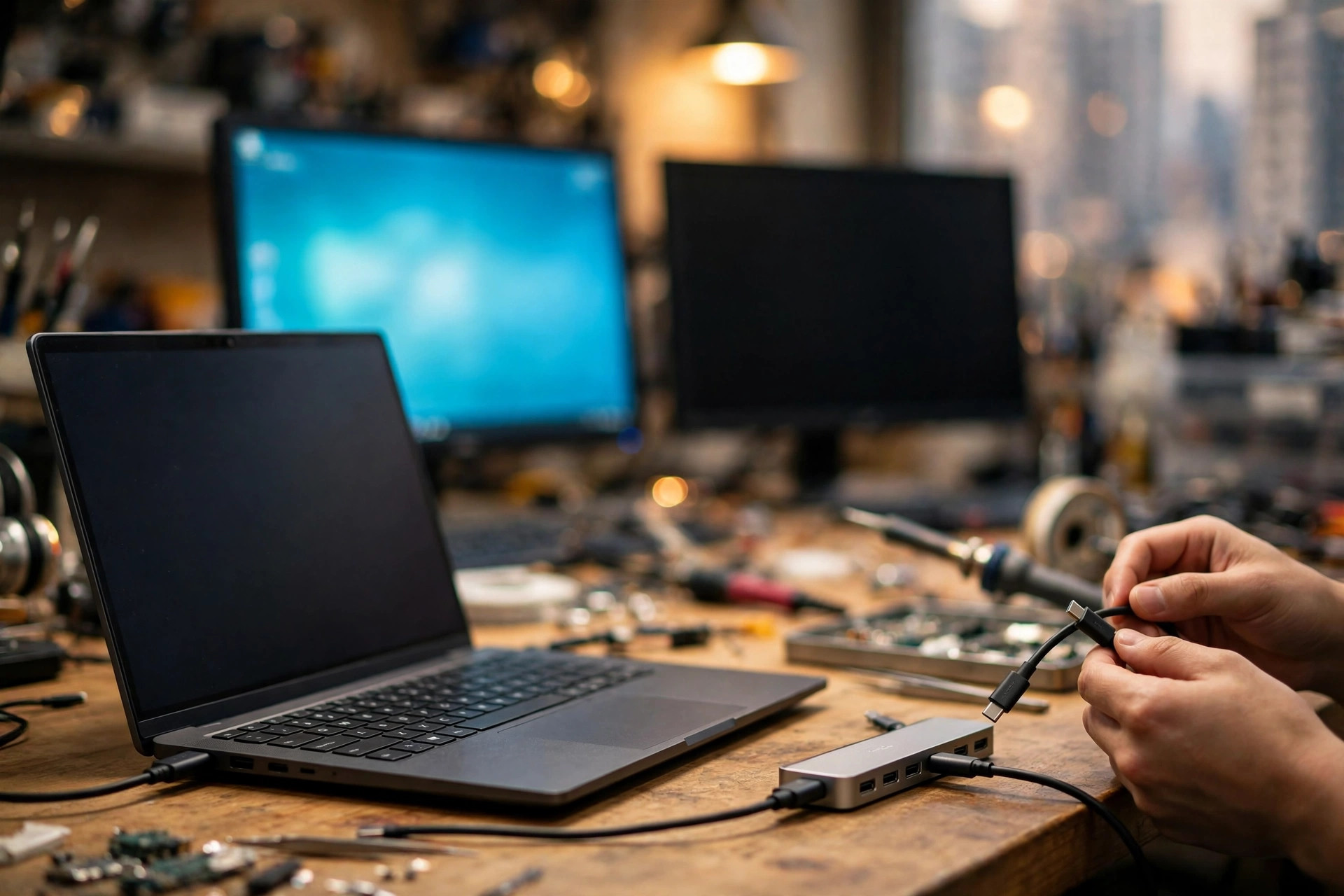
📌 Key Takeaways
- •[S1] VESA - VESA Brings DisplayPort to New USB Type-C Connector — https://vesa.org/featured-articles/vesa-brings-displayport-to-new-usb-type-c-connector/
- •[S2] VESA - VESA Releases Updated DisplayPort Alt Mode Spec to Bring DisplayPort 2.0 Performance to USB4 and New USB Type-C Devices — https://vesa.org/featured-articles/vesa-releases-updated-displayport-alt-mode-spec-to-bring-displayport-2-0-performance-to-usb4-and-new-usb-type-c-devices/
- •[S3] VESA - VESA Publishes DisplayPort Standard Version 1.4 — https://vesa.org/featured-articles/vesa-publishes-displayport-standard-version-1-4/
- •[S4] VESA - VESA and MIPI Alliance Announce the Adoption of VESA's New Display Stream Compression Standard — https://vesa.org/featured-articles/vesa-and-mipi-alliance-announce-the-adoption-of-vesas-new-display-stream-compression-standard/
- •[S5] VESA - VESA Display Standards Updates(2023 10 PDF) — https://vesa.org/wp-content/uploads/2023/11/VESA-October-2023-Seoul-Workshop-Presentations.pdf
# Laptop USB-C Dock Dual-Monitor Failure: An Advanced Guide to DisplayPort Alt Mode Bandwidth, MST Splitting, DisplayLink and Thunderbolt in Hong Kong
Introduction: Four Channels, One Budget
One monitor on a USB-C dock shows a picture while the other stays black. Or both monitors show a picture, but one of them flickers every few seconds. Or both monitors show exactly the same picture, and no setting in the display panel will switch them to extended desktop. All three look like "the dock is broken", but behind them can sit four completely different channels going wrong: video lanes short of bandwidth, a splitter chip inside the dock running in the wrong mode, a power negotiation failure leaving the dock half-initialised, or an operating system that simply does not support that kind of splitting. VESA's DisplayPort Alt Mode material states that USB-C can repurpose some or all of its four high-speed lanes for DisplayPort video while still carrying USB data and power, but the lane count is fixed, so lanes given to video leave fewer for USB [S1]. Plugable's guide reduces the problem to the same sentence: the question is not "does it have USB-C", but "how does this machine send video, and how many displays does it actually support" [S7].
The first idea to take in is that dual-monitor failure is usually not "broken" but "not enough bandwidth, the wrong path, or the wrong mode". Each of the four channels has its own ceiling: the video lane ceiling comes from the DisplayPort version, USB data can steal video lanes, short power can leave a dock unable to initialise fully, and operating system support for multiple streams has hard limits of its own. When any one ceiling sits below what two screens need together, the result is a black second monitor, flickering, a forced drop in resolution or refresh rate, or two monitors that can only mirror. The right starting point for fault-finding is not to change the monitor or the laptop first, but to establish which mode the laptop port uses, which chip path the dock uses, which certification the cable carries, and how much bandwidth two monitors need together.
The second idea is that a "maximum" number is never a promise. A box that says "dual 4K" can mean dual 4K at 30 Hz, dual 4K at 60 Hz only on a DisplayPort 1.4 host with DSC, or two output ports that cannot both be used at the same time. VESA's FAQ material also warns that plugging a display into a Type-C port that does not support DisplayPort over USB-C gives the display no video data at all, so the screen stays fully black [S54]. The words on the box are only a starting point. The real answer lives in the laptop specification page, the dock specification page, and the two monitors' resolutions added together.
The third idea is that Hong Kong usage makes these mechanism problems worse. Offices share docks, with different laptop models taking turns on the same dock, so one dock can behave completely differently on different laptops. Home desks use long cables to suit the layout, and signal loss makes the link drop speed on its own. Humid air speeds up contact corrosion, and daily commuting puts sideways force on the port. None of these factors appear in a maker's laboratory numbers, yet they decide in practice whether dual monitors stay stable. Readers who want to check the charging arrangements can see pricing, and readers who want a closer check can use diagnostics.
This guide starts at the mechanism layer: how DisplayPort Alt Mode shares lanes and budgets bandwidth, how MST splits one signal into two, how DSC compresses bandwidth, how DisplayLink and Thunderbolt take two completely different paths, how power delivery affects video, and how to read cable certification. It then sets the official dual-monitor support tables from Dell, HP, Lenovo and CalDigit side by side, takes apart the external display ceiling of every Apple Silicon generation, and works through a layered fault-finding flow from cable to laptop. It closes with Hong Kong conditions, a checklist to run before buying a dock, and a repair, replace or upgrade framework, so that readers already hold the whole diagnostic picture before they bring anything in.
Symptom Classification: First Work Out Which Kind of "Not Working"
"Dual monitors not working" is a label for at least five different faults, and classifying it wrong sends the whole investigation in the wrong direction. The first kind is a second monitor that stays fully black while the system cannot see it at all. The second kind is a second monitor the system can see, but whose screen stays black or reports "no signal". The third kind is two monitors that both show a picture, but always the same picture, with no way to select extended desktop. The fourth kind is two monitors that both show a picture, but one of them flickers or goes black for a few seconds and then comes back. The fifth kind is two monitors that both show a picture, but with resolution or refresh rate dropped on their own, for example a 4K monitor falling to 1080p, or 60 Hz falling to 30 Hz. These five symptoms point at different layers, and the order of checks differs for each [S20][S49].
A second monitor the system cannot see at all most often points at the cable, port, dock, driver or firmware layer: a cable that cannot carry video at all, a laptop port without Alt Mode, dock firmware that has never been updated, or a DisplayLink driver that was never installed. A monitor the system can see but that stays black most often points at the display mode, or at a resolution or refresh rate beyond what the monitor or dock can take, so the monitor reports "no signal". Two monitors that only mirror most often point at an SST limit or at macOS not supporting MST extension, which is a limit of the mode itself rather than a fault. Intermittent flicker most often points at cable signal integrity, dock overheating, or a power budget taken by peripherals. An automatic drop in resolution most often points at a bandwidth budget that does not add up, with the system stepping down on its own to hold the connection [S49][S50].
When recording symptoms, several facts have to be written down: whether the problem has "never worked" or "worked before and suddenly stopped"; which monitor fails, or whether the two take turns failing; whether flicker appears at switch-on or only after a period of use; whether moving the cable changes anything; and whether lowering the resolution brings the second monitor back. These observations need no tools, they can be made at the desk, and the answers decide directly whether the next step is to change the cable, update firmware, or bring the machine in. A fault that appeared after an update points first at drivers, firmware, an operating system update, cable wear, or dock overheating. A fault that never worked points first at the wrong dock type, a laptop DisplayPort version that is too old, or an Apple chip ceiling [S46].
Another key question is which item the fault follows. Swap the two monitors between the dock output ports: if the fault follows the monitor, the monitor is at fault; if it follows the dock port, the dock port or the MST split is at fault. Connect the dock to another laptop known to be good: if dual monitors work there, the original laptop's port, driver or DisplayPort version is the likelier cause; if only one monitor works there too, the dock is the likelier cause. This habit of changing one variable at a time is the principle this guide returns to again and again: changing everything at once leaves no way to know which change fixed it, so the next failure has to be guessed from scratch [S20].
| Symptom | Can the system see the second monitor | Most likely layer | First step |
|---|---|---|---|
| Second monitor fully black, system cannot see it | No | Cable, port, dock, driver, firmware | Use the short cable supplied with the dock; test the laptop port with one monitor direct |
| Visible in settings but black or "no signal" | Yes | Resolution or refresh rate beyond the ceiling | Lower the resolution or refresh rate and try again |
| Two monitors always mirrored, extension unavailable | Yes | SST limit or macOS not supporting MST | Confirm whether the dock is MST or SST, and whether the laptop runs Windows or macOS |
| Intermittent flicker, black for seconds then back | Yes | Cable signal, dock overheating, short power | Change to a short cable, improve cooling, remove high-draw USB peripherals |
| Resolution or refresh rate drops on its own | Yes | Bandwidth budget does not add up | Work through the bandwidth budget, lower the resolution, or switch on DSC |
DisplayPort Alt Mode: How Four Lanes Are Shared
USB-C is only a connector shape, not a promise of capability. A USB-C cable can lawfully carry only USB 2.0 data, and one laptop can carry several USB-C ports with different abilities [S50]. DisplayPort Alt Mode is the mechanism that lets USB-C carry video: VESA stated when it announced Alt Mode in 2014 that Alt Mode would repurpose some or all of the four existing SuperSpeed USB lanes for DisplayPort video, while other signals in the connector would carry the DisplayPort AUX channel and Hot Plug Detection [S1][S59]. The same document states that Alt Mode can use only one or two lanes for video and leave the rest for SuperSpeed USB data, and that if all four lanes go to video, USB 2.0 can still travel on dedicated pins [S1].
VESA's Alt Mode 2.0 announcement goes further, stating that USB-C can carry up to 80 Gbps of DisplayPort video data using all four high-speed lanes, or up to 40 Gbps while still carrying SuperSpeed USB data [S2]. The same announcement on the DisplayPort site confirms that Alt Mode 2.0 supports the full DisplayPort 2.0 feature set and works with the USB4 specification [S60]. The 80 Gbps figure is a DisplayPort 2.0 era ceiling, not the real ceiling of a DisplayPort 1.2 or 1.4 laptop, and it has to be calculated separately for each laptop's DisplayPort version. An old laptop does not gain speed by buying a cable labelled DisplayPort 2.1; the slowest link in the chain still sets the ceiling.
Lane sharing has two common layouts. In the first, all four lanes go to video: video bandwidth is at its largest, but the dock's USB 3 ports fall back to USB 2.0 speed, because the high-speed lanes are all taken by video. In the second, two lanes carry video and two carry USB 3.x: USB ports stay fast, but video bandwidth is cut in half. VESA notes that the two-lane layout is common in USB-C DisplayPort Alt Mode [S5], and the 2014 VESA document uses a dock as its example, stating that two-lane DisplayPort at 8.1 Gbps per lane can carry SuperSpeed USB data at the same time and support one 4K UHD monitor. Note that the text says "one", not "two" [S1]. This is the most common mechanism behind "one monitor works, two do not": the fault is not the monitor, but half the bandwidth already given to USB when the lanes were shared out.
How can a reader tell which layout their laptop uses? The most direct way is to watch the symptoms: whether a USB 3 external drive on the dock falls to USB 2.0 speed, whether the second monitor suddenly appears after USB peripherals are unplugged, and whether USB speed recovers after the resolution is lowered. Some laptop makers state the port's DisplayPort version and lane layout on the specification page, but not every maker does. Where the specification page stays silent, the comparison tests above have to supply the answer. Readers who want to check the charging arrangements can see pricing, and readers who want a closer check of which mode a laptop port actually supports can use diagnostics.
Another detail that is often missed is that different USB-C ports on one laptop can have completely different abilities. Some laptops give video output to only one port, leaving the other for data or charging only; some give Thunderbolt to the left port and plain USB-C to the right. Microsoft's guide also notes that USB-C port abilities differ from port to port, and the cable should go to the port that supports the right Alt Mode [S50]. When fault-finding, trying every USB-C port on the laptop is a necessary step; no two ports should be assumed alike. The USB-C video guide from displaycard-repair.com explains the same mechanism, showing how the combination of DisplayPort Alt Mode, Thunderbolt, USB4, cable and dock decides whether an external display can show a picture at all [S40].
| Layout | Video lanes | USB data lanes | Video bandwidth (HBR3) | When it fits |
|---|---|---|---|---|
| All four lanes to video | 4 | 0 (USB 2.0 only) | 25.92 Gbps effective | Dual monitors take priority, USB speed does not matter |
| Two lanes video plus two lanes USB 3 | 2 | 2 | 12.96 Gbps effective | One 4K monitor plus fast USB storage |
| All four lanes to video (HBR2 laptop) | 4 | 0 (USB 2.0 only) | 17.28 Gbps effective | One 4K monitor or dual 1080p |
| Two lanes video plus two lanes USB 3 (HBR2 laptop) | 2 | 2 | 8.64 Gbps effective | One 1080p or one 1440p monitor |
| No Alt Mode | 0 | 4 | 0 | No native dock will show a picture; only DisplayLink can work |
Bandwidth Budget: HBR2, HBR3 and UHBR Maths for Dual Monitors
Judging whether dual monitors can work starts with counting bandwidth. VESA's published per-lane rates and the 8b/10b coding overhead give the effective payload of every layout. DisplayPort 1.2 is HBR2 at 5.4 Gbps per lane; DisplayPort 1.4 is HBR3 at 8.1 Gbps per lane; DisplayPort 2.x is UHBR at 10, 13.5 or 20 Gbps per lane [S5]. VESA's early HBR3 certification programme release also states that HBR3 totals 32.4 Gbps (8.1 Gbps per lane times four lanes), with combined audio and video payload of 25.92 Gbps, half as fast again as HBR2 [S51]. DisplayPort 1.2 and 1.4 use 8b/10b coding, so of every 10 bits sent only 8 bits carry real data, an overhead of one fifth, and the effective payload formula is per-lane rate times 0.8 times lane count [S52].
By that formula, the four common layouts give these effective payloads: two lanes of HBR2 give 8.64 Gbps, two lanes of HBR3 give 12.96 Gbps, four lanes of HBR2 give 17.28 Gbps, and four lanes of HBR3 give 25.92 Gbps. These numbers agree across several independent checks: the GearGeeks derivation table lists the same payload numbers [S42], and Homelab Insider calculates the same way, giving 17.28 Gbps for four lanes of HBR2 and 25.92 Gbps for four lanes of HBR3 [S41]. DisplayPort 2.1 UHBR rates use 128b/132b coding instead, with overhead of only about three percent, so four lanes of UHBR10 give an effective payload of 38.69 Gbps, UHBR13.5 gives 52.22 Gbps, and UHBR20 gives 77.37 Gbps [S53]. UHBR rates only apply when the laptop, cable and monitor all support DisplayPort 2.0 or 2.1 at the same time; an old laptop gains nothing from them.
How much bandwidth does one monitor need? Under VESA Coordinated Video Timings reduced blanking, 8-bit colour depth, and RGB 4:4:4, one 4K60 monitor (3840 by 2160 at 60 Hz) needs a net video payload of about 12.54 Gbps, and two 4K60 monitors together need about 25.08 Gbps [S41][S43]. Dell's WD19S user guide lists official numbers that sit close to these: one FHD monitor at 60 Hz needs at least 3.2 Gbps, QHD at 60 Hz needs 5.6 Gbps, 4K at 30 Hz needs 6.2 Gbps, and 4K at 60 Hz needs 12.5 Gbps [S61]. Setting demand against payload gives the mechanism answer: two lanes of HBR3 give only 12.96 Gbps, so one 4K60 monitor already sits near the ceiling and dual monitors must step down; four lanes of HBR2 give only 17.28 Gbps, so dual 4K60 uncompressed is physically impossible; four lanes of HBR3 give 25.92 Gbps, which is mathematically above 25.08 Gbps, but real framing overhead makes dual 4K60 uncompressed hard to run reliably [S41].
This is why "one monitor works, two do not" is so common. One 4K60 monitor needs only 12.5 Gbps, which four lanes of HBR2 cover with room to spare; adding a second 4K60 monitor takes the total to 25.08 Gbps and straight past the ceiling. Dell's community reply gives the same mechanism in a maker's own words: an ordinary WD19 (the non-Thunderbolt version) needs a system supporting DisplayPort 1.4 and HBR3 over USB-C to drive dual 2560 by 1440 monitors, and a system supporting only DisplayPort 1.2 and HBR2 has bandwidth for only one 2560 by 1440 monitor [S21]. This is a bandwidth wall stated directly in maker material, not a fault in one monitor. Readers who want to check the charging arrangements for different cases can see pricing, and readers who want help adding up two monitors' combined bandwidth can use diagnostics.
In practice, when the bandwidth budget does not add up, the system does not warn that bandwidth is short. Instead it quietly lowers the second monitor's resolution or refresh rate, or simply stops sending the second signal. What the user sees is "the second monitor does not work", when the real cause is a budget that fails. The check is direct: drop both monitors to 1440p60 or 4K30, and if both then appear and stay stable, the cause is bandwidth, not broken hardware. Dual 1440p60 together need about 11.26 Gbps and dual 4K30 together need about 12.54 Gbps, and both combinations fit on four lanes of HBR2 [S43].
| Layout | Effective payload | One 4K60 (12.54 Gbps) | Dual 4K60 (25.08 Gbps) | Dual 1440p60 (11.26 Gbps) |
|---|---|---|---|---|
| Two lanes HBR2 | 8.64 Gbps | Not enough | Not enough | Not enough |
| Two lanes HBR3 | 12.96 Gbps | Barely enough, almost no margin | Not enough | Enough |
| Four lanes HBR2 | 17.28 Gbps | Enough | Not enough, only about 4.74 Gbps left | Enough |
| Four lanes HBR3 | 25.92 Gbps | Enough | Barely enough in theory, unstable in practice | Enough |
| Four lanes UHBR10 | 38.69 Gbps | Enough | Enough | Enough |
| One-monitor layout | Net video demand (derived, 8-bit, CVT-RB) | Note |
|---|---|---|
| 1080p60 | About 3.2 Gbps | Dell official number [S61] |
| 1440p60 | About 5.63 Gbps | Two together need about 11.26 Gbps |
| 4K30 | About 6.2 Gbps | Dell official number [S61] |
| 4K60 | About 12.54 Gbps | Dell official number 12.5 Gbps [S61] |
| Dual 4K60 together | About 25.08 Gbps | Needs four lanes of HBR3 or DSC |
| Dual 1080p60 together | About 6.4 Gbps | Even HBR2 can carry this |
MST Splitting: How One Signal Becomes Two
MST (Multi-Stream Transport) is the DisplayPort 1.2 feature that lets one DisplayPort link carry several independent video streams, which a branch device (a monitor with a built-in MST hub, or a separate MST hub) then splits between monitors [S27]. Eaton's MST material states that an MST hub divides total bandwidth between the monitors attached to it, with a 1080p monitor taking about 22 percent of bandwidth and a 4K monitor taking 40 percent or more; on DisplayPort 1.2, up to four 1080p monitors can be attached [S27]. Plugable's guide uses the same comparison: Alt Mode is the video road, and MST is the traffic controller dividing one native DisplayPort connection's usable bandwidth between several monitors [S7].
The key mechanism is that adding a monitor never adds bandwidth. Every monitor on the same MST chain shares one DisplayPort link and one total bandwidth budget; raising one monitor's resolution, refresh rate or colour depth leaves less bandwidth for the others, and when total demand passes the ceiling, the monitor added last may not be detected at all, or the system lowers resolution or refresh rate on its own [S39]. This explains why "each monitor works on its own, but together they fail" is a classic MST bandwidth symptom, not a row of monitors breaking one after another. Testing each monitor on its own and finding it good proves only that each monitor is good; it proves nothing about the whole system.
MST topology has three roles: source (the device producing the DisplayPort signal, usually the graphics card or a laptop output supporting DisplayPort Alt Mode), branch device (the splitting device, which can be the MST hub built into the first monitor, or a standalone external MST hub), and sink (the monitor that actually shows the picture) [S39]. Daisy chaining runs from the graphics card DisplayPort output to the first monitor's DisplayPort input, then from the first monitor's DisplayPort output to the second monitor's DisplayPort input, and so on; the external hub layout runs from the graphics card to the hub input, with each hub output feeding one monitor [S39]. Eaton also notes that daisy chaining needs the first monitor to carry a DisplayPort input and a DisplayPort output that both support MST [S27]. Where the first monitor has no DisplayPort output, or its DisplayPort output does not support MST, daisy chaining cannot drive a second monitor, and the answer is an external MST hub or a Thunderbolt or DisplayLink dock, not suspicion of the second monitor.
MST also carries a time-slot overhead that can make a combination fail even when it looks "almost enough". MST divides the link into 64 time slots, of which the first is reserved, leaving 63 usable; each stream takes a whole number of slots rounded up from the bandwidth it needs, plus about 0.6 percent margin; if two streams need more than 63 slots together, they cannot run at that resolution and refresh rate [S44]. On DisplayPort 1.4 (HBR3), each slot is about 0.405 Gbps; two 1440p144 streams need 35 slots each, 70 in total, past 63, so they cannot both run at 144 Hz uncompressed, while dropping to 120 Hz takes 29 slots each, 58 in total, which works [S44]. This slot model shows that even when total bandwidth looks "almost enough", whole-number rounding can push a combination just past the line. Readers who want to check the charging arrangements can see pricing, and readers who want a closer check of MST topology and slot sharing can use diagnostics.
In practice, many MST dock dual-monitor faults are negotiation failures rather than breakage. The MST hub inside a dock has its own firmware, and the firmware version directly affects dual-monitor negotiation and stability. Lenovo's official firmware update document uses the Dual Display Travel Dock as its example, listing one firmware update that carries HUB FW, PD FW and MST HUB FW version numbers all at once [S24]. Where MST hub firmware is old, dual-monitor negotiation can fail, showing up as a second monitor that appears and vanishes, or a resolution locked at a low level. Firmware updates have to be downloaded for the exact dock model, since firmware for one model will not work on another, a point the firmware section covers in full.
| MST element | Role | What happens when it fails |
|---|---|---|
| Source (laptop, graphics card) | Produces the DisplayPort signal | DisplayPort version too old, bandwidth too low for dual monitors |
| Branch device (MST hub, first monitor) | Splits several streams | Negotiation fails, second monitor not detected |
| Sink (monitor) | Shows the picture | Input source wrongly selected, or no MST output support |
| Time slots (63 usable) | Whole slots shared out by bandwidth | Total past 63, combination fails, refresh rate has to drop |
| Bandwidth budget | All streams share one ceiling | Raising one monitor's specification lowers the other on its own |
DSC: Compressing Bandwidth, Not Adding Bandwidth
DSC (Display Stream Compression) is the key technology for getting past the dual 4K60 bandwidth wall, but its role is often misunderstood. VESA stated when it announced DisplayPort 1.4 in 2016 that DisplayPort 1.4 was the first DisplayPort standard to use VESA DSC technology, with DSC 1.2 transport reaching up to 3:1 compression, judged visually lossless in testing by VESA members [S3]. VESA's 2014 announcement of the DSC standard also states that DSC is an industry compression standard for video interfaces, giving visually lossless performance with low latency, and that DSC 1.0 can cut the data rate by up to 66 percent [S4]. Cable Matters' DSC material also notes that DisplayPort 1.4 with DSC can do far more than the same link without DSC: with DSC it can support 4K120 HDR or 8K60, while without DSC the same link can only support 4K60 HDR at 30 bits per pixel [S28].
Plugable's DSC material adds three points that matter most for buying and fault-finding [S8]. First, DSC can help a compatible laptop and docking station support more demanding display layouts, including dual 4K60, higher refresh rates and some 8K modes. Second, DisplayPort 1.4 does not automatically guarantee DSC support; the graphics hardware and the display connection involved both have to support the feature. Third, DSC and MST do different jobs: MST sends several independent display streams over one connection, while DSC reduces the bandwidth those streams need; DSC does not add physical bandwidth to the connection, and it does not override the number of displays the display processor supports [S8]. Digital Trends also notes that DSC is mathematically lossy but visually lossless compression, cutting data volume by up to about 3:1, adding almost no latency, and suiting interactive displays [S29].
The meaning for dual-monitor faults is direct: where laptop, dock and monitor all support DSC, dual 4K60 has a chance of running stably on four lanes of HBR3; where any one link in the chain does not support DSC, for example an old laptop, an old dock, or a monitor whose DisplayPort input lacks DSC, dual 4K60 falls back to the uncompressed budget and very likely fails. This is why the Lenovo ThinkPad USB-C Dock Gen 2 dual 4K number has two versions: the 2019 datasheet summary says "dual 4K at 30 Hz", the conservative number without DSC, while a newer retailer listing citing Lenovo specifications says "2 by 4K at 60 Hz (2-lane HBR3, MST, DSC 3:1)", the number with DSC [S70][S99]. Before buying, check the condition first: both numbers are maker text and only the conditions differ, so "Gen 2 supports dual 4K 60 Hz" on its own is not a promise without conditions.
How can a reader tell whether DSC is switched on? Windows has no direct switch showing DSC status, but indirect signs work: if dual 4K60 runs stably on four lanes of HBR3 while the uncompressed budget plainly falls short, DSC is very likely running; if dual 4K60 only manages 30 Hz, or one monitor drops to 1440p on its own, DSC is very likely off or unsupported somewhere in the chain. Some graphics driver panels show DSC status, and they are worth opening. Another place to look is the monitor's own menu: some monitors show DSC status in their input information, or carry a separate DSC switch that may be off by default. Readers who want to check the charging arrangements can see pricing, and readers who want a closer check of DSC support on all three sides can use diagnostics.
Finally, DSC is not a cure for everything. DSC cannot make an HBR2 laptop drive dual 4K60: even though DSC at 3:1 cuts dual 4K60 demand from 25.08 Gbps to about 8.36 Gbps, which four lanes of HBR2 at 17.28 Gbps could in theory carry, the graphics hardware of the DisplayPort 1.2 era very often does not support DSC at all. DSC also cannot raise the display processor's display count ceiling: where a chip supports only one external display, DSC will not turn it into two. DSC only shrinks bandwidth demand; it does not add physical bandwidth, and it is not a shortcut around a chip limit [S8][S53].
SST versus MST: Mirrored or Extended
SST (Single-Stream Transport) and MST (Multi-Stream Transport) are two completely different ways of splitting, and buying the wrong one means dual monitors can only ever mirror. Kensington's SST and MST comparison is one of the clearest maker sources on the subject [S18]. SST comes from 2006 DisplayPort 1.0 technology, and one downstream port allows only one external downstream device at a time; SST can "mirror" the second picture to other monitors, so every external monitor shows the same picture. MST arrived in 2010 with the DisplayPort 1.2 standard, and any DisplayPort 1.2 or later device carries MST ability, allowing one laptop host to stream independent video to several monitors, in a daisy chain or hub layout, supporting several 4K monitors [S18].
The Windows and macOS difference is the most important point in this section. Kensington notes that Windows laptops generally support MST, so a Kensington USB-C MST mobile dock can show two external monitors in extended mode on Windows, while macOS laptops connected by USB-C dock currently support only SST, so the same MST dock can only mirror the dual picture, with both displays sharing one landscape or portrait setting [S18]. Plugable's guide also confirms that macOS does not support MST for extending several independent displays, and that an MST dock on a Mac usually makes the attached monitors mirror instead of extending separately [S7]. Anker's official product page also states in its FAQ that, because of macOS and iPadOS limits, several monitors connected to a MacBook through that dock only mirror, since those systems support SST only, while Windows devices can use SST and MST together and support extended display [S25].
The way to tell them apart is direct: if two monitors show exactly the same picture, and Windows display settings cannot set the second monitor to "extend these displays" but only to "duplicate", while the same dock can extend on a Windows laptop, the cause is very likely an SST or macOS limit rather than a broken dock. Where Windows also can only mirror, the dock itself has to be checked for whether it is an SST hub, meaning a cheap hub that copies one video path to two monitors, or whether MST negotiation has failed. Before buying, the product page should be searched for "MST" or "Multi-Stream Transport"; where a product page only says "dual HDMI" and never says MST or DisplayLink, it should be assumed to be an SST mirror hub. This is one of the three most common ways of buying the wrong dock, and the misdiagnosis section returns to it in full.
Another detail worth noting is that MST dock behaviour on a Mac is not uniform. Some MST docks make two monitors mirror on a Mac, some leave the second monitor black, and some make the two monitors take turns flickering. These differences come from how the dock's internal MST hub answers a macOS SST request, and how monitor EDID data comes back. Whatever the visible form, the root cause is the same: macOS does not support MST extension. The fix is not another MST dock but a change of path: a DisplayLink dock, or a Thunderbolt dock used within the Mac's native ceiling, as the Apple Silicon and macOS sections explain. Readers who want to check the charging arrangements can see pricing, and readers who want help telling whether a dock in hand is SST or MST can use diagnostics.
| Item | SST | MST |
|---|---|---|
| Introduced | DisplayPort 1.0 (2006) | DisplayPort 1.2 (2010) |
| Independent pictures per downstream port | One; the second picture can only mirror | Several independent streams, can extend |
| Windows | Cannot extend, mirror only | Extends normally |
| macOS | Mirrors | Mirrors (macOS does not support MST extension) |
| Daisy chain | Not supported | Supported; first monitor needs a DisplayPort output |
| How to spot it before buying | Product page says dual HDMI only, never says MST | Product page states MST or Multi-Stream Transport |
Three Dock Paths Compared: MST, DisplayLink and Thunderbolt
Every USB-C dual-monitor dock on the market follows one of only three fundamentally different paths: native DisplayPort MST, DisplayLink, or Thunderbolt. Plugable's comparison table separates four technologies, counting Alt Mode itself [S7]. Turonic's buying guide groups the three dual-monitor paths the same way: MST (splitting one DisplayPort signal into two), DisplayLink (compressing video over USB in software), and USB4 or Thunderbolt (native high-bandwidth dual output) [S45]. Choosing a dock without first separating the paths sends every later check in the wrong direction.
A native DisplayPort MST dock needs no DisplayLink driver, since video is driven straight from the GPU, with low latency and a native colour path. It has two hard limits: the host has to support Alt Mode plus MST, and the DisplayPort version sets the bandwidth ceiling; macOS does not support MST extension, so on a Mac it can only mirror. Dell's WD19 series is a representative native-path example: Dell's official WD19 user guide symptom table states that where only one monitor shows and the other does not, the Windows display settings should be opened and an output chosen for the second monitor under "multiple displays"; with Intel graphics plus the laptop LCD only two extra displays are supported, while an NVIDIA or AMD discrete card supports three external displays plus the LCD [S20]. This shows that even on one dock, the number of external displays supported also depends on the GPU, not on the dock alone.
The DisplayLink dock path is completely different, and the next section covers it in full. In short, DisplayLink does not use the GPU's native DisplayPort output; instead software compresses the picture into USB data, so it can get around the chip's native display count ceiling, at the price of needing a driver, adding compression and latency, and using CPU and USB bandwidth. Synaptics, the owner of DisplayLink, states on its official chip page that DisplayLink technology combines host software acting as a virtual graphics card with a decompression and decoding chip in the device, using dynamic adaptive compression to keep data transfer smooth and efficient, and allowing several displays to be connected without changing host hardware [S16].
The Thunderbolt dock is the third path: a high-bandwidth native connection carrying native display signals, fast data, charging and networking over one cable. Intel's official Thunderbolt 4 announcement lists the certification demands: Thunderbolt 4 always delivers 40 Gbps, carrying data, video and power on one connection; certification demands video support for two 4K displays or one 8K display, PCIe at 32 Gbps, support for docks with up to four Thunderbolt 4 ports, and at least one computer port supporting charging [S6]. Plugable also warns, though, that Thunderbolt gives a high-bandwidth native docking experience but cannot pass the host computer's display limit [S7]. A Thunderbolt dock's dual-monitor ability is therefore the overlap of "host ceiling times dock ceiling", not something the dock can promise on its own. Readers who want to check the charging arrangements for different paths can see pricing, and readers who want help matching a path to a laptop model can use diagnostics.
The choice between the three paths should start from the laptop, not from the dock. Windows plus DisplayPort 1.4 plus dual 1440p or dual 1080p is already served by an MST dock. Windows plus DisplayPort 1.4 plus dual 4K60 calls for a Thunderbolt 4 dock or an MST dock supporting DSC. A base M1 or M2 Mac plus dual extended monitors calls for a DisplayLink dock. A base M3 Mac plus dual monitors can first try clamshell mode with a Thunderbolt dock, subject to the macOS version demands. The decision framework section gathers this choosing logic into a table.
| Technology | How video travels | Driver needed | Where it fits | Main limit |
|---|---|---|---|---|
| USB-C Alt Mode (native) | Native DisplayPort signal from the GPU straight over USB-C | No | Simple, no-driver-needed single display setups | USB-C port has to support video output; several displays usually need MST, Thunderbolt, USB4 or DisplayLink |
| MST | One native DisplayPort signal split into several independent streams | No | No-driver-needed multi-display extension on Windows and ChromeOS | macOS does not support MST extension; resolution and display count limited by host DisplayPort version, GPU and bandwidth |
| DisplayLink | Driver encodes video as USB data sent to the DisplayLink chip in the dock | Yes | Mixed Mac and Windows rooms, base Macs short of native display count | Needs software and macOS "screen recording" permission; not the best choice for latency-sensitive or image-heavy work |
| Thunderbolt | High-bandwidth native connection carrying native display signals, fast data, charging and networking over one cable | Usually no extra display driver | One-cable workstations wanting the highest bandwidth | Usually costs more; display support still limited by host chip, operating system and hardware specification |
DisplayLink in Depth: Virtual Graphics, Drivers and Limits
DisplayLink is the rescue for many Mac users, and also the source of many misdiagnoses. Its principle differs completely from the native path and has to be understood separately. Plugable's DisplayLink enterprise material explains that DisplayLink uses the host CPU and the built-in physical GPU to generate the video picture, compresses it quickly, turns it into USB data, sends it over a standard USB data connection to the DisplayLink hardware device, and the device then decompresses it quickly back into a video picture for HDMI or DisplayPort output; in other words, DisplayLink is at heart a "virtual" graphics processor that depends on the host CPU and physical GPU [S17]. Synaptics' official product page also states that DisplayLink works across macOS, Windows, ChromeOS, Ubuntu and Android, on Apple, Intel, AMD, Qualcomm and any ARM system on a chip, connecting more displays without being limited by platform hardware [S80].
This principle brings four mechanism consequences that have to be kept apart when fault-finding. First, no driver means no picture. A DisplayLink dock without DisplayLink Manager or USB Graphics Software installed will not show a picture on the second (or third) monitor, even where Windows already recognises the USB device itself. Plugable notes that on macOS, DisplayLink Manager App has to be installed and "screen recording" permission granted before the driver can get the information it needs to generate the picture; the permission is not actually recording or sending screen content [S7]. Anker's official support document for its DisplayLink dock (model 563) also states that DisplayLink has to be installed and "screen recording" switched on in macOS, or the 2K HDMI and 2K DisplayPort outputs cannot work normally [S26]. DisplayLink's official support document also states that Manager App does not depend on a macOS kernel extension, so installation is simpler and stays steadier across macOS upgrades [S81].
Second, CPU load and latency. Because the picture has to be compressed on the host, sent over USB, and decompressed in the dock, the DisplayLink path carries higher CPU load and latency than the native path. Plugable notes that DisplayLink suits office productivity work, but for latency-critical, colour-critical or image-heavy work, the native Alt Mode or Thunderbolt path fits better [S7]. Newer chip examples are DL-7400, reaching up to 2 by 8K 60 Hz or 4 by 4K 120 Hz; DL-7200, reaching up to 1 by 8K 60 Hz or 2 by 4K 120 Hz; and DL-6950, reaching up to 1 by 5K 60 Hz or 2 by 4K 60 Hz [S80]. When buying a dock, the chip model has to be checked too, not just the four letters "DisplayLink".
Third, protected content limits. Anker's model 563 official support document states that the dock's 2K HDMI and DisplayPort outputs do not support HDCP, so they cannot play HDCP-protected content, including some paid content on streaming platforms; playback may show a black screen or drop sharply in resolution [S26]. DisplayLink's support forum carries an official reply stating that some products may carry HDCP ability, but on macOS the feature needs work with the operating system maker, sits on the roadmap, and is not finished; some products carry no HDCP keys at all and can never decrypt protected content [S83]. Plugable also states plainly that DisplayLink cannot play protected content, and streaming content from services such as Netflix, Hulu and Amazon Prime will not play through a DisplayLink device [S85]. This is not a broken monitor but a known hard limit of the DisplayLink path, and no driver version will fix it.
Fourth, the link between driver versions and operating system updates. DisplayLink Manager has to move with macOS and Windows versions; after a major operating system upgrade, dual monitors may suddenly drop to one, flicker, or go black if DisplayLink Manager has not been updated at the same time. Fault-finding should start at the Synaptics official download page to check the newest version, not with changing the dock. Downloads should come only from the Synaptics official DisplayLink download page, never from a third-party driver site [S96]. How can a reader tell whether a dock in hand is DisplayLink? Windows Device Manager under Display adapters will show the word "DisplayLink"; the Mac menu bar will show a DisplayLink Manager icon; and the dock box or manual will state the DisplayLink chip model [S85].
Three more official limits are worth naming. First, macOS supports at most four virtual displays, whatever virtual display technology is used; even where a dock has six outputs, DisplayLink virtual displays on a Mac stop at four [S81]. Second, with FileVault switched on, a DisplayLink display shows nothing before the sign-in screen, because the FileVault encrypted disk has to be unlocked first and DisplayLink Manager is not yet running; the picture appears only after sign-in [S82]. Third, only the DL-7000 series can support HDR10, and only on Windows 11 23H2 or later; older generations have no HDR support, and Mac users get 8-bit output only from DisplayLink at present [S84]. Video editing, colour grading and HDR monitoring should not use a DisplayLink monitor as the main reference screen. Readers who want to check the charging arrangements can see pricing, and readers who want a closer check of DisplayLink driver versions and permission settings can use diagnostics.
| Limit | Official wording | Practical effect |
|---|---|---|
| Protected content playback fails | Some products carry no HDCP keys and can never decrypt; on macOS the HDCP feature is unfinished | Streaming content on a DisplayLink monitor may give sound with no picture, or go fully black |
| macOS virtual display ceiling of four | macOS supports at most four virtual displays | Even with six dock outputs, DisplayLink virtual displays on a Mac stop at four |
| FileVault sign-in screen shows nothing | DisplayLink Manager is not running before the disk is unlocked | Switch-on shows no sign-in screen; the lid has to be opened to type the password; the dock is not broken |
| HDR and 10-bit colour limits | Only DL-7000 series supports HDR10, on Windows 11 23H2 or later; Mac output is 8-bit only | Video editing, grading and HDR monitoring cannot use a DisplayLink monitor as the main screen |
| Games, fast motion and colour-critical work do not fit | For latency-critical, colour-critical or image-heavy work, the native path fits better | Gaming, editing, 3D and grading will show visible delay and compression marks |
| Clamshell mode | DisplayLink Manager carries a "system sleep on display-closed mode" setting | For dual monitors with the lid closed, that setting has to be switched off, or closing the lid puts the machine to sleep |
Thunderbolt: The 40 Gbps Promise and Its Limits
Thunderbolt 3 and Thunderbolt 4 both look like 40 Gbps on the surface, but what they promise differs widely, and this is where buying a dock most often goes wrong. Intel's official comparison table notes that the minimum demand on a USB4 computer is only 20 Gbps, one display, and no forced charging support; 40 Gbps is a higher tier a maker can choose, not a promise every USB4 port carries [S56]. Thunderbolt 4 is different: certification demands that every certified port manage 40 Gbps plus 32 Gbps of PCIe plus dual 4K, while in the Thunderbolt 3 era some ports managed only 20 Gbps or one 4K display, so each model has to be checked on its own. Thunderbolt 5 pushes two-way bandwidth further to 80 Gbps, with Bandwidth Boost giving up to 120 Gbps one way and 40 Gbps the other way, a PCIe tunnel minimum of 64 Gbps, a display minimum of dual 6K, and up to three 4K 144 Hz displays [S56][S57].
Intel's news release of 12 September 2023 states that Thunderbolt 5 gives 80 Gbps two-way bandwidth, Bandwidth Boost up to 120 Gbps, PCIe data throughput twice that of Thunderbolt 4, built on USB4 V2, DisplayPort 2.1 and PCIe Gen 4, with full backward compatibility [S58]. Intel's Thunderbolt 5 technology brief also states that Thunderbolt 5 uses PAM-3 signalling, and that 80 or 120 Gbps can run on the same passive cables, connectors and circuit boards that previously carried only 40 Gbps [S57]. Note, though, that Thunderbolt 5's 120 Gbps is only a Bandwidth Boost in the "display direction"; data transfer does not also become 120 Gbps, and an external storage device still runs at 80 Gbps two-way. The 120 Gbps figure should never be read as the dock's speed for every purpose.
Thunderbolt certification is compulsory: Intel verifies and certifies every product using the Thunderbolt mark, while USB4 certification is voluntary, which is the institutional reason the two promises carry different weight [S56]. CalDigit TS4 is a common Thunderbolt 4 dock example: official specifications give it 18 ports, up to 98W host charging, and a display ceiling of 8K60 or dual 4K60; Windows and ChromeOS can handle dual 4K60 or one 8K60 (subject to computer support), M1 Pro and M1 Max Macs can reach dual 6K60, and a standard M1 Mac supports only one external display [S47]. This proves again that a Thunderbolt dock's dual-monitor ability is the overlap of host ceiling and dock ceiling, not something the dock can promise alone.
Kensington's Thunderbolt 4 dual 4K dock (SD5700T) product page also states that base M1 and M2 MacBooks, or USB-C Alt Mode laptops, support only one external display, even where the dock itself supports dual 4K [S19]. Buying has to check the laptop chip and the dock product page's "display count" column together, not just the "Dual 4K" words on the dock box. StarTech's Thunderbolt 4 dock datasheet also lists 96W power delivery with one 8K or dual 4K 60 Hz display, a typical Thunderbolt 4 dock specification [S48]. Readers who want to check the charging arrangements can see pricing, and readers who want a closer check of Thunderbolt versions and certification demands by laptop model can use diagnostics.
A Thunderbolt dock connected to a non-Thunderbolt USB-C port may give charging and some USB functions only, with no video output at all. This is the third of the three most common ways of buying the wrong dock: buying a Thunderbolt dock when the laptop has no Thunderbolt. Before buying, the laptop port has to be confirmed to carry the Thunderbolt mark and maker specification support; a matching connector shape alone proves nothing. On Thunderbolt cable certification, a certified Thunderbolt cable carries the lightning mark on the connector housing, and newer cables also print the number 3, 4 or 5 for Thunderbolt 3, 4 or 5 [S91]. Without the lightning mark, a cable is usually plain USB-C, whatever the seller writes about "Thunderbolt compatible", since "compatible" very often means only "it plugs in", not "it runs at Thunderbolt speed".
| Item | Thunderbolt 3 | Thunderbolt 4 | Thunderbolt 5 |
|---|---|---|---|
| Two-way total bandwidth | 40 Gbps | 40 Gbps | 80 Gbps; Bandwidth Boost up to 120 Gbps one way, 40 Gbps the other way |
| PCIe tunnel minimum promise | No uniform demand, differs by maker | 32 Gbps | 64 Gbps |
| Display minimum promise | Differs by maker | Dual 4K displays | Dual 6K displays; up to three 4K 144 Hz displays |
| Charging minimum demand | No uniform demand | Thin laptops (drawing under 100W) must charge through the Thunderbolt port | Must support 140W; up to 240W |
| Base standard | — | USB4 40 Gbps | USB4 v2, DisplayPort 2.1, PCIe Gen 4 |
| Certification character | Compulsory certification | Compulsory certification | Compulsory certification |
USB4: The 20, 40 and 80 Gbps Trap
USB4 was published by the USB-IF, with architecture built on the Thunderbolt protocol contributed by Intel [S55]. USB4 1.0 was published on 29 August 2019, defining 20 Gbps and 40 Gbps tiers, and able to carry several protocols at once, including USB, DisplayPort and PCIe tunnelling [S55]. USB4 2.0 was published in October 2022, adding 80 Gbps symmetric transfer, or asymmetric 120 Gbps one way with 40 Gbps the other way, aimed mainly at high-resolution displays [S31]. Tom's Hardware's USB4 questions and answers also gather these version differences, including Apple support [S30]. The Wikipedia USB4 entry lists the same version numbers [S31]. StarTech's USB4 material also states that USB4 is the new standard for connectivity, bringing several protocol tunnels together [S32].
The key trap is that not every USB4 port runs at the same speed. Intel's official comparison table minimum is set out in the Thunderbolt section [S56]. Buying a laptop or dock on the three letters "USB4" alone is not enough; the speed has to be checked as 20 or 40 Gbps. This trap touches dual monitors directly: a 20 Gbps USB4 port connected to a dock marked 40 Gbps still has its video bandwidth capped by the port's own 20 Gbps ceiling, so dual 4K60 very likely fails. The other way round, a 40 Gbps USB4 port connected to a 20 Gbps dock is dragged down by the dock. The weakest of the five links always sets the ceiling.
Another USB4 feature is that it can carry several protocols at once. One USB4 connection can carry USB data, DisplayPort video and a PCIe tunnel together, with bandwidth shared between the three. This sharing means that copying a large file to an external SSD while connected to a USB4 dock takes bandwidth away, and video may have to step down. EDOM's USB4 cable material lists the cable classes in USB-IF documents; the cable section covers this in full [S34].
In practice, how can a reader tell whether a laptop's USB4 port runs at 20 or 40 Gbps? The most reliable way is the laptop's official specification page, checking whether the USB4 line states a speed. Some laptop makers write "USB4 40 Gbps", while others write only "USB4"; the second case should be assumed to be the 20 Gbps minimum until evidence says otherwise. Windows Settings under Bluetooth and devices, USB, and USB4 hubs and devices can also show USB4 ability, and it is worth opening during fault-finding. On a Mac, holding Option while opening the Apple menu and going to System Information under Thunderbolt or USB4 shows whether a device is listed at Thunderbolt speed; where the same device falls into the USB section, the cable or the adapter in between is not Thunderbolt [S91]. Readers who want to check the charging arrangements for different cases can see pricing, and readers who want a closer check of a laptop USB4 port's real speed can use diagnostics.
| USB4 version | Published | Speed tiers | Main purpose |
|---|---|---|---|
| USB4 1.0 | 29 August 2019 | 20 Gbps, 40 Gbps | Carrying USB, DisplayPort and PCIe tunnelling together |
| USB4 2.0 | October 2022 | 80 Gbps symmetric; asymmetric 120 Gbps one way, 40 Gbps the other way [S31] | High-resolution displays |
| USB4 computer minimum demand | — | 20 Gbps, one display, charging not forced | Not every USB4 port runs at 40 Gbps |
| Thunderbolt 4 (for comparison) | 2020 | 40 Gbps (compulsory) | Dual 4K, 32 Gbps PCIe |
| Thunderbolt 5 (for comparison) | 2023 | 80 Gbps; Bandwidth Boost 120 Gbps | Dual 6K, 64 Gbps PCIe |
Power Delivery: Negotiation, Brick Wattage and Passthrough Loss
USB Power Delivery (PD) is not "plug it in and get so many watts". It is a negotiation between charger, dock and laptop: the power source announces the voltage and current combinations it can supply, the power sink picks one combination, and the cable's e-marker chip then reports the current and voltage ceiling the cable can safely carry. Microsoft's Surface USB-C troubleshooting page states that a USB-C PD charger has to supply at least the same wattage as the Surface's original power supply, or charging may fall short [S14]. XDA's hands-on report also notes that many docks marked 100W PD on the box deliver fewer watts to the laptop battery system in practice, because the dock itself keeps part of the power for its internal bridge chip, ethernet controller, audio codec and downstream USB controller; with a dock fed by a 100W external brick, the dock may keep about 15W to 20W for its own running costs [S36].
How does short power affect video? There are three mechanism paths. First, the dock may fail to initialise fully. Where PD negotiation fails, a dock may give charging only, with no other functions, or its USB and video functions may never initialise. Dell's WD19 guide also states that where BIOS reports no AC adapter installed, or the computer warns that brick wattage is short, the WD19's original brick should be connected [S20]. Second, the laptop may slowly lose charge under heavy load. XDA reports that a high-performance laptop under a dock marked 100W PD can still slowly lose charge during moderate multitasking, because the dock's real output sits below the marked value, and several ports share one internal power rail: when a high-draw peripheral is attached (for example a bus-powered NVMe external case), the dock may announce a lower combination at the next PD renegotiation, forcing the laptop to ask for a lower voltage and current contract, with the charge rate possibly falling from 85W to 60W or lower [S36]. Third, thermal derating. XDA also notes that many docks show thermal derating under sustained heavy load: short tests pass, but running dual 4K60, 85W charging and a large file transfer together for a long time leaves the PD controller, video processing chip, DC-DC step-down converter and power MOSFETs running on passive cooling inside a small plastic or aluminium case, and their ratings shrink as temperature rises [S36].
Brick wattage has to be read from the dock brick, not only from the PD number on the dock box. Dell WD19 models use 130W, 180W or 240W bricks (by model), and the matching Dell brick for that model has to be used [S20]. CalDigit TS4 carries a 230W power supply and supplies up to 98W PD to the host [S47]. Both examples show the same principle: the "maximum PD output" on the dock box is not the brick wattage; brick wattage minus the dock's own draw and downstream USB power leaves the host charging budget. Changing a brick means using the dock's original brick or one of the wattage the maker specifies; a smaller brick can leave the dock unstable when dual monitors, charging and USB peripherals run together.
Need a laptop repair expert?
Free diagnosis · Transparent pricing · No fix, no fee · 180-day warranty
Passthrough charging means the dock supplies the laptop over the same USB-C cable that carries video and data. Checks should run in this order: whether the laptop's original charger can charge the laptop on its own; whether the dock brick is connected, is the original or specified wattage, and shows a normal indicator light; whether the dock's supplied USB-C or Thunderbolt cable connects the laptop; what Windows Settings under System and Power, or the laptop maker's power panel, reports for real charging wattage or a "plugged in, not charging" or "slow charging" message; and whether unplugging all bus-powered USB peripherals and leaving only dual monitors brings charging and video back to stable, since recovery shows the power budget was taken by peripherals [S36]. Where a laptop on a dock reports "Slow charger" or "PC isn't charging", Microsoft's Fix USB-C guide, as summarised by WindowsForum, classes these as power-related notices and advises using the charger and cable supplied with the device, connected to a USB-C port that supports charging [S50]. Readers who want to check the charging arrangements can see pricing, and readers who want a closer check of dock brick wattage and real charging wattage can use diagnostics.
UGREEN's dock stability material states that the three main causes of dock instability are short bandwidth, thermal throttling (the dock starting to drop connections after overheating), and power problems; when a controller chip reaches its heat ceiling it slows down, bringing intermittent disconnection, display flicker and slower storage [S37]. OfficeGadgetSlab's dock overheating guide lists the same symptom set: a dock that feels very hot to the touch, monitors flickering or dropping, USB devices dropping at random, ethernet stopping, and the dock switching off briefly; it notes that high PD load, dual 4K, three monitors and high refresh rates all add controller load and heat [S38]. In practice, where dual monitors work for the first few minutes after switch-on and only start flickering or dropping after sustained use, with a dock case that feels clearly hot, cooling and load should be checked first (move the dock off soft surfaces and out of closed spaces, and remove high-draw USB peripherals), rather than deciding at once that the dock is broken.
| Dock | Brick wattage | Maximum power to host | Note |
|---|---|---|---|
| Dell WD19S | 180W brick | Up to 130W for compatible Dell laptops | Matching model brick has to be used [S61] |
| Dell WD22TB4 | Brick wattage not stated, Thunderbolt 4 | Up to 130W ExpressCharge for Dell laptops; 90W for non-Dell laptops | Power is lower for non-Dell laptops [S63] |
| HP USB-C Dock G5 | Brick wattage not stated | Up to 100W for HP laptops; up to 75W for non-HP laptops | Power differs by brand [S66] |
| Lenovo Gen 2 (40AS) | 90W brick | Up to 60W to the laptop | 90W brick leaves only 60W after the dock's own draw [S70] |
| CalDigit TS4 | 230W power supply | Up to 98W | Brick wattage far exceeds host power because 18 ports also draw power [S47] |
| Typical dock marked 100W | 100W external brick | Real power to the laptop may sit below the marked value | Dock keeps about 15W to 20W for itself [S36] |
The cable is the cheapest, easiest part to change in a dual-monitor fault, and also the part most often overlooked. Tinkervault's USB cable material states that a cable reports its speed through its e-marker chip, and that the USB-IF mark shows speed and power together (for example 40 Gbps and 240W); a USB-C to USB-C cable in the certification programme has to carry this mark, while a USB 2.0 cable's mark shows power only [S33]. The same material notes that where a cable does not answer an e-marker query, the host will not switch on USB4 [S33]. The USB-IF official cables and connectors page also states that the purpose of the USB-IF cable certification programme is to give users a list of cables meeting USB quality standards, that not every cable carries the same ability, and that users carry the responsibility of choosing a certified cable with the ability they need [S89].
On power, Allion Labs' 240W (EPR) cable certification material states that USB-IF published the USB PD 3.1 specification in May 2021, adding Extended Power Range (EPR), which raised the PD 3.0 ceiling of 100W (20V, 5A) to 240W (48V, 5A); 240W cable certification demands that the cable carry a USB-IF recognised mark, or it fails compliance testing [S35]. Another PD 3.1 note also states that a standard cable is rated 3A, and any charger will be held to 60W until the cable is confirmed by electronic marking as 5A, and that the ceiling for a 40 Gbps data rate is 0.8 metres [S35]. The practical meaning is direct: using a 3A, 60W charging cable supplied with a phone to drive a dock holds PD negotiation to 60W even where the dock brick is 100W or more, and where the laptop needs more than 60W under heavy load, it will slowly lose charge and may even unsettle the dock's video stability.
USB-IF mark demands are specific: to pass the USB-IF compliance programme, every USB-C to USB-C cable class has to mark 60W or 240W power ability, and every cable other than high-speed USB (USB 2.0) cable also has to mark the data rate it supports. A USB 20 Gbps cable supporting 20V and 3A, for example, has to mark the combined "20 Gbps, 60W" performance and power mark [S89]. The mark has to be printed on the cable itself, on the connector housing, and the test laboratory checks it during testing; where a cable fails testing, it has no right to use the mark and cannot be sold on the market [S89]. Macworld's report also notes that on the new USB-IF marks, 40 Gbps stands for a USB4 cable and 60W or 240W stands for power ability, with certified cables showing the mark on the packaging or on the cable itself [S90].
The easiest cable to be caught by is one that shows wattage only and no speed number: it is a USB 2.0 cable. It can charge, but connected to a dock the monitor will certainly stay black, because it carries no high-speed lanes for video at all. Another giveaway is "100W" on its own, which is not a USB-IF certification tier at all: USB-IF certified power comes in only 60W and 240W tiers, and a 100W cable with no mark is only the seller's own claim. Readers who want to check the charging arrangements can see pricing, and readers who suspect the cable in hand is a charging-only cable can use diagnostics to check cable certification and real speed.
The passive and active cable difference sets the length ceiling. EDOM's USB4 cable material lists the cable classes in USB-IF documents: a passive 40 Gbps cable runs at most 0.8 metres, a passive 20 Gbps cable runs at most 2 metres, and an active 40 Gbps cable can reach 3 metres or more; past 0.8 metres, a passive cable cannot reliably carry 40 Gbps unless active signal conditioning is added [S34]. Tinkervault also notes that Thunderbolt 4 runs at 40 Gbps and Thunderbolt 5 at 80 Gbps two-way, reaching 120 Gbps under heavy video traffic in Bandwidth Boost mode, built on USB4 Version 2.0, DisplayPort 2.1 and PCIe Gen 4 [S33]. Intel's Thunderbolt 4 announcement also states that a universal Thunderbolt 4 cable can reach 2 metres [S6].
For dual monitors, the meaning is that the short cable supplied with the dock (usually 0.8 metres) is built for full speed, and it should not be swapped casually for a cheap 2-metre passive cable to drive dual 4K: extra length brings signal loss, the system may step down to 20 Gbps or lower on its own, and video then drops in resolution or flickers. Where the desk layout needs a long cable, an active or fibre cable should be chosen, with its certification mark checked for the speed needed (40 Gbps) and the PD wattage, rather than only the words "USB-C". A charging-only cable (with USB 2.0 data pins only) cannot carry video, even though the connector looks identical. A poor cable's failure mode is not "no signal at all" but "intermittent stepping down": where signal integrity falls short, the DisplayPort link first tries a lower link rate (for example HBR3 down to HBR2) or fewer lanes (four lanes down to two) to hold the connection, and the user sees monitor flicker, intermittent black screens, resolution dropping on its own, or a second monitor that comes and goes. Readers who want to check the charging arrangements for cable changes can see pricing, and readers who want a comparison test with a certified cable can use diagnostics.
| Mark | Data | Power | Common use |
|---|---|---|---|
| 60W (wattage only) | USB 2.0, up to 480 Mbps | 60W (20V by 3A) | Charging cable; cannot carry video, cannot be used for a dock or monitor |
| 240W (wattage only) | USB 2.0, up to 480 Mbps | 240W (48V by 5A) | High-power charging cable; still cannot carry video |
| 5 Gbps, 60W or 240W | 5 Gbps | 60W or 240W | Basic external hard drive |
| 20 Gbps, 60W or 240W | 20 Gbps | 60W or 240W | Fast SSD, most docks |
| 40 Gbps, 60W or 240W | 40 Gbps | 60W or 240W | USB4 dock and display |
| 80 Gbps, 60W or 240W | 80 Gbps | 60W or 240W | Only devices with 80 Gbps ports can use it |
| Cable class | Maximum length | Maximum speed | Key limit |
|---|---|---|---|
| Passive 40 Gbps | 0.8 metres | 40 Gbps | Cable gauge limits signal integrity |
| Passive 20 Gbps | 2 metres | 20 Gbps | Signal loss without an active chip |
| Active 40 Gbps | 3 metres or more | 40 Gbps | Needs a signal conditioning chip, costs more |
| VESA DP8K certified DisplayPort cable | Standard market length | 32.4 Gbps (HBR3) | Already enough for dual 4K60 |
| VESA DP54 certified DisplayPort cable | 2 metres | 54 Gbps (UHBR13.5) | Current DisplayPort 2.1a tier |
| VESA DP80 certified DisplayPort cable | About 1 metre | 80 Gbps (UHBR20) | Needed for 8K60 uncompressed |
Maker Dual-Monitor Support Tables: Dell, HP, Lenovo and CalDigit
Every number below is copied from a maker's official specification page or user guide; none of it is hands-on testing. The same dock model connected to different laptops can give completely different results, because the ceiling always follows the laptop's DisplayPort version (HBR2, HBR3, DSC or none) and chip. The "maximum" column in each table below means the number in the most favourable conditions in the maker's table. Readers comparing should first find which tier their own laptop sits in, and only then read the dock column.
Dell WD19S is a USB-C dock, not a Thunderbolt dock. Its connection is USB-C (DisplayPort Alt Mode) with data up to 10 Gbps; its video outputs are 2 by DisplayPort 1.4, 1 by HDMI 2.0, and 1 rear USB-C MFDP (multi-function DisplayPort); with a 180W brick it supplies up to 130W charging to compatible Dell laptops [S61]. The official display resolution table divides laptop DisplayPort bandwidth into three tiers: HBR2 (2 lanes, 8.6 Gbps) gives dual monitors up to dual FHD at 60 Hz; HBR3 (2 lanes, 12.9 Gbps) gives dual monitors up to dual QHD at 60 Hz; HBR3 plus DSC gives dual monitors up to dual 4K at 60 Hz [S61]. The practical reading is that a WD19S connected to an old HBR2 laptop caps dual monitors at dual FHD 60 Hz, and reaching dual QHD needs a Thunderbolt dock or one monitor connected straight to the laptop. Dell's community reply confirms that the Precision 5550 supports HBR2 only, that its WD19 dual-monitor ceiling is dual 1080p, and that the advice is to change to a WD19TB or connect one monitor straight to the laptop [S62].
Dell WD22TB4 is a Thunderbolt 4 dock at 40 Gbps; it supplies up to 130W ExpressCharge to Dell laptops and 90W to non-Dell laptops; its video outputs are 2 by DisplayPort 1.4, 1 by HDMI 2.0, 1 by USB-C MFDP, and 2 by Thunderbolt 4 (one of which connects to the laptop) [S63]. The official display resolution table is split into two tables, "non-Thunderbolt systems" and "Thunderbolt systems", and the numbers differ widely [S64]. A non-Thunderbolt laptop on a WD22TB4 reaches dual FHD at 60 Hz on HBR2, dual QHD at 60 Hz on HBR3, and dual 4K at 60 Hz only on HBR3 plus DSC; a Thunderbolt laptop on a WD22TB4 reaches dual 4K at 60 Hz on HBR3, and three monitors at 3 by 4K at 60 Hz on HBR3 plus DSC [S64]. The practical reading is that the WD22TB4 "dual 4K 60 Hz" promise holds only for a Thunderbolt laptop with HBR3 (or DSC); the same dock on a non-Thunderbolt HBR2 laptop drops dual monitors to dual FHD. Before buying a dock, the laptop has to be checked for Thunderbolt first, not only the dock box. Readers who want to check the charging arrangements can see pricing, and readers who want help matching a laptop model against Dell's official resolution table can use diagnostics.
HP USB-C Dock G5 (5TW10AA) connects by USB-C (DisplayPort Alt Mode); a Thunderbolt laptop connected to it runs at USB-C speed and does not turn it into a Thunderbolt dock [S66]. Its video outputs are 2 by DisplayPort 1.4 and 1 by HDMI 2.0; on power it supplies up to 100W to HP laptops and up to 75W to non-HP laptops [S66]. The official external display support table divides laptop DisplayPort versions into three tiers, copied from HP's official datasheet: DisplayPort 1.4 plus DSC gives 3 by 4K at 60 Hz; DisplayPort 1.3 or 1.4 (without DSC) gives 2 by 4K at 60 Hz; DisplayPort 1.2 gives only 1 by 4K at 60 Hz and dual QHD at 60 Hz [S66][S67]. Care is needed here: HP's datasheet carries both "supports three displays, including the laptop screen" and the technical specification page's "three external displays", and this guide follows the technical specification page table, without mixing the two ways of counting. Both wordings are maker text and the counting differs, so mixing them gives a wrong answer; check which way of counting applies before comparing.
Lenovo ThinkPad USB-C Dock Gen 2 (40AS) connects by USB-C with 10 Gbps data; it ships with a 90W brick and supplies up to 60W charging to the laptop; its video outputs are 2 by DisplayPort and 1 by HDMI [S70]. Its official maximum video output is one monitor at 1 by 4K at 60 Hz, dual monitors at 2 by 4K at 30 Hz (datasheet summary version), and three monitors at 3 by 1080p at 60 Hz, with a note that real video output depends on the system [S70]. Another retailer listing citing Lenovo specifications states 2 by 4K at 60 Hz (on 2-lane HBR3, MST and DSC 3:1 conditions) [S99]. Neither is wrong; the first is the conservative number without DSC, and the second is the number with DSC. For how to state the condition before buying, see the DSC section. Gen 2 is not a DisplayLink dock; its video depends on USB-C DisplayPort Alt Mode and MST, so Windows laptops give the best multi-monitor results, while Macs show mirroring trouble with dual monitors because macOS does not support MST extension. Readers who want to check the charging arrangements for different docks can see pricing, and readers who want help checking the retailer listing citing Lenovo specifications can use diagnostics.
CalDigit TS4 is a Thunderbolt 4 and USB4 dock at 40 Gbps; it ships with a 0.8-metre Thunderbolt 4 cable and supplies up to 98W to the laptop [S74]. Its video output is 1 by DisplayPort 1.4, with a second picture possible through a downstream Thunderbolt 4 port; it carries no built-in HDMI port, so the second monitor has to go through a Thunderbolt adapter [S74]. Official display support is one monitor up to 8K and dual monitors up to dual 4K at 60 Hz on Windows; on macOS one monitor up to 6K at 60 Hz, dual 6K at 60 Hz on M1 Pro and M1 Max, and no dual monitors at all on an original M1 computer, because the original M1 computer itself does not support dual displays [S74][S75]. The practical reading is that TS4 carries only one native DisplayPort port, so the second monitor's path has to run through a downstream Thunderbolt port to DisplayPort or HDMI; where a user holds only an HDMI cable and no adapter, the second monitor ends up with "a port but no cable", which is easily misread as a broken dock. TS4 also carries 18 ports and 2.5GbE (needing a Thunderbolt or USB4 laptop with PCIe support; a plain USB-C 3.x laptop cannot see the 2.5GbE controller), plus a 2-year warranty [S75]. As of the support page updated 27 January 2026, the newest TS4 Thunderbolt firmware 45.1 improves downstream USB4 and Thunderbolt compatibility, and all attached devices should be removed before updating [S76].
| Dock | Connection | Dual-monitor maximum (best conditions) | Dual-monitor maximum (poorer conditions) | Mutual exclusion, traps |
|---|---|---|---|---|
| Dell WD19S | USB-C | Dual 4K at 60 Hz (HBR3 plus DSC) | Dual FHD at 60 Hz (HBR2) | HDMI and MFDP Type-C mutually exclusive |
| Dell WD22TB4 | Thunderbolt 4 | Dual 4K at 60 Hz (Thunderbolt plus HBR3) | Dual FHD at 60 Hz (non-Thunderbolt plus HBR2) | HDMI and MFDP Type-C mutually exclusive; using two Thunderbolt ports disables DisplayPort and HDMI |
| Dell WD19DCS | Dual-cable USB-C | Dual 4K at 60 Hz (HBR3 plus discrete graphics) | Dual QHD at 60 Hz (HBR2) | Dual cable plus recommended systems only |
| HP USB-C Dock G5 | USB-C | Dual 4K at 60 Hz (DisplayPort 1.4 plus DSC, three monitors also possible) | One 4K at 60 Hz, dual QHD at 60 Hz (DisplayPort 1.2) | Thunderbolt laptops also run at USB-C speed only |
| Lenovo Gen 2 (40AS) | USB-C | Dual 4K at 60 Hz (HBR3 plus MST plus DSC 3:1) | Dual 4K at 30 Hz (no-DSC summary version) | Depends on MST; Mac dual monitors limited |
| CalDigit TS4 | Thunderbolt 4 | Dual 4K at 60 Hz (Windows); dual 6K at 60 Hz (M1 Pro, Max) | Original M1: one monitor only | Only one native DisplayPort port; second monitor needs the downstream Thunderbolt port |
| Laptop DisplayPort bandwidth | WD19S one-monitor maximum | WD19S dual-monitor maximum | WD19S three-monitor maximum |
|---|---|---|---|
| HBR2 (2 lanes, 8.6 Gbps) | 4K at 30 Hz | Dual FHD at 60 Hz | 1 by FHD plus 2 by HD at 60 Hz |
| HBR3 (2 lanes, 12.9 Gbps) | 4K at 30 Hz (with DSC can reach 4K at 60 Hz) | Dual QHD at 60 Hz | 3 by FHD at 60 Hz |
| HBR3 plus DSC | 4K at 60 Hz | Dual 4K at 60 Hz | 3 by QHD at 60 Hz |
| Laptop DisplayPort version | HP G5 external display support (numbers are external monitors, laptop screen not counted) |
|---|---|
| DisplayPort 1.4 plus DSC | 3 by FHD at 60 Hz; 3 by QHD at 60 Hz; 3 by 4K at 60 Hz |
| DisplayPort 1.3, 1.4 (no DSC) | 3 by FHD at 60 Hz; 3 by QHD at 60 Hz; 2 by 4K at 60 Hz |
| DisplayPort 1.2 | 3 by FHD at 60 Hz; 2 by QHD at 60 Hz; 1 by 4K at 60 Hz |
| Laptop DisplayPort bandwidth | WD22TB4 dual-monitor maximum (non-Thunderbolt laptop) | WD22TB4 dual-monitor maximum (Thunderbolt laptop) |
|---|---|---|
| HBR2 (2 lanes, 8.6 Gbps) | Dual FHD at 60 Hz | Dual QHD at 60 Hz (DisplayPort plus DisplayPort); DisplayPort plus Thunderbolt Type-C can reach 4K plus 4K at 60 Hz, depending on the combination |
| HBR3 (2 lanes, 12.9 Gbps) | Dual QHD at 60 Hz | Dual 4K at 60 Hz (DisplayPort plus DisplayPort) |
| HBR3 plus DSC | Dual 4K at 60 Hz | Dual 4K at 60 Hz; three monitors can reach 3 by 4K at 60 Hz; four monitors need a DSC monitor chain |
Mutually Exclusive Ports: Having a Port Does Not Mean You Can Use It
Many users count the video ports on a dock, see four ports, and assume four monitors can be attached, only to find the second monitor shows nothing however it is connected. The cause is mutually exclusive ports. Dell's WD19S user guide states that HDMI 2.0 and the rear USB-C MFDP are toggled, and cannot both be used as two independent display outputs [S61]. In other words, although the case carries four video ports, HDMI plus MFDP count as one. Dell WD22TB4 is the same: HDMI 2.0 and MFDP Type-C are likewise toggled and cannot support dual monitors together; only one of them can be used [S64]. On top of that, connecting two Thunderbolt 4 Type-C ports disables the two DisplayPort 1.4 outputs, the HDMI 2.0 output and the USB-C MFDP output [S64]. These mutual exclusions are not printed on the dock box; they only appear in the user guide resolution table.
The mechanism reason is that the dock carries fewer independent video outputs inside than ports on its case. A dock may hold only three independent video outputs inside while opening four ports on its case, so that users can choose cable types, at the price of two ports sharing one output. Connecting two monitors to HDMI and MFDP shows only one of them, because the two ports are really the same signal path. When fault-finding, each monitor should be tried on every video port on the dock in turn, noting which port shows a picture and which does not, and watching for mutually exclusive ports. Moving two monitors to the two DisplayPort ports very often makes the problem vanish at once, which is firm proof of mutually exclusive ports.
Dell WD19DCS is more unusual still: it is a dual-cable USB-C design built mainly to support Dell Precision mobile workstations, and with both cables attached it supplies up to 210W charging to compatible Precision systems [S65]. Its official display table applies only to dual-cable connection and to the recommended systems in Dell's commercial dock compatibility guide: HBR2 gives dual monitors up to dual QHD at 60 Hz, HBR3 with discrete graphics gives dual monitors up to dual 4K at 60 Hz, and HBR3 plus DSC gives three monitors at 3 by 4K at 60 Hz and four monitors at 4 by 4K at 60 Hz (the fourth needing a DSC monitor chain) [S65]. With one cable attached, the table above does not apply, and before buying, the laptop model has to be confirmed against Dell's commercial dock compatibility guide as a recommended system. Readers who want to check the charging arrangements can see pricing, and readers who want help testing mutually exclusive ports one by one can use diagnostics.
CalDigit TS4's mutual exclusion takes a different form: it carries only one native DisplayPort port, so the second monitor always has to go through a downstream Thunderbolt port with an adapter [S74]. Where a user connects two monitors to the DisplayPort port and an ordinary USB-C port, the second monitor shows nothing, because that USB-C port is not a video output. This "a port but no cable" case is easily misread as a broken dock, when only an adapter is missing. Before buying a dock, the DisplayPort and HDMI cables already held should be counted first and set against the dock's video port types; "a port exists" should never be assumed to mean "a cable can be used". Readers who want to check the charging arrangements for adapter setups can see pricing, and readers who want a closer check of what each dock port really outputs can use diagnostics.
| Dock | Mutually exclusive combination | Real independent outputs | How to check |
|---|---|---|---|
| Dell WD19S | HDMI 2.0 and rear USB-C MFDP, only one can be used | 2 by DisplayPort plus either HDMI or MFDP | Move two monitors to the two DisplayPort ports and try again |
| Dell WD22TB4 | HDMI 2.0 and MFDP Type-C, only one can be used; connecting two Thunderbolt ports disables DisplayPort and HDMI | Depends on the combination; full output needs a Thunderbolt laptop | Check the Thunderbolt column of the official resolution table |
| Dell WD19DCS | One-cable connection does not use the dual-cable display table | Dual cable plus recommended systems only for the table numbers | Confirm the laptop sits in Dell's compatibility guide recommended list |
| CalDigit TS4 | Only one native DisplayPort port; second monitor needs the downstream Thunderbolt port | DisplayPort plus Thunderbolt downstream port with adapter | Prepare a Thunderbolt to DisplayPort or HDMI adapter and try again |
Apple Silicon: M1, M2, M3, M4 and M5 Conditions
The external display ceiling of base Apple Silicon chips is the hardest limit in this whole guide, and no workaround can raise it. Apple's official support document states: "Using a supported hub or daisy-chaining displays, you can connect up to two displays through a single Thunderbolt port, but this will not increase the maximum number of displays you can connect. Connect the highest-resolution display first." [S77]. Apple's official support document "Connect displays to your Mac" also notes that how many displays can be used at once depends on the Mac model, and on each display's resolution and refresh rate, and that the specifications should be checked by model [S10]. Dell's official document echoes the same point: "M1 or M2 chip MacBooks do not support dual external displays, because of a chip limit (M1 Max and M1 Pro versions excepted)" [S88]. In other words, a dearer dock, a dearer cable, or a macOS upgrade will none of them change this ceiling.
The official numbers for each MacBook Air generation run as follows. M1 (2020) supports the built-in display at full native resolution together with one external display up to 6K resolution at 60 Hz, with Thunderbolt 3 digital video output and native DisplayPort output over USB-C [S12]. M2 base is the same as M1, one external display up to 6K at 60 Hz; Mac mini is the exception, since it can connect two displays over HDMI plus USB-C or Thunderbolt, because a desktop counts differently [S77]. M3 base gives one external display with the lid open and two external displays in lid-closed clamshell mode; it needs macOS Sonoma 14.3 or later (Air) and 14.6 or later (14-inch Pro); it needs power plus an external keyboard and mouse or trackpad; the first external display reaches up to 6K at 60 Hz and the second up to 5K at 60 Hz [S11][S13][S77].
M4 base starts with two external displays, lid open or closed; the two reach up to 6K at 60 Hz or 4K at 144 Hz; one display alone reaches up to 8K at 60 Hz, 5K at 120 Hz or 4K at 240 Hz; closing the lid adds no more displays [S77][S78]. M5 base carries the same specification as M4, and closing the lid adds no more displays [S77][S78]. The current MacBook Air technical specifications page also states support for two external displays, with Thunderbolt 4 (USB-C) ports supporting native DisplayPort 1.4 (up to HBR3) plus DSC [S78][S79]. The Hong Kong English specifications page carries the same dual-display specification [S79]. Readers who want to check the charging arrangements can see pricing, and readers who want help checking an Apple technical specifications page by chip model can use diagnostics.
Why does an Intel Mac manage it while M1 cannot? An Intel Mac's external display count follows its Intel built-in graphics, discrete graphics card and Thunderbolt controller, and differs widely by model, but most models support two or more external displays, without the base Apple Silicon chip's "one external display pipeline" limit. The check is always that Intel model's Apple technical specifications page; "Intel means it works" should never be assumed. Base M1 and M2 chips carry only one external display pipeline inside, and the technical specifications page states "one external display" in plain words [S12]. This is a chip design limit, not a macOS software switch and not a dock bandwidth problem; changing cables, changing docks and upgrading macOS will none of them change it. Base M3 gained lid-closed dual display support in Sonoma, on the principle that closing the lid switches the built-in screen off and frees a display pipeline for the second external display; with the lid open, the built-in screen takes one pipeline and the second external display has none left [S95]. So "M3 gives one monitor with the lid open and two with the lid closed" is normal behaviour, not a fault. Base M4 and M5 chips add a second external display pipeline, so two external displays work with the lid open [S77].
How can a reader tell quickly which generation a Mac belongs to? Apple menu, About This Mac, and the chip line states M1, M2, M3, M4 or M5, with or without Pro or Max. When checking the display ceiling, "chip plus model" has to be looked up together on Apple's technical specifications page; "MacBook Air" alone is never enough, since the M1 Air and the M4 Air carry completely different ceilings. Plugable's Mac display support guide also groups the numbers by chip: base M1, M2 and M3 support only one external display natively, M3 supports two in clamshell mode, and from base M4 and M5 chips dual external displays become standard (even with the lid open), while Pro, Max and Ultra chips have always supported more displays [S9]. The same guide notes that macOS does not support MST for extending displays, and that where more displays are needed than a Mac natively supports, DisplayLink can add up to four extra external monitors [S9]. Readers who want to check the charging arrangements for a machine change or a DisplayLink setup can see pricing, and readers who want help confirming the chip and ceiling of a Mac in hand can use diagnostics.
| Chip | MacBook Air external display ceiling | Conditions and notes |
|---|---|---|
| M1 (2020) | One, up to 6K at 60 Hz | Built-in display at full resolution plus one external 6K display [S12] |
| M2 | One, up to 6K at 60 Hz | Same as M1; Mac mini is the exception and can connect two over HDMI plus USB-C or Thunderbolt [S77] |
| M3 (base) | One (lid open); two (lid closed, clamshell mode) | Needs macOS Sonoma 14.3 or later (Air); 14.6 or later (14-inch Pro); needs power plus external keyboard and mouse or trackpad; first external up to 6K at 60 Hz, second up to 5K at 60 Hz [S11] |
| M4 (base) | Two, lid open or closed | Two up to 6K at 60 Hz or 4K at 144 Hz; one alone up to 8K at 60 Hz, 5K at 120 Hz or 4K at 240 Hz; closing the lid adds no more [S77] |
| M5 (base) | Two, lid open or closed | Same specification as M4; closing the lid adds no more [S77] |
| Chip | External display ceiling [S9] |
|---|---|
| M1 Pro | Two |
| M1 Max | Four |
| M2 Pro | Two |
| M2 Max | Four |
| M3 Pro | Two |
| M3 Max | Four |
| M4 Pro | Two |
| M4 Max | Four |
macOS Does Not Support MST: The Real Reason for Mirroring
That macOS does not support MST extension deserves a section of its own, because it is the most common real cause of dual-monitor trouble for Mac users. Plugable's official guide states that MST splits one DisplayPort signal into several independent display streams, that macOS does not support MST extension, and that an MST dock connected to a Mac usually makes two monitors mirror the same picture instead of extending the desktop [S85]. Dell's official document also states that for a Dell Thunderbolt dock connected to an Apple USB-C laptop, MST extended desktop mode is "No (workaround needed)" [S88].
The practical outcome is plain: a Windows laptop with an MST dock extends dual monitors normally; the same MST dock with a Mac mirrors dual monitors, or leaves the second monitor black. The dock is not broken; macOS simply does not support that way of splitting. A Mac needing two independent desktops has three proper routes: first, change to an M4, M5, Pro or Max chip; second, use lid-closed dual display on M3; third, use a DisplayLink dock. A DisplayLink dock on a Mac has to have DisplayLink Manager App installed and "screen recording" permission granted before it can work normally [S81]. Apple's official support document also notes that where a display connected through a hub or dock can only mirror the built-in display, the display should be connected straight to a port on the Mac [S11].
Clamshell mode has three requirements: power, an external keyboard and mouse, and a display. Only lid-closed base M3 unlocks the second external display; DisplayLink Manager carries a "system sleep on display-closed mode" setting, and dual monitors with the lid closed need that setting switched off, or closing the lid puts the machine straight to sleep [S98]. Macworld's report also notes that M3 MacBook Air and Pro can drive dual external displays, but the laptop has to be lid-closed; Air needs Sonoma 14.3 or later and Pro needs Sonoma 14.6 or later; with the lid open there is only one external display, and opening the lid switches the second external display off [S95]. Many users read this as a fault, when it is normal behaviour stated in Apple's official document. Readers who want to check the charging arrangements can see pricing, and readers who want help checking clamshell mode settings and DisplayLink permissions can use diagnostics.
Another common misunderstanding is the idea that third-party software on a Mac can make MST extend. The macOS display architecture does not support MST extension, and this is an operating system layer limit that no dock driver can get around. Some software on the market claims to make a Mac support MST extension, but what it really uses is virtual display technology, close in principle to DisplayLink, carrying the same DisplayLink limits, including screen recording permission, CPU use and delay. Before buying, it should be settled whether native extension or a virtual display is wanted; the two should not be mixed up. Readers who want to check the charging arrangements for a virtual display setup can see pricing, and readers who want help weighing which path suits a Mac in hand can use diagnostics.
| Combination | Result | Cause |
|---|---|---|
| Windows laptop plus MST dock | Dual monitors extend, normal | Windows supports MST |
| Mac plus MST dock | Dual monitors mirror, or second monitor black | macOS does not support MST extension |
| Base M1, M2 Mac plus any native dock | At most one external display | Chip carries only one external display pipeline |
| Base M3 Mac lid open plus Thunderbolt dock | One external display | Built-in screen takes one pipeline |
| Base M3 Mac lid closed plus Thunderbolt dock | Two external displays | Built-in screen off, pipeline freed |
| Base M4, M5 Mac plus Thunderbolt dock | Two external displays, lid open or closed | Chip carries a second external display pipeline |
| Any Mac plus DisplayLink dock | Two independent desktops (driver plus permission needed) | DisplayLink gets around the native ceiling in software |
Drivers and the OS Layer: Windows Settings, GPU Drivers and BIOS
The driver and operating system layer is the real cause of many faults that "suddenly stopped working". Microsoft's multi-display troubleshooting guide notes that Windows may be set to show the main screen only, and advises pressing Win and P and choosing "Extend"; going to Settings, System, Display and Multiple displays, pressing "Detect", then pressing "Identify" to confirm each display's number; and never using a display splitter, since it only copies one signal and cannot extend the desktop [S49]. Another Windows second-monitor detection guide lists the same order: Win and P for "Extend", "Detect" in Settings, change the cable or port, press Win, Ctrl, Shift and B to reset the display driver, then reinstall the driver in Device Manager [S49]. Dell's WD19 guide also notes that where a monitor does not show as an extended monitor, the Intel HD Graphics driver should be confirmed as installed in Device Manager, and "multiple displays" should be set to extended mode in Windows display settings [S20].
In practice, "the second monitor cannot be seen at all in display settings" and "it can be seen but stays black or is set to disconnected" are two different faults: the first points mostly at the cable, port, dock, driver or firmware layer, while the second points mostly at a display mode or a resolution or refresh rate setting beyond the monitor or dock ceiling. Fault-finding should separate the two first, rather than treating both with the same method. Microsoft's Fix USB-C guide, as summarised by WindowsForum, also lists notices such as "Display connection might be limited" and "Thunderbolt device functionality might be limited", and these notices are themselves clues: "Display connection might be limited" calls for checking the cable and port ability first, while "Thunderbolt device functionality might be limited" calls for checking the Thunderbolt driver and whether the cable is a certified Thunderbolt cable [S50].
The job of GPU drivers, chipset drivers and Thunderbolt drivers is to report to the operating system how many external displays the GPU can support, which DisplayPort version it carries, and whether DSC is available, and to run MST topology negotiation. Where a driver is too old, the GPU may not report DSC ability, so dual 4K60 cannot switch DSC on over HBR3 and has to run on the uncompressed budget, with the result that dual 4K60 fails. Dell's WD19 guide demands the newest BIOS and drivers for the system and docking station; where only one monitor shows, the display driver and resolution settings should be checked, since a monitor may support a higher resolution than the dock can carry [S20]. HP community replies also place "update the laptop display driver to the newest version compatible with Windows 11" alongside "install the dock's own driver and firmware" as first steps [S23]. Driver updates should come from the laptop maker's (Dell, HP, Lenovo) or GPU maker's official download page, for the exact model, never from a third-party driver update tool. Readers who want to check the charging arrangements can see pricing, and readers who want a closer check of GPU driver versions and DSC reporting can use diagnostics.
The job of BIOS and UEFI is to initialise the USB-C and Thunderbolt controllers and to share out PD and DisplayPort resources; an old BIOS can make a new dock's MST or DSC negotiation fail. HP community replies note that some HP laptops need High Resolution mode switched on in BIOS settings (usually under Advanced and System Options) before a high-resolution mode can be used with a USB-C Alt Mode dock [S23]. Dell's WD19 guide also demands the newest BIOS [S20]. After drivers and firmware have been ruled out, where the problem stays, the laptop maker should be checked for a BIOS update, and the update run by the maker's own guidance (with the original charger connected and power never cut). Microsoft's Surface USB-C troubleshooting page also notes that Surface USB-C trouble may follow from firmware, and Surface firmware should be updated first [S14]. Microsoft's wireless display and dock connection repair page also lists that where display connections fail after a Windows update, the display driver should be checked first and the device paired again [S15]. Readers who want to check the charging arrangements for driver updates can see pricing, and readers who want a closer check of BIOS versions and High Resolution mode settings can use diagnostics.
| Step | Action | How to judge it |
|---|---|---|
| Win and P | Choose "Extend" | Two monitors show different pictures, extension works |
| Settings, System, Display, Multiple displays | Press "Detect", then press "Identify" | Second monitor shows a number, so the system has listed it |
| Win, Ctrl, Shift and B | Reset the display driver | Picture flickers briefly and comes back, driver has reset |
| Device Manager | Check display adapters and Thunderbolt controllers for a yellow warning mark | A warning mark means a driver is missing or in conflict |
| Update GPU, chipset and Thunderbolt drivers | Download from the laptop maker's official page, for the exact model | Dual 4K60 comes back after updating, so the old driver left DSC off |
| Check BIOS and UEFI | Switch High Resolution mode on for HP laptops; update BIOS | Negotiation works after a BIOS update, so the old BIOS did not support the new dock |
| macOS | M3 dual monitors need Sonoma 14.3, 14.6 or later | Version too old, lid-closed dual display never appears |
Dock Firmware: Four Makers, Their Processes and Interruption Risk
Dock firmware controls the DisplayPort hub, the power delivery (PD) controller, the USB hub and the audio chip. Maker firmware release notes repeatedly list display fixes, for example HP G5 firmware 1.0.20.0 fixing "external display flicker on systems with 12th-generation Intel processors and built-in graphics" [S68], and Lenovo firmware fixing "non-Lenovo laptops showing nothing" and "noise on a DisplayPort monitor" [S72]. Updating dock firmware is therefore not routine housekeeping but a formal fault-finding step when dual monitors flicker or fail to appear. HP community replies also place "update dock firmware to the newest version HP supplies" among the first steps after a second monitor suddenly fails, giving the HP USB-C G5 Essential Dock firmware version and release date as an example [S22].
Dell's official process is written in the WD22TB4 administrator guide: the starting conditions are a Thunderbolt system running the stated minimum Thunderbolt driver version, system charge above ten percent or an AC supply connected, and the WD22TB4 update tool downloaded from dell.com/support [S86]. On Windows, the dock is connected to the system, the update tool is started as administrator, and after the data loads, "Update" is pressed and every component firmware update is left to finish, watching the progress bar and status display [S86]. On Linux, where fwupd 1.2.5 or later is installed, updates can be taken straight from the Linux Vendor Firmware Service (LVFS); or the DellDockFirmwarePackage file can be downloaded, given execution rights, run with the install parameter, and checked with get-devices [S86]. On ChromeOS, firmware ships with the newest enterprise ChromeOS release and is checked at chrome://system [S86]. Dell's official fault-finding advice states that on dock trouble, the dock should first be reset (USB-C and Thunderbolt cables removed), Windows Update run, SupportAssist or Dell Command Update used to update computer BIOS and drivers, and then dock firmware updated; while dock firmware updates, the computer has to stay connected to the dock for detection and installation [S87].
HP's official process is written in its SoftPaq release notes: the matching SoftPaq is downloaded from HP's official support page, for example HP USB-C Dock G5 firmware 1.0.25.0 (SoftPaq sp161510, effective 18 July 2025, replacing sp157961) [S69], while 1.0.20.0 (sp151931, effective 25 March 2024) states stronger dock detection and power supply, and fixes the 12th-generation Intel flicker problem [S68]. To install, the file is downloaded to a hard drive folder, double-clicked, and the on-screen guidance followed; administrator or equal rights are needed, and some versions demand Microsoft .NET Framework 4.5 [S68]. The G5 firmware package carries several controller firmwares, for example Dock Management Controller, Power Delivery Controller and Docking Graphic Controller [S68]. Note that HP carries two different models, "USB-C Dock G5" and "USB-C G5 Essential Dock", whose firmware SoftPaqs cannot be swapped; before downloading, the product number has to be matched (G5 is 5TW10AA; Essential Dock device ID is USB\VID_03F0&PID_279D, while G5 is USB\VID_03F0&PID_046B) [S100]. Readers who want to check the charging arrangements can see pricing, and readers who want help matching a product number to the right firmware download can use diagnostics.
Lenovo's official process is written in its firmware package README files: with the dock connected to the system, the firmware executable is double-clicked and the "Check" button pressed to check the version, and a command line check is also supported [S71]. To update, the executable is double-clicked and the "Update" button pressed; a silent command line update is also supported, and a forced update parameter applies even where dock firmware is already newer or the same [S71]. The Gen 2 newest reference version is firmware package 1.1.22 (DP Hub 5.07.007), fixing "noise on a DisplayPort monitor on AMD laptops" among other items [S71]. Universal USB-C Dock v2 firmware package 1.0.24 fixes "non-Lenovo laptops showing nothing" and improves the firmware update recovery flow [S72]. Universal USB-C Smart Dock firmware package 3.1.64 installs PD, DMC, USB, DP and Audio firmware [S73]. Lenovo's official wording, which has to be quoted as written, is: "DO NOT terminate update process with power off, undock or plug out an external display monitor. Or your docking station may need to be replaced." This warning repeats across three Lenovo firmware README files; it is not limited to one version [S71][S72][S73]. Lenovo Dual Display Travel Dock firmware 1.0.12 carries HUB FW 08B4, PD FW 0C.54.21.32 and MST HUB FW 6.05.004 version numbers, with the same warning [S24].
On CalDigit TS4, as of the support page updated 27 January 2026, the newest TS4 Thunderbolt firmware 45.1 improves downstream USB4 and Thunderbolt compatibility [S76]. The macOS update points are to remove every device attached to the TS4 and Mac before starting (a desktop Mac may keep a mouse, keyboard and monitor connected straight to the Mac), to confirm the TS4 has been allowed to connect, and to follow the official steps without unplugging anything halfway [S76]. On Windows, the matching firmware tool is downloaded from CalDigit's download page and run by its guidance; monitors flickering or going black briefly during the update is normal. On Dell WD19TB firmware updates, the administrator guide lists a standalone DFU tool, Dell Command Update, the time needed, error handling and automated commands [S97]. The shared firmware safety list is: back up work and close every application before updating; connect the laptop to its original charger or dock power, with charge well up, and never run firmware updates on battery alone; connect the dock straight to the laptop, never through another hub or adapter; never unplug, switch off, close the lid or remove a monitor during the update; restart the laptop after the update, reconnect the dock, and let drivers list the devices again; where power or a cable is cut halfway through an update, the dock may be bricked and has to go back to the maker or an authorised repairer; reflashing unofficial firmware on one's own may void warranty and is not advised. A newer version is not always better: the firmware release note's "fixed items" and "supported models" have to be checked, and an update should only run where the new version fixes the very problem being seen; chasing the newest version for its own sake will not make dual monitors faster. Readers who want to check the charging arrangements for firmware updates can see pricing, and readers who want help running a firmware update by model can use diagnostics.
| Maker | How to check the version | How to update | Interruption risk |
|---|---|---|---|
| Dell WD22TB4 | Update tool shows installed and incoming firmware versions; Linux uses get-devices | Windows administrator tool; Linux through fwupd and LVFS; ChromeOS ships with the system release | Computer has to stay connected to the dock during the update |
| HP G5 | Firmware installer shows the version; HP App can diagnose dock hardware state | Download the matching SoftPaq, double-click and follow the guidance; administrator rights needed | G5 and Essential Dock firmware cannot be swapped |
| Lenovo Gen 2, Universal | Executable "Check" button; command line version check | Executable "Update" button; silent and forced command line updates | Cutting power, undocking or removing a monitor halfway may mean the dock has to be replaced |
| CalDigit TS4 | Support page updated 27 January 2026 states the newest version (45.1) | macOS and Windows each have official steps; monitors flickering during the update is normal | Remove every attached device before updating; never unplug halfway |
Layered Troubleshooting: From Cable to Laptop
The flow below runs in order of "easiest first, cheapest first, isolate before replacing". After each layer, where the problem has gone, stop there; there is no need to keep changing hardware. Every layer's judgement standard carries a source behind it. The heart of the flow is changing one variable at a time, so that every test gives a clear answer.
Layer zero is recording the current state: five minutes, never skipped. Write down the laptop brand, exact model, CPU, GPU, operating system version and BIOS version; the dock brand, exact model, firmware version (where it can be found) and brick wattage; the monitor brand, model, resolution, refresh rate and input port (DisplayPort, HDMI, USB-C); the cable type and length (whether it is the dock's supplied cable, and whether it is certified); the symptom class (no picture at all, flicker, intermittent disconnection, only one monitor, two monitors mirrored, resolution dropping on its own); and whether the problem is "never worked" or "worked before and suddenly stopped". Written down, this record speeds up repair greatly when handed to repair staff.
Layer one is the cable. Connect the laptop and dock with the short cable supplied with the dock (usually 0.8 metres); do not substitute a long cable or a phone charging cable [S7][S34]. Connect each monitor to the dock with a known-good DisplayPort or HDMI cable, and confirm the monitor input source matches its port (DisplayPort for DisplayPort, HDMI for HDMI) [S20]. Change cables one at a time: where the problem goes after a cable change, the cable was at fault; where swapping the two monitor cables moves the fault with the cable, the cable is again at fault. Check cable markings for USB4, Thunderbolt or DisplayPort 1.4, speed (20 or 40 Gbps) and PD wattage (60W or 240W) [S33]; a cable with no markings should be treated as a USB 2.0, 60W cable and not used as a dual-monitor main cable.
Layer two is the monitor itself. Connect each monitor straight to the laptop (no dock), with the same cable and resolution, and test; where a direct connection also shows nothing, the monitor or that cable may be at fault, not the dock. Reset the monitor to factory defaults (Dell's WD19 guide advice for flicker symptoms) [S20]. Lower the monitor's resolution or refresh rate (for example from 4K60 to 1440p60 or 4K30) and watch whether the second monitor appears; where it appears after lowering, the bandwidth budget fails, and the monitor is not broken. Swap the two monitors between the dock output ports; the way to read the result is set out in the symptom classification section. Readers who want to check the charging arrangements can see pricing, and readers who want help running the layered flow step by step can use diagnostics.
Layer three is the dock (power plus hard reset plus firmware). Confirm the dock brick is connected, is the original or specified wattage, and shows a normal indicator light. Run a dock hard reset: remove all peripherals, remove the Type-C cable, remove the brick, hold the power button for at least 30 seconds to drain remaining charge, then connect the brick first and the Type-C cable second (Dell's WD19 guide order for flicker symptoms) [S20]. Remove all bus-powered USB peripherals and leave only dual monitors, watching whether stability returns; where it does, the power budget or bandwidth was taken by peripherals [S36]. Check whether dock firmware is the newest, and update it from the maker's official download page for the exact model, never cutting power during the update [S24]. Connect the dock to another laptop known to be good: where the same dock can only drive one monitor there too, the dock is the likelier cause; where dual monitors work there, the original laptop's port, driver or DisplayPort version is the likelier cause.
Layer four is the laptop port. Read the laptop's official specifications to confirm whether that USB-C port supports DisplayPort Alt Mode, USB4 or Thunderbolt, and which DisplayPort version (1.2, 1.4, 2.0) and maximum external display count it carries. Try another USB-C or Thunderbolt port on the laptop: some laptops give video output to only one port, leaving the other for data or charging only. In Windows Settings under Bluetooth and devices, USB, and USB4 hubs and devices, check USB4 ability (where it applies), or look in Device Manager for a yellow warning mark on the Thunderbolt controller. Where a laptop carries only one USB-C port and it does not support Alt Mode, no USB-C dock can drive native video through that port; the right path then is a DisplayLink dock (video over USB data) or the laptop's HDMI or DisplayPort output direct.
Layer five is drivers and operating system settings. Press Win and P for "Extend", press "Detect" in Settings, System and Display, and confirm whether the second monitor is listed and whether it is set to "Disconnected" [S49]. Press Win, Ctrl, Shift and B to reset the display driver, watching whether the picture flickers briefly and then comes back. Update GPU drivers, chipset drivers and Thunderbolt drivers to the laptop maker's newest versions; update Windows or macOS to the newest version (M3 dual monitors need macOS Sonoma 14.3 or 14.6 or later) [S11]. On macOS, where a DisplayLink dock is used, confirm DisplayLink Manager is installed and "screen recording" permission has been granted [S7][S26]; where an MST dock is used, accept the macOS mirror-only limit and change to a DisplayLink or Thunderbolt path. Check whether BIOS or UEFI is the newest, and switch High Resolution mode on for HP laptops where needed [S23].
Layer six is a bandwidth budget recheck (where every layer above is normal but dual 4K still fails). By the bandwidth budget formulas, work out the two monitors' combined uncompressed demand (for example dual 4K60 at about 25.08 Gbps) against the current link's effective payload (for example two lanes of HBR3 at only 12.96 Gbps) [S41]. Where the budget fails, try in turn: lower the resolution (dual 1440p60 together at about 11.26 Gbps), lower the refresh rate (dual 4K30 together at about 12.54 Gbps), switch DSC on (where all three sides support it), change to a Thunderbolt dock, or connect one monitor straight to the laptop's second video output (HDMI, DisplayPort or a second USB-C), so the two monitors no longer share one link. Dell's community reply follows the same line: where a system cannot drive dual 2560 by 1440 monitors through an ordinary WD19, changing to a WD19TB (the Thunderbolt version, where the system supports Thunderbolt) or connecting one display straight to the system lets that display's bandwidth demand bypass the dock link [S21].
Layer seven is the laptop itself. Where every layer above has been ruled out, and one monitor connected straight to the laptop also shows trouble (flicker, no picture, odd resolution), only then does the chance of a laptop GPU, mainboard or USB-C port hardware fault rise. At that point the full fault-finding record should be written down (cables, dock, monitors, driver versions and firmware versions already tried) before bringing the machine in. A laptop GPU should never be declared broken before layers one to six have been completed. Readers who want to check the charging arrangements for bringing a machine in can see pricing, and readers who want help completing the whole layered flow can use diagnostics.
| Layer | What to check | Pass standard | What failure means |
|---|---|---|---|
| Layer zero: record | Laptop, dock, monitor, cable and symptom class | Record complete, problem can be reproduced | Incomplete record sends fault-finding down blind alleys |
| Layer one: cable | Supplied short cable, known-good DisplayPort and HDMI cables, certification marks | Problem goes after a cable change | Cable signal integrity too weak, or a charging-only cable |
| Layer two: monitor | Direct laptop connection, factory reset, lower resolution, swap output ports | Direct connection normal, dual monitors appear after lowering | Bandwidth budget fails, or the monitor itself is faulty |
| Layer three: dock | Brick, hard reset, remove USB peripherals, firmware, another laptop for comparison | Dual monitors normal on another laptop | Dock firmware old, power short, or dock hardware faulty |
| Layer four: laptop port | Official specifications, another USB-C port, USB4 ability, Device Manager | Another port drives dual monitors normally | That port lacks Alt Mode, or the Thunderbolt driver has trouble |
| Layer five: drivers, OS | Win and P, Detect, driver reset, driver updates, BIOS | Dual monitors come back after updating | Driver too old to switch DSC on, or BIOS does not support the new dock |
| Layer six: bandwidth budget | Count combined demand, lower settings, DSC, Thunderbolt, separate connections | Stable after lowering, or stable on separate connections | Bandwidth wall; lower the specification or change the path |
| Layer seven: laptop itself | One monitor direct also shows trouble; full record before bringing in | Direct connection normal | Laptop GPU, mainboard or USB-C port hardware fault more likely |
Common Misdiagnoses
A misdiagnosis is never costless: changing the wrong monitor, the wrong dock or the wrong laptop costs money and time every time. The seven most common misdiagnoses below each carry a clear check, so nothing has to be guessed.
Thinking the second monitor is broken shows a black second monitor while the first works. The real mechanism is a bandwidth budget that fails, so the system sends no second signal; or MST negotiation failing; or the monitor input source wrongly selected. The right check is to connect the second monitor straight to the laptop on its own, swap the two monitors between dock output ports, and lower the resolution and try again [S20][S41]. Thinking the laptop GPU is broken shows dual monitors flickering or going black together while one monitor works normally. The real mechanism is that the GPU is not broken at all; the DisplayPort version (HBR2) or the lane count (two lanes) leaves payload short, or DSC was never switched on. The right check is to count bandwidth by the budget table, check the laptop specification's DisplayPort version, and try dual 1440p60 or dual 4K30 for stability [S21][S41].
Thinking the dock is broken shows dual monitors failing before a dock change and failing again after changing to another dock. The real mechanism is buying the wrong dock type: an SST hub bought as an MST dock (mirror only); a USB 3.0 dock bought to drive dual 4K (bandwidth too low); or a DisplayLink dock bought without installing its driver. The right check is to confirm the dock chip path (MST, DisplayLink or Thunderbolt) against the laptop operating system first, and to check whether DisplayLink Manager is installed [S7][S18]. Thinking the cable is broken, or thinking the cable is fine, shows flicker and intermittent disconnection. The real mechanism is cable signal integrity too weak, so the DisplayPort link steps down on its own (HBR3 to HBR2, four lanes to two); or a charging-only cable with no video pins was used. The right check is a comparison test with the dock's supplied short cable, and checking cable certification marks (USB4, Thunderbolt, DisplayPort 1.4, speed and PD wattage) [S7][S33].
Thinking macOS is broken or wrongly set shows two monitors always mirrored on a Mac while Windows can extend. The real mechanism is that macOS does not support MST extension, so an MST dock on a Mac can only mirror; base M1 and M2 models natively support only one external display. The right check is Apple's official specifications (M1 with one 6K60 display [S12]; M3 with lid-closed dual monitors [S11]), then changing to a DisplayLink dock or a Thunderbolt dock (within the native ceiling) [S7][S9]. Thinking the dock brick is strong enough shows a laptop slowly losing charge while dual monitors flicker. The real mechanism is that dock brick wattage is shared between the dock itself and USB peripherals, so real power reaching the laptop sits below the marked value; or a 3A cable holds the limit at 60W. The right check is to remove bus-powered peripherals and try again, use the dock's supplied cable, and match brick wattage against the e-marker [S35][S36].
Thinking the "dual 4K" box words mean "dual 4K60" shows a box saying dual 4K while the real result is only dual 4K30 or one 4K60 plus one 1080p. The real mechanism is that the maker's "dual 4K" may mean dual 4K30, or dual 4K60 only on a DisplayPort 1.4 host, stepping down on a DisplayPort 1.2 host. The right check is the dock product page resolution table, read separately for DisplayPort 1.2 and DisplayPort 1.4 (Anker's official product page FAQ also lists different combinations by DisplayPort version [S25]; Dell WD19 also lists its resolution table separately by DisplayPort version [S61]). Readers who want to check the charging arrangements can see pricing, and readers who want help telling a misdiagnosis from the real cause can use diagnostics.
The three most common ways of buying the wrong dock deserve one more telling. First, buying SST as MST. Cheap dual HDMI hubs are very often SST, copying one video path to two monitors, so the result is a mirror, not an extension. Kensington's SST and MST material states that SST allows only one external downstream device at a time, so the second picture can only mirror [S18]. For how to tell SST from MST on a product page before buying, see the SST and MST section. Second, buying a USB 3.0 dock to drive dual 4K. A USB 3.0 dock's video path is usually DisplayLink (over USB data) or two-lane DisplayPort, with bandwidth too low for dual 4K60 uncompressed. Where the laptop has no Thunderbolt and the dock has no Thunderbolt, dual 4K60 is already close to impossible by mechanism, and the answer is dual 1440p60 or one 4K60 plus one 1080p. Third, buying a Thunderbolt dock when the laptop has no Thunderbolt. A Thunderbolt dock connected to a non-Thunderbolt USB-C port may give charging and some USB functions only, with no video output. Connecting a Thunderbolt dock to a non-Thunderbolt USB-C port can leave the dock unrecognised, with charging only, partial USB working, and no video output [S46]. Before buying, the laptop port has to be confirmed to carry the Thunderbolt mark and maker specification support. Readers who want to check the charging arrangements for changing a dock can see pricing, and readers who want help confirming the chip path of a dock in hand can use diagnostics.
| Misdiagnosis | Visible symptom | Real mechanism | Right check |
|---|---|---|---|
| Thinking the second monitor is broken | Second monitor black, first normal | Bandwidth budget fails; MST negotiation fails; input source wrong | Second monitor straight to the laptop on its own; swap output ports; lower resolution and try again |
| Thinking the laptop GPU is broken | Dual monitors flicker or go black together, one monitor normal | DisplayPort version (HBR2) or lane count (two lanes) leaves payload short; DSC never switched on | Count bandwidth; check DisplayPort version; try dual 1440p60 or dual 4K30 |
| Thinking the dock is broken | Fails before changing the dock, fails again after changing it | Wrong dock type bought: SST as MST; USB 3.0 dock for dual 4K; DisplayLink dock with no driver | Confirm chip path against the operating system; check DisplayLink Manager |
| Thinking the cable is broken, or thinking it is fine | Flicker, intermittent disconnection | Cable signal integrity too weak, DisplayPort link steps down on its own; charging-only cable used | Comparison test with the supplied short cable; check certification marks |
| Thinking macOS is broken or wrongly set | Two monitors always mirrored on a Mac | macOS does not support MST extension; base M1 and M2 support only one external display natively | Check Apple's official specifications; change to DisplayLink or Thunderbolt |
| Thinking the dock brick is strong enough | Laptop slowly losing charge, dual monitors flickering | Brick wattage shared by the dock and USB peripherals; 3A cable holds the limit at 60W | Remove bus-powered peripherals and try again; use the supplied cable; match brick wattage and e-marker |
| Thinking "dual 4K" means "dual 4K60" | Box says dual 4K, real result only dual 4K30 | "Dual 4K" may mean dual 4K30, or dual 4K60 only on a DisplayPort 1.4 host | Read the product page resolution table separately for DisplayPort 1.2 and 1.4 |
Hong Kong in Practice: Offices, Home Desks, Humidity and Commuting
The most common dual-monitor layouts in Hong Kong offices fall into three tiers by the maker support tables. The office tier (most common) is dual FHD (1920 by 1080) at 60 Hz or dual QHD (2560 by 1440) at 60 Hz. This tier is already served by HBR2 plus a USB-C dock, and it is the combination with the fewest problems; where trouble appears, it is usually drivers, firmware or cables rather than bandwidth. The design and data tier is dual 4K at 60 Hz, which needs HBR3 plus DSC or a Thunderbolt 4 dock plus a Thunderbolt laptop; a USB-C dock on an HBR2 laptop certainly fails, not because the dock is broken but because the combination was wrong from the start. The mixed Mac office is M1 and M2 MacBooks sharing docks with Windows laptops, the combination most likely to cause trouble, because the same MST dock extends dual monitors normally on Windows and mirrors or blacks out on a Mac; the answer is a separate DisplayLink dock for the Mac, or an upgrade to an M4 or M5 MacBook [S61].
Another common office problem is the "shared dock": several laptop models of different kinds take turns on one dock, some on DisplayPort 1.2, some on DisplayPort 1.4, some on M1 Mac, so the same dock behaves differently on different laptops. This is not a dock that works sometimes and fails sometimes; the host ceilings differ. IT buying should take the weakest laptop's DisplayPort version as the budget baseline, or buy MST and DisplayLink docks separately for different chips. When choosing a layout for a Hong Kong office, match it against the maker support tables, stating which layout needs which condition, and do not trust statistics with no source behind them. Readers who want to check the charging arrangements can see pricing, and readers who want help matching dock compatibility across a whole office of laptops can use diagnostics.
The home desk's common problems are cable length and cooling. Using a 2-metre passive cable to drive dual 4K for the sake of desk layout is a common cause of stepping down. Where a long cable cannot be avoided, an active cable should be chosen, and the dock's supplied short cable kept for comparison testing. On cooling, a dock should not sit on a soft surface (a bed, cloth or paper pile) or inside a closed shelf: UGREEN and OfficeGadgetSlab both state that a dock on a soft surface, squeezed into a narrow space, or covered by a monitor cannot shed heat, raising flicker and disconnection risk [S37][S38]. A dock should sit on a hard surface with air moving around it, and an aluminium-case dock also needs its case clear to shed heat, never covered. Readers who want to check the charging arrangements for a home desk layout can see pricing, and readers who want help checking desk cooling and cable layout can use diagnostics.
On humidity, Hong Kong Observatory climate averages for 1991 to 2020 state a yearly mean relative humidity of 78 percent; March to May mean relative humidity reaches 82 to 83 percent; yearly total rainfall is 2431.2 millimetres; and yearly mean temperature is 23.5 degrees Celsius. March mean relative humidity is 82 percent, April 83 percent and May 83 percent, the most humid months of the year, while December is relatively lower at 70 percent [S93]. The practical meaning for USB-C, DisplayPort and HDMI contacts is that metal contact surfaces oxidise faster in high humidity; the oxide layer raises contact resistance, giving intermittent flicker at first and a monitor that cannot be recognised at worst. Where air-conditioned rooms meet outdoor heat, cable and connector surfaces can gather condensation, and plugging in straight after condensation carries moisture into the connector. The advice is to keep cables and docks in ventilated places away from window condensation, to store cables not used for a long time in sealed bags with moisture-absorbing beads, never to grind a visibly oxidised or green contact hard with sandpaper but to bring it in for checking, and to wipe contact dust away regularly with a dry cloth, never a wet one. Failure-rate numbers of this kind have no public statistics behind them, so they should not be taken as fact.
On daily commuting and repeated plugging, the design durability target for a USB-C connector, by connector specification documents, is generally 10,000 mating cycles [S94]. This is the connector's own design test number, not a promise that every laptop USB-C port will reach 10,000 cycles; real life depends on build quality, insertion force, insertion angle and sideways load. Counting it out: plugging in once on arrival and unplugging once at leaving, over about 250 working days a year, gives about 500 mating cycles a year, so a 10,000-cycle design target maps to about 20 years. That count leaves out sideways pulling, drops, and cable weight dragging on the connector day after day. In real life, a loose laptop USB-C port with poor contact usually comes not from "reaching 10,000 cycles" but from the combined result of "long sideways load plus dust plus oxidation". The advice is to keep the dock in a fixed spot on the desk when using it, never hanging in mid-air and dragging on the laptop port; to plug and unplug straight, never at an angle, and never drag the laptop sideways by its cable; to protect the USB-C port with a laptop sleeve while commuting, never stuffing laptop and dock cable into a bag together; and where a laptop port is already loose and only works when held, to stop forcing it and bring it in for checking, since forcing it further can pull solder joints loose and turn a port change into a mainboard repair. Dock bricks and cables have a life too: a dock left switched on with poor cooling ages its internal capacitors and DisplayPort hub chip, and a cable folded at the same spot for a long time breaks its inner copper wires, showing up as "moving the cable brings the picture back, moving it again takes it away". Such a cable should be changed, not used further. Microsoft's Fix USB-C guide, as summarised by WindowsForum, also advises cleaning a USB-C port with compressed air [S50]. Readers who want to check the charging arrangements can see pricing, and readers who want help checking USB-C port looseness and solder joint state can use diagnostics.
| Setting | Common layout | Biggest risk | What to do |
|---|---|---|---|
| Office, office tier | Dual FHD or dual QHD at 60 Hz | Shared dock, host ceilings differ | Take the weakest laptop's DisplayPort version as the budget baseline |
| Office, design and data tier | Dual 4K at 60 Hz | HBR2 laptop plus USB-C dock certainly fails | Needs HBR3 plus DSC or Thunderbolt 4 |
| Mixed Mac office | M1, M2 Macs sharing docks with Windows laptops | Same MST dock mirrors on a Mac | Give the Mac a separate DisplayLink dock, or upgrade to M4 or M5 |
| Home desk | Long cable for layout, dock on a soft surface | Long passive cable steps down, dock overheats | Use an active long cable; dock on a hard, ventilated surface |
| Humid setting | Yearly mean relative humidity 78 percent, March to May 82 to 83 percent | Contact oxidation, contact resistance rising, condensation | Ventilated storage, sealed bags with moisture beads, dry cloth cleaning |
| Commuting and plugging | Daily plugging, sideways load | Loose port, solder joints pulling loose, inner cable wires breaking | Plug straight, fix the dock in place, bring a loose port in at once |
The Pre-Purchase Checklist
Buying the wrong dock is the dearest kind of "repair", because returning it, exchanging it and setting it up again can take more time than a repair itself. The ten items below should each be ticked before buying. The one-sentence summary before buying is: first write down "laptop model plus chip plus the two monitors' resolutions plus operating system", then match it against the dock maker's compatibility guide. Never buy on "a USB-C dock will do" or "a Thunderbolt dock will do".
First, is the laptop USB-C port full-function (with video output)? Check the laptop official specification page "USB-C" line for DisplayPort Alt Mode or Thunderbolt, or look for a DisplayPort mark or lightning mark beside the port. Where it cannot be found or does not match, a USB-C port carrying charging and data only will never show a picture through any native dock; only a DisplayLink dock can work [S7]. Second, is the laptop Thunderbolt? Check the specification page for Thunderbolt 3, 4 or 5, and look for the lightning mark beside the port. A non-Thunderbolt laptop connected to a Thunderbolt dock runs at USB-C speed only, and dual 4K may step down [S56]. Third, what is the laptop DisplayPort version (HBR2, HBR3, DSC or none)? Check the laptop graphics card and processor specifications, or the dock maker's compatibility guide entry for that laptop model. An HBR2 laptop bought with a dock marked "dual 4K" ends up with only dual FHD, and looks like a broken dock [S61].
Fourth, what is the laptop chip's external display ceiling? For Apple, check Apple's technical specifications page (base M1 and M2 give only one); for Windows, check Intel or AMD display specifications. A base M1 or M2 Mac will never turn into dual monitors with a native Thunderbolt dock; it needs DisplayLink or a machine change [S12]. Fifth, is the power wattage enough? Check the laptop's original brick wattage against the dock power numbers (for example Dell WD22TB4 gives 130W to Dell and 90W to non-Dell; HP G5 gives 100W to HP and 75W to non-HP; CalDigit TS4 gives 98W) [S63][S66][S74]. Where power falls short, the laptop slowly loses charge while in use, or slows down under heavy load; the dock is not broken. Sixth, what are the two monitors' resolutions and refresh rates? Each monitor's own ceiling matters, and whether both are 4K 60 Hz. Dual 4K 60 Hz needs HBR3 plus DSC or Thunderbolt, while dual FHD is already served by a USB-C dock [S61]. Readers who want to check the charging arrangements can see pricing, and readers who want help checking laptop and monitor specifications item by item can use diagnostics.
Seventh, the operating system: Windows, macOS or ChromeOS, and the macOS version (M3 lid-closed dual display needs Sonoma 14.3 or 14.6 or later) [S11]. macOS does not support MST; DisplayLink needs Manager App installed plus screen recording permission [S81]. Eighth, MST or SST? Check the dock specification: an MST dock splits a DisplayPort signal, while SST (single stream) needs a separate native output for each monitor. A Mac with an MST dock mirrors; for two independent desktops a Mac needs Thunderbolt output direct or DisplayLink [S18]. Ninth, is it a DisplayLink dock? Check the box and manual for DisplayLink and the chip model (DL-6950, DL-7400 and others) [S80]. A DisplayLink dock with no driver installed shows no picture at all; with the driver installed it works, but with HDCP, HDR and gaming limits. Tenth, is the cable certified? Look on the cable for a USB-IF mark (speed plus wattage), a Thunderbolt lightning mark, or a VESA DP8K, DP54 or DP80 mark, and check the model in the certification database [S89][S92]. A USB 2.0 charging cable connected to a dock leaves the monitor certainly black; a low-bandwidth DisplayPort cable makes dual 4K step down or flicker. Readers who want to check the charging arrangements for certified cables can see pricing, and readers who want help checking cable certification marks and database records can use diagnostics.
| Item | How to check | What happens where it cannot be found or does not match |
|---|---|---|
| Laptop USB-C port full-function | Official specification page for DisplayPort Alt Mode or Thunderbolt; DisplayPort or lightning mark beside the port | A charging-and-data-only port shows no picture through any native dock; only DisplayLink can work |
| Laptop Thunderbolt | Specification page for Thunderbolt 3, 4 or 5; lightning mark beside the port | A non-Thunderbolt laptop on a Thunderbolt dock runs at USB-C speed only |
| Laptop DisplayPort version | Graphics card and processor specifications; dock maker compatibility guide entry for the model | An HBR2 laptop bought with a "dual 4K" dock ends up with only dual FHD |
| Laptop chip external display ceiling | Apple technical specifications page; Intel or AMD display specifications | A base M1 or M2 Mac never turns into dual monitors with a native Thunderbolt dock |
| Power wattage enough | Laptop original brick wattage against dock power numbers | Power short, laptop slowly loses charge while in use, or slows down under heavy load |
| Two monitors' resolutions and refresh rates | Each monitor's own ceiling | Dual 4K 60 Hz needs HBR3 plus DSC or Thunderbolt; dual FHD is already served by a USB-C dock |
| Operating system | Windows, macOS or ChromeOS; M3 lid-closed dual display needs Sonoma 14.3 or 14.6 or later | macOS does not support MST; DisplayLink needs Manager App plus permission |
| MST or SST | Dock specification for MST | A Mac with an MST dock mirrors; two independent desktops need Thunderbolt direct or DisplayLink |
| DisplayLink dock or not | Box and manual for DisplayLink and chip model | No driver means no picture at all; with a driver it works, but with HDCP, HDR and gaming limits |
| Cable certified or not | Cable for USB-IF, Thunderbolt and VESA marks; check the model in the certification database | A USB 2.0 charging cable leaves the monitor black; a low-bandwidth DisplayPort cable steps dual 4K down or makes it flicker |
Decision Framework: Change the Cable, Change the Dock, Upgrade or Change the Laptop
Changing the cable is the cheapest, fastest check, and the least likely to break anything else, so it always comes first; never start by suspecting the dock or laptop. It fits where moving the cable brings the picture back, changing to another cable fixes it at once, or the cable shows folds, a loose connector or oxidation. The risk is low. Change the cable first, always, before suspecting the dock or laptop. A replacement cable should carry USB-IF or Thunderbolt certification marks, with speed and PD wattage matching the need, rather than being chosen by connector shape or braided covering alone [S33][S35].
Updating drivers and firmware fits where trouble started after a macOS or Windows upgrade, where HP or Lenovo firmware release notes list a fix for the flicker or unrecognised monitor being seen, or where the DisplayLink driver version is too old. Drivers and firmware themselves come from the maker, with labour charged by written quote after checking. The risk is medium: cutting power or a cable halfway through a firmware update may mean the dock has to be replaced (Lenovo's official warning) [S71]. The advice is to check the version first, match it against the release notes, and confirm the fixed items match the problem before updating. Readers who want to check the charging arrangements can see pricing, and readers who want help running driver and firmware updates can use diagnostics.
Repairing the dock fits where one dock port fails on its own (for example one DisplayPort port shows nothing while other ports work), where the dock brick fails, or where the dock has poor internal contact while the laptop drives a monitor direct without trouble. Charging follows a written quote after checking. The risk is medium: repair means opening the dock, and depends on model and parts supply; some docks carry no maker parts, so repair may not pay. The advice is to confirm the dock is at fault first (laptop direct normal, cable change tried, firmware already updated). Changing the dock fits where the dock model itself does not support the layout (for example an HBR2 laptop with a USB-C dock wanting dual 4K, or an M1 Mac with an MST dock wanting two independent desktops), or where the dock is out of warranty and repair costs approach a new one. Charging follows a written quote after checking. The risk is low to medium: changing a dock is not hard, but buying a second wrong one fails the same way, so the ten checks in the previous section have to run first.
Repairing the laptop USB-C port fits where the laptop drives a monitor direct and still stays unstable, where the port is loose and only works when held, or where several cables and several monitors all fail on the same port. Mainboard chip-level repair starts at HK$880, with the real figure by written quote after checking. The risk is medium to high: USB-C port repair touches mainboard solder joints and needs a shop with chip-level repair ability. The advice is to rule out cables and docks first, then bring the laptop in. Upgrading the laptop fits where the laptop chip itself does not support dual monitors (for example base M1 or M2) while the user insists on two external displays plus the built-in screen with the lid open, where the laptop DisplayPort version is too old (HBR2) while work needs dual 4K 60 Hz, or where the laptop no longer receives firmware or driver updates. Charging follows a written quote after checking (by model and layout). The risk is high: changing machines costs the most, and data has to be moved and settings rebuilt; but where the limit is the chip, changing machines is the only way past the ceiling. The advice is to confirm the limit really is the chip first (check Apple's technical specifications page), and never to read "the dock does not fit" as "the laptop cannot do it" [S12].
The decision flow in words runs as follows. First, does the laptop drive one monitor direct? No, and the trouble sits in the laptop port, monitor or cable. Change the cable and try again; still failing, bring the laptop in. Yes, move to step two. Second, with a certified cable changed, does the dock plus one monitor work? No, and the dock firmware and drivers have to be checked; update them and try again; still failing, bring the dock in. Yes, move to step three. Third, with the dock plus dual monitors, do both fail to appear? Both failing calls for the pre-purchase checklist: laptop DisplayPort version, power, operating system, MST and DisplayLink. Only one monitor calls for the Apple chip ceiling plus mutually exclusive ports plus whether bandwidth covers dual 4K. Fourth, dual monitors appear but flicker or go black at intervals? Change the cable, lower resolution and refresh rate and try; check HP, Lenovo and Dell firmware release notes for a flicker fix; check the monitor's DSC and MST settings. Fifth, everything above tried and still failing? Carry the laptop plus dock plus cables plus both monitors plus the brick in for checking; never bring only one item.
Three things should never be done. First, never change everything at once: changing dock plus cable plus monitor together leaves no way to know which change fixed it, so the next failure has to be guessed from scratch. Second, never use unofficial firmware or drivers: DisplayLink or dock firmware from a third-party driver site may be an old or altered version, with no maker support when trouble follows. Third, never force a loose USB-C port: forcing a loose port further can pull solder joints loose, turning a "port change" into a "mainboard repair". Readers who want to check the charging arrangements for each option can see pricing, and readers who want help weighing which option fits best under this framework can use diagnostics.
| Option | When it fits | Charging | Risk | First step |
|---|---|---|---|---|
| Change the cable | Moving the cable brings the picture back; another cable fixes it at once; cable shows folds, a loose connector or oxidation | By written quote after checking (certified cable) | Low. Changing a cable is the cheapest, fastest check, least likely to break anything else | Change the cable first. Always change the cable first, never start by suspecting the dock or laptop |
| Update drivers, firmware | Trouble started after a macOS or Windows upgrade; firmware release notes list a fix for the flicker seen; DisplayLink driver version too old | Drivers and firmware themselves come from the maker; labour by written quote after checking | Medium. Cutting power or a cable halfway through a firmware update may mean the dock has to be replaced | Check the version, match the release notes, confirm the fixed items match before updating |
| Repair the dock | One dock port fails on its own; dock brick fails; poor internal contact, while the laptop drives a monitor direct normally | By written quote after checking | Medium. Repair means opening the dock, and depends on model and parts supply | Confirm the dock is at fault first (laptop direct normal, cable change tried, firmware already updated) |
| Change the dock | Dock model itself does not support the layout; dock out of warranty and repair costs approach a new one | By written quote after checking | Low to medium. Changing a dock is not hard, but a second wrong one fails the same way | Run the pre-purchase checklist first, and confirm the new dock's official support table states support for the laptop plus dual monitors |
| Repair the laptop USB-C port | Laptop drives a monitor direct and still stays unstable; port loose and only works when held; several cables and monitors all fail on one port | Mainboard chip-level from HK$880; real figure by written quote after checking | Medium to high. USB-C port repair touches mainboard solder joints | Rule out cables and docks first, then bring the laptop in |
| Upgrade the laptop | Laptop chip itself does not support dual monitors, while the user insists on two external displays plus the built-in screen with the lid open; laptop DisplayPort version too old, while work needs dual 4K 60 Hz | By written quote after checking (by model and layout) | High. Changing machines costs the most, and data has to be moved and settings rebuilt | Confirm the limit really is the chip first, never read "the dock does not fit" as "the laptop cannot do it" |
Before You Bring It In: What to Carry and How Charging Works
Checking needs the whole set carried in: laptop, dock, both video cables, both monitors, and the dock brick. Carrying only the laptop plus dock leaves repair staff unable to reproduce a "dual monitor" fault; carrying only the dock leaves no way to tell a laptop port fault from a dock fault. The suggested checking flow is: first, connect the laptop straight to one monitor (bypassing the dock) and confirm the laptop port and monitor are normal; second, change to a known-good certified cable and try the dock plus dual monitors again; third, try each monitor on every video port on the dock in turn, noting which port shows a picture and which does not, and watching for mutually exclusive ports; fourth, check the laptop DisplayPort version (HBR2, HBR3, DSC), the dock firmware version, and the DisplayLink driver version (where it applies); fifth, update the graphics driver and dock firmware and try once more; sixth, where it still fails, only then judge it a dock hardware, laptop USB-C port hardware or monitor fault. Dell's official fault-finding advice also states that on dock trouble, the dock should first be reset, Windows Update run, and BIOS and drivers updated before dock firmware is updated [S87].
On charging, apart from the four items below, every other repair and replacement follows "by written quote after checking", and no unverified dock, cable or laptop price should be written anywhere. The confirmed prices are: battery replacement from HK$580, screen replacement from HK$1,280, mainboard chip-level repair from HK$880, and keyboard replacement from HK$480. These four prices are the only price numbers this guide may carry; everything else follows a written quote after checking. Readers who want to check the charging arrangements can see pricing, and readers who want to arrange a check can use diagnostics.
The shop details are: address Room 1209, Dali Plaza, Shek Mun, Sha Tin; telephone +852 2186 8010; WhatsApp +852 6558 6806; opening hours 12:00–19:00. Before bringing a machine in, the layer-zero record should be gathered: laptop brand, exact model, CPU, GPU, operating system version and BIOS version; dock brand, exact model, firmware version and brick wattage; monitor brand, model, resolution, refresh rate and input port; cable type and length; symptom class; and whether the problem is "never worked" or "worked before and suddenly stopped". Carrying the whole set plus this record lets repair staff start at once from the most likely layer, instead of testing from zero. Readers who want to check the charging arrangements and arrange a check time can contact the shop directly.
Frequently Asked Questions
Q: Why does one monitor work while two do not? Is the second monitor broken?
A: Most often the monitor is not broken; the bandwidth budget fails. One 4K60 monitor needs about 12.5 Gbps, which four lanes of HBR2 at 17.28 Gbps cover with room to spare, but adding a second 4K60 monitor takes the total to about 25.08 Gbps and straight past the ceiling [S41][S61]. The check is to drop both monitors to 1440p60 or 4K30; where both then appear and stay stable, the cause is bandwidth, not broken hardware. Another possibility is MST negotiation failing, or the monitor input source wrongly selected, so each monitor should be connected straight to the laptop on its own and tried again.
Q: On a Mac, two monitors always mirror. Is the dock broken?
A: The dock is not broken; macOS does not support MST extension, so an MST dock on a Mac can only mirror [S7][S85]. On top of that, base M1 and M2 MacBooks natively support only one external display, up to 6K at 60 Hz, and this is a chip design limit that changing cables, changing docks and upgrading macOS will none of them change [S12]. For two independent desktops on a base M1 or M2 machine, the right path is a DisplayLink dock; M3 can drive dual monitors in lid-closed mode, subject to the macOS version demands [S11].
Q: A DisplayLink dock shows no picture at all. What should be done?
A: First check whether DisplayLink Manager is installed, and whether macOS has granted "screen recording" permission; without that permission the screen stays black or only one monitor appears, and this is the most common Mac plus DisplayLink fault [S81]. On Windows, DisplayLink USB Graphics Software has to be installed, and the machine restarted after installation, or the driver never takes effect. Downloads should come only from the Synaptics official DisplayLink download page, never from a third-party driver site. Note also that DisplayLink cannot play protected content, so streaming content on a DisplayLink monitor may give sound with no picture; this is a hard limit, not a settings problem [S83].
Q: Dual monitors appear but flicker at intervals. Is the dock overheating?
A: Three causes are possible: cable signal integrity too weak, dock overheating and throttling, or a power budget taken by peripherals. The three causes and the symptom set are set out in the dock stability section [S37][S38]. Change to the dock's supplied short cable first, improve cooling (hard surface, ventilation), remove high-draw USB peripherals, and watch whether stability returns.
Q: Can an HP G5 firmware update fix a second monitor that suddenly stopped working?
A: It can. HP G5 firmware 1.0.20.0 states a fix for "external display flicker on systems with 12th-generation Intel processors and built-in graphics" [S68], and the newest reference version is 1.0.25.0 (SoftPaq sp161510, effective 18 July 2025) [S69]. HP community replies also place "update dock firmware to the newest version HP supplies" among the first steps after a second monitor suddenly fails [S22]. Note, though, that G5 and Essential Dock firmware cannot be swapped, and the product number has to be matched before downloading [S100]. Before updating, the firmware release note's "fixed items" should be matched against the problem being seen.
Q: How can a USB-C cable in hand be told apart as able or unable to carry video?
A: Read the marks on the cable. A USB-IF certified cable has to mark speed and power on the cable itself, for example "20 Gbps, 60W" or "40 Gbps, 240W"; a cable showing wattage only and no speed number is a USB 2.0 cable that can charge, but connected to a dock the monitor will certainly stay black [S89][S33]. A certified Thunderbolt cable carries the lightning mark on its connector housing, and newer cables also print the number 3, 4 or 5 [S91]. A VESA certified DisplayPort cable carries a DP8K, DP54 or DP80 tier mark on its packaging, and can be checked in the certified product database at displayport.org [S92]. The steadiest comparison test is the dock's supplied short cable connected straight between laptop and dock; where the problem goes, the cable was at fault.
Q: Does Hong Kong's humid weather make dual monitors flicker?
A: Humidity on its own is not the direct cause, but it speeds up contact oxidation, raises contact resistance, and makes intermittent flicker easier to appear. The Hong Kong humidity figures and the damp-proof steps are set out in the Hong Kong section [S93]. Do not trust a number for how much Hong Kong humidity raises dock failure rates, since no public statistics support such a number.
Q: Is the Lenovo Gen 2 dual 4K at 60 Hz or 30 Hz? Why are there two wordings?
A: Both wordings are maker text and only the conditions differ: the number without DSC is the conservative one, and only the number with DSC reaches 60 Hz; see the DSC section for the full comparison [S70][S99]. Before buying, check whether your own combination supports DSC.
Q: Before buying a dock, which three things matter most to check?
A: First, whether the laptop USB-C port is full-function, carrying DisplayPort Alt Mode or Thunderbolt; second, whether the laptop DisplayPort version is HBR2 or HBR3, with or without DSC; third, the laptop chip's external display ceiling, above all that a base M1 or M2 Mac gives only one [S12]. Adding the two monitors' resolutions, the operating system, power wattage, MST or SST, DisplayLink or not, and whether the cable is certified gives ten items in total, each to be ticked before buying. The one-sentence summary before buying is set out in the pre-purchase checklist section.
Q: What should be carried in for checking? How does charging work?
A: The whole set should be carried in: laptop, dock, both video cables, both monitors and the dock brick; with only one item, repair staff cannot reproduce a "dual monitor" fault. On charging, the confirmed prices are battery replacement from HK$580, screen replacement from HK$1,280, mainboard chip-level repair from HK$880, and keyboard replacement from HK$480; every other repair and replacement follows a written quote after checking. The shop address is Room 1209, Dali Plaza, Shek Mun, Sha Tin, telephone +852 2186 8010, WhatsApp +852 6558 6806, and opening hours 12:00–19:00.
Sources
- [S1] VESA - VESA Brings DisplayPort to New USB Type-C Connector — https://vesa.org/featured-articles/vesa-brings-displayport-to-new-usb-type-c-connector/
- [S2] VESA - VESA Releases Updated DisplayPort Alt Mode Spec to Bring DisplayPort 2.0 Performance to USB4 and New USB Type-C Devices — https://vesa.org/featured-articles/vesa-releases-updated-displayport-alt-mode-spec-to-bring-displayport-2-0-performance-to-usb4-and-new-usb-type-c-devices/
- [S3] VESA - VESA Publishes DisplayPort Standard Version 1.4 — https://vesa.org/featured-articles/vesa-publishes-displayport-standard-version-1-4/
- [S4] VESA - VESA and MIPI Alliance Announce the Adoption of VESA's New Display Stream Compression Standard — https://vesa.org/featured-articles/vesa-and-mipi-alliance-announce-the-adoption-of-vesas-new-display-stream-compression-standard/
- [S5] VESA - VESA Display Standards Updates(2023 10 PDF) — https://vesa.org/wp-content/uploads/2023/11/VESA-October-2023-Seoul-Workshop-Presentations.pdf
- [S6] Intel - Introducing Thunderbolt 4: Universal Cable Connectivity for Everyone — https://www.intel.com/content/www/us/en/newsroom/news/thunderbolt-4-universal-cable-connectivity.html
- [S7] Plugable - USB-C Docking Guide: Alt Mode, MST, DisplayLink & Thunderbolt — https://plugable.com/blogs/news/navigating-usb-c-docking-understanding-alt-mode-mst-displaylink-and-thunderbolt
- [S8] Plugable - What Is Display Stream Compression (DSC)? — https://plugable.com/blogs/news/what-is-display-stream-compression-dsc-and-why-does-it-matter
- [S9] Plugable - How Many Monitors Can a MacBook Run? — https://plugable.com/blogs/news/how-many-monitors-can-your-mac-support-a-guide-to-apple-silicon-display-capabilities
- [S10] Apple Support - Connect displays to your Mac — https://support.apple.com/en-hk/102555
- [S11] Apple Support - Use dual monitors with your MacBook Air and MacBook Pro with M3 chip — https://support.apple.com/en-ca/117373
- [S12] Apple Support - MacBook Air (M1, 2020) - Tech Specs — https://support.apple.com/en-us/111883
- [S13] Apple Support - MacBook Air (13-inch, M3, 2024) - Tech Specs — https://support.apple.com/en-us/118551
- [S14] Microsoft Support - Troubleshoot problems with USB-C on Surface — https://support.microsoft.com/en-us/surface/accessories/surface-dock/troubleshoot-problems-with-usb-c-on-surface
- [S15] Microsoft Support - Fix connections to wireless displays or docks in Windows — https://support.microsoft.com/en-us/windows/hardware/display-graphics/fix-connections-to-wireless-displays-or-docks-in-windows
- [S16] Synaptics - Integrated Chipsets | DisplayLink — https://www.synaptics.com/products/displaylink-graphics/integrated-chipsets
- [S17] Plugable - DisplayLink Docks for Enterprise IT — https://plugable.com/blogs/news/displaylink-docking-stations-enterprise-benefits
- [S18] Kensington - Differences between SST and MST Modes — https://www.kensington.com/en-nz/news-index-blogs-press-center/docking-connectivity-blog/differences-between-sst-and-mst-modes/
- [S19] Kensington - SD5700T Thunderbolt 4 Dual 4K Docking Station with 90W PD - Windows/macOS/Chrome — https://www.kensington.com/p/products/device-docking-connectivity-products/laptop-docks-usb-accessories/sd5700t-thunderbolt-4-dual-4k-docking-station-with-90w-pd/?r=1
- [S20] Dell - Dell Docking Station WD19 Dual Cable User Guide(Symptoms and solutions) — https://www.dell.com/support/manuals/ru-kg/dell-wd19dc-dock/wd19_dc_userguide/symptoms-and-solutions?guid=guid-632fc953-271d-4d76-9151-2ad1dae1b746&lang=en-us
- [S21] Dell Community - U2719DC, WD19, dual monitor setup — https://www.dell.com/community/en/conversations/monitors/u2719dc-wd19-dual-monitor-setup/647f911df4ccf8a8de285867
- [S22] HP Support Community - HP usb-c dock G5 suddenly 2nd monitor not working on HDMI — https://h30434.www3.hp.com/t5/Notebook-Video-Display-and-Touch/HP-usb-c-dock-G5-suddenly-2nd-monitor-not-working-on-HDMI/td-p/9725766
- [S23] HP Support Community - Multiple displays not recognized when connected to dock — https://h30434.www3.hp.com/t5/Notebook-Video-Display-and-Touch/Multiple-displays-not-recognized-when-connected-to-dock/td-p/9403652
- [S24] Lenovo - Lenovo USB-C Dual Display Travel Dock FW update tool(ddtrldkfw1012.txt) — https://download.lenovo.com/consumer/options/ddtrldkfw1012.txt
- [S25] Anker - Anker Prime Charging Docking Station (14-in-1, Dual Display, 160W) — https://www.anker.com/eu-en/products/a83b6-anker-prime-charging-docking-station-14-in-1-dual-display-160w?variant=44458589323454&gad_source=1&gbraid=0AAAAA_ChqvkhVmvYmy10-XyZ7ZDgNcqo_&gclid=CjwKCAjwq7fABhB2EiwAwk-YbFIMJY-jboLLSYB9FuyjZzmNPOagx4jD6s5yrNQVgzYmyrM-cwssHRoC9QYQAvD_BwE
- [S26] Anker Support - What display resolution and refresh rate can Anker 563 USB-C Docking Station (10-in-1) support? — https://service.anker.com/article-description/What-display-resolution-and-refresh-rate-can-Anker-563-USB-C-Docking-Station-10-in-1-support?ref=Home_Page
- [S27] Eaton - DisplayPort MST explained — https://www.eaton.com/us/en-us/products/backup-power-ups-surge-it-power-distribution/backup-power-ups-it-power-distribution-resources/cpdi-vertical-marketing/displayport-mst-explained.html
- [S28] Cable Matters - What is DSC (Display Stream Compression)? — https://www.cablematters.com/Blog/DisplayPort/what-is-display-stream-compression?srsltid=AfmBOoqwhRspu-AQkGmD6JGlZcr4NQV5gNyFxnbXSBstpLGi8M4fKFub
- [S29] Digital Trends - What is Display Stream Compression? Everything you need to know about DSC — https://www.digitaltrends.com/computing/what-is-display-stream-compression-dsc/
- [S30] Tom's Hardware - USB 4: Everything We Know, Including Apple Support — https://www.tomshardware.com/news/usb-4-faq,38766.html
- [S31] Wikipedia - USB4 — https://en.wikipedia.org/w/index.php?title=USB4&mobileaction=toggle_view_mobile
- [S32] StarTech.com - USB4 the new standard for connectivity — https://www.startech.com/en-us/blog/usb4-what-it-leaders-need-to-know
- [S33] Tinkervault - USB data cables: speed, length and Thunderbolt — https://www.tinkervault.com/post/usb-data-cables
- [S34] EDOM Electronics - Understanding USB4 Specification: What B2B Buyers Actually Need to Know About Cable Selection? — https://techedom.com/usb-4-specification/
- [S35] Allion Labs - 240W(EPR) Cable Certification Testing is Now Available at Allion Labs — https://www.allion.com/news-center/240w_epr_cable/
- [S36] XDA Developers - I stopped trusting USB C dock power ratings after testing them against my laptop — https://www.xda-developers.com/stopped-trusting-usb-c-dock-power-ratings-after-testing-against-laptop/
- [S37] UGREEN - Why Dock Stability Matters More Than Speed for High-Load Workflows — https://eu.ugreen.com/en-ch/blogs/docking-station/why-dock-stability-matters-for-high-load-workflows
- [S38] OfficeGadgetSlab - Dock Overheating Issues? Causes & Fix Guide — https://officegadgetslab.com/dock-overheating-issues-causes-risks/
- [S39] displaycard-repair.com - One DisplayPort Output, Two or Three Monitors? DisplayPort MST Daisy-Chaining, Bandwidth Sharing & Troubleshooting Explained — https://www.displaycard-repair.com/blog/gpu-one-displayport-multiple-monitors-mst-daisy-chain-bandwidth-guide/
- [S40] displaycard-repair.com - GPU Video Over USB-C Not Working? DP Alt Mode, Thunderbolt, USB4, Cable & Dock Troubleshooting — https://www.displaycard-repair.com/blog/gpu-video-over-usb-c-dp-alt-mode-thunderbolt-usb4-cable-dock-guide/
- [S41] Homelab Insider - Can DisplayPort Alt Mode Support Dual 4K 60Hz Monitors — https://homelabinsider.com/can-displayport-alt-mode-support-dual-4k-60hz-monitors/
- [S42] GearGeeks - USB-C max refresh rate: 1440p 240 Hz needs 4 lanes — https://geargeeksgaming.com/monitors/usb-c-displayport-alt-mode-refresh-rate/
- [S43] ElectronicsInfoline - Two Monitors From One USB-C Port: What Decides It — https://www.electronicsinfoline.com/will-it-work/two-monitors-one-usb-c-port
- [S44] GearGeeks - Daisy chain two 1440p 144Hz monitors: DP MST table — https://geargeeksgaming.com/monitors/displayport-mst-daisy-chain-refresh-rate/
- [S45] Turonic - How to Choose a USB-C Dock for Multiple Displays — https://turonic.com/blogs/news/how-to-choose-a-usb-c-docking-station
- [S46] OfficeGadgetSlab - USB-C Dock Not Recognized by Laptop? 7 Fixes That Work — https://officegadgetslab.com/usb-c-dock-not-recognized-by-laptop/
- [S47] XDA Developers - CalDigit TS4 review: Thunderbolt 4 docks don't get much better than this — https://www.xda-developers.com/caldigit-ts4-review
- [S48] StarTech.com - Thunderbolt 4 Dock, 96W Power Delivery, Single 8K/Dual Monitor 4K 60Hz(TB4CDOCKUE Datasheet) — https://docs.rs-online.com/0d36/A700000010558101.pdf
- [S49] WindowsForum - Fix Windows 10/11 Second Monitor Not Detected — https://windowsforum.com/tutorials/fix-windows-10-11-second-monitor-not-detected.443609/
- [S50] WindowsForum - Fix Windows USB-C Charging, Display and Dock Problems( Microsoft"Fix USB-C problems in Windows") — https://windowsforum.com/news/fix-windows-usb-c-charging-display-and-dock-problems.443138/
- [S51] VESA/Display Daily - VESA Rolls Out Early Certification Program for Video Source and Display Products Using HBR3 High-Bandwidth Link Rate(HBR3:32.4 Gbps,payload 25.92 Gbps, HBR2 50%;DP 1.4 2016 3 ) — https://displaydaily.com/vesa-rolls-out-early-certification-program-for-video-source-and-display-products-using-hbr3-high-bandwidth-link-rate/
- [S52] GearGeeksGaming - DisplayPort 1.4 max refresh rate(DP 1.4:HBR3 8.1 Gbps x 4=32.4 Gbps,payload 25.92 Gbps;DP 1.2 HBR2 21.6/17.28 Gbps ) — https://geargeeksgaming.com/monitors/displayport-1-4-max-refresh-rate/
- [S53] GadgetsFocus - DisplayPort 2.1 vs DP 1.4a vs HDMI 2.1: Bandwidth & 4K 240Hz(DP 1.4a 32.4/25.92 Gbps;UHBR10 40/38.69;UHBR13.5 54/52.22;UHBR20 80/77.37 Gbps;DP40/DP54/DP80 ) — https://gadgetsfocus.com/displayport-2-1-uhbr20-vs-displayport-1-4-vs-hdmi-2-1-compared/
- [S54] VESA/DisplayPort.org - FAQ - DisplayPort(DP 2.1b 2025 1;DP over USB-C VESA; DP over USB-C Type-C; HDCP 2.2;DSC ) — https://www.displayport.org/faq/
- [S55] Guru3D - USB-IF Announces Publication of USB4 Specification(USB4 Thunderbolt; 40 Gbps; lane;USB4 1.0 2019 8 29, 20/40 Gbps) — https://www.guru3d.com/story/usb-if-announces-publication-of-usb4-specification/?print
- [S56] ThisUSB - USB4 vs Thunderbolt 4 vs Thunderbolt 5(USB4 20 Gbps,;Thunderbolt 4 40 Gbps,32 Gbps PCIe, 4K;Thunderbolt 5 80 Gbps,120 Gbps Bandwidth Boost,64 Gbps PCIe, 6K;Thunderbolt,USB4 ) — https://thisusb.com/guides/thunderbolt-5-vs-usb4
- [S57] Intel - Thunderbolt 5 Technology Brief(Thunderbolt 4:2020,40 Gbps;Thunderbolt 5:USB4 v2+DP 2.1,Bandwidth Boost 120 Gbps, Thunderbolt 4 3, 2,PAM-3,80/120 Gbps ) — https://www.intel.com/content/dam/www/central-libraries/us/en/documents/2023-09/thunderbolt-5-technology-brief.pdf
- [S58] Intel Newsroom - Intel Introduces Thunderbolt 5 Connectivity Standard(2023 9 12;80 Gbps,Bandwidth Boost 120 Gbps,PCIe Thunderbolt 4, USB4 V2,DP 2.1,PCIe Gen 4) — https://download.intel.com/newsroom/archive/2025/en-us-2023-09-12-intel-introduces-thunderbolt-5-connectivity-standard.pdf
- [S59] VESA/DisplayPort.org - VESA Brings DisplayPort to New USB Type-C Connector(2014 9 22;DisplayPort Alt Mode USB-C DP,4K,SuperSpeed USB 100W; lane DP) — https://www.displayport.org/pr/vesa-brings-displayport-new-usb-type-c-connector/
- [S60] VESA/DisplayPort.org - VESA Releases Updated DisplayPort Alt Mode Spec to Bring DisplayPort 2.0 Performance to USB4 and New USB Type-C Devices(Alt Mode 2.0: USB-C 80 Gbps DP, 40 Gbps SuperSpeed USB; USB4;DP 2.0 payload 77.37 Gbps) — https://www.displayport.org/pr/vesa-releases-updated-displayport-alt-mode-spec-to-bring-displayport-2-0-performance-to-usb4-and-new-usb-type-c-devices/
- [S61] Dell - Dell Docking Station WD19S User Guide(HBR2 lane 5.4 Gbps, 4.3 Gbps;HBR3 lane 8.1 Gbps, 6.5 Gbps;FHD 60Hz 3.2 Gbps,QHD 60Hz 5.6 Gbps,4K 30Hz 6.2 Gbps,4K 60Hz 12.5 Gbps;WD19S;HDMI MFDP ) — https://d3m9l0v76dty0.cloudfront.net/system/photos/14024910/original/ebd28b40596a4efc6010842bcb5ee0ca.pdf?1710154854
- [S62] Dell Community - Precision 5550 wd19 dock and triple monitors, one monitor low resolution(Dell:Precision 5550 HBR2,WD19 mon 1080p; WD19TB mon ) — https://www.dell.com/community/en/conversations/latitude/precision-5550-wd19-dock-and-triple-monitors-one-monitor-low-resolution/647f8b64f4ccf8a8deb76109
- [S63] Dell - Dell Thunderbolt Dock - WD22TB4(Thunderbolt 4 dock; Dell 130W ExpressCharge;2 x DP 1.4,1 x HDMI 2.0,2 x Thunderbolt 4;3 Advanced Exchange Service) — https://www.dell.com/csbapi/ContentWebParts/uk/en/bsd/ukbsdt1/dell-1528-docks
- [S64] Dell - Dell Thunderbolt Dock WD22TB4 User Guide:Display Resolution Table( Thunderbolt:HBR2 FHD,HBR3 QHD,HBR3+DSC 4K;Thunderbolt:HBR3 4K;HDMI MFDP Type-C, mon; Thunderbolt DP/HDMI ) — https://www.dell.com/support/manuals/en-gb/wd22tb4-dock/dell_wd22tb4_userguide/Display-Resolution-Table?guid=guid-fafc77a4-c95f-44df-92ad-608231d11cd9&lang=en-us&lwp=rt
- [S65] Dell - Dell Docking Station WD19DCS Dual Cable User Guide:Display Resolution Table(:HBR2 QHD,HBR3+ 4K,HBR3+DSC mon 3 x 4K, mon DSC mon;) — https://www.dell.com/support/manuals/en-us/dell-wd19dcs-dock/wd19dcs_user_guide/Display-Resolution-Table?guid=guid-cb54f38b-163a-41bf-8b2e-3e6f3835d2ea&lang=en-us
- [S66] HP - HP USB-C Dock G5 Datasheet(5TW10AA;2 x DP 1.4,1 x HDMI 2.0; HP 100W, HP 75W;DP 1.4+DSC:3 x 4K @ 60Hz;DP 1.3/1.4:2 x 4K;DP 1.2:1 x 4K,2 x QHD; DP Alt Mode) — https://www8.hp.com/h20195/V2/GetPDF.aspx/c09126888
- [S67] HP - HP USB-C Dock G5 Datasheet(1WorldSync;:DP 1.4+DSC 3 x 4K,DP 1.4 2 x 4K,DP 1.2 1 x 4K) — https://cdn.cs.1worldsync.com/3f/32/3f322879-8be9-4c81-8573-3e7f28a098fe.pdf
- [S68] HP - HP USB-C Dock G5 Firmware 1.0.20.0, SoftPaq sp151931(2024 3 25; dock; Intel 12 +;+.NET Framework 4.5) — https://ftp.hp.com/pub/softpaq/sp151501-152000/sp151931.html
- [S69] HP - HP USB-C Dock G5 Firmware 1.0.25.0, SoftPaq sp161510(2025 7 18; sp157961; G5 ) — https://ftp.hp.com/pub/softpaq/sp161501-162000/sp161510.html
- [S70] Lenovo - ThinkPad USB-C Dock Gen 2 Datasheet(40AS;2 x DP,1 x HDMI; 4K @ 60Hz, 4K @ 30Hz, mon 3 x 1080p @ 60Hz;;90W, 60W;Lenovo Dock Manager) — https://manuals.plus/m/d9d317fe950563d11270aec2f4e4364592a0d333ba5b09b7fc4799e7bb7d99e3.pdf
- [S71] Lenovo - ThinkPad USB-C Dock Gen2 FW Package 1.1.22 README( 1.1.22;DP Hub 5.07.007; AMD DP mon;"DO NOT terminate update process…Or your docking station may need to be replaced";Check/Update /v//u//f) — https://download.lenovo.com/pccbbs/mobiles/usbcg2dkfw1122_3.html
- [S72] Lenovo - ThinkPad Universal USB-C Dock v2 FW Package 1.0.24 README( 1.0.24; Lenovo;;) — https://download.lenovo.com/pccbbs/mobiles/usbcundkg2fw1024_2.html
- [S73] Lenovo - ThinkPad Universal USB-C Smart Dock FW Package 3.1.64 README( 3.1.64; PD/DMC/USB/DP/Audio;) — https://download.lenovo.com/pccbbs/mobiles/usbcsmdkfw3164_5.txt
- [S74] CalDigit - Introducing the TS4(18;98W;2.5GbE;Windows 8K, 4K @ 60Hz;macOS 6K,M1 Pro/Max 6K; M1 mon) — https://www.caldigit.com/introducing-the-ts4/
- [S75] CalDigit - TS4 Review, Windows Central(TS4:Thunderbolt 4,0.8,98W,DP 1.4, 4K @ 60Hz, 8K @ 60Hz;Windows 4K,M1 Pro/Max 6K, M1 ) — https://www.windowscentral.com/caldigit-ts4-review
- [S76] CalDigit - TS4 macOS Firmware Update Procedures( TS4 Thunderbolt 45.1; USB4 Thunderbolt;) — https://www.caldigit.com/ts4-macos-firmware-update-procedures/
- [S77] Apple Support - How many displays can be connected to MacBook Air(M4/M5:,; 6K @ 60Hz 4K @ 144Hz; 8K @ 60Hz;hub; 2026 3 10 ) — https://support.apple.com/en-us/122212
- [S78] Apple - MacBook Air - Tech Specs(:;Thunderbolt 4 40Gb/s;Thunderbolt 4 DP 1.4 HBR3+DSC) — https://www.apple.com/macbook-air/specs/
- [S79] Apple - MacBook Air - Tech Specs(;) — https://www.apple.com/hk/en/macbook-air/specs/
- [S80] Synaptics - DisplayLink GPU Agnostic Display Solutions(DisplayLink macOS,Windows,ChromeOS,Ubuntu,Android;DL-7400 2 x 8K 60Hz 4 x 4K 120Hz;DL-7200 2 x 4K 120Hz;DL-6950 2 x 4K 60Hz) — https://www.synaptics.com/products/displaylink-graphics?d=133
- [S81] DisplayLink Support - DisplayLink Manager App for macOS Introduction, Installation & Scope(Manager App kernel extension; Screen Recording;macOS 4;FileVault DisplayLink ) — https://support.displaylink.com/knowledgebase/articles/1932214-displaylink-manager-app-for
- [S82] DisplayLink Support - DisplayLink displays don't work before sign-in(FileVault,DisplayLink Manager,;; FileVault ) — https://support.displaylink.com/knowledgebase/articles/2026656-displaylink-displays-don-t-work-before-sign-in
- [S83] DisplayLink Support Forum - Netflix playing sound only, no picture(:HDCP macOS OS,; HDCP,) — https://support.displaylink.com/forums/287786-displaylink-feature-suggestions/suggestions/44346744-netflix-playing-sound-only-no-picture?page=5&per_page=20
- [S84] DisplayLink Support Forum - Is 10bit depth possible with 2560x1440 4k 60hz?(DL-7000 Windows 11 23H2 HDR10; HDR;Mac DisplayLink 8-bit) — https://support.displaylink.com/forums/287786-displaylink-feature-suggestions/suggestions/47499356-is-10bit-depth-possible-with-2560x1440-4k-60hz
- [S85] Plugable - What Is DisplayLink? How It Works(DisplayLink USB;;macOS 4 DisplayLink mon;,Netflix/Hulu/Amazon Prime ) — https://plugable.com/blogs/news/what-is-displaylink-technology
- [S86] Dell - Dell Thunderbolt Dock WD22TB4 Administrator's Guide:Updating the firmware(Thunderbolt; 10% AC;Windows;Linux fwupd/LVFS;ChromeOS;chrome://system ) — https://www.dell.com/support/manuals/en-us/wd22tb4-dock/dell_wd22tb4_adminguide/Updating-the-firmware?guid=guid-a99252e2-6883-40ed-a9d1-008b040cf12f&lang=en-us
- [S87] Dell - Error Your Dock Fan Has Failed(Dell Command | Update, BIOS, SupportAssist) — https://www.dell.com/support/kbdoc/en-hk/000130177/aew-wd19-sc-dc-tb-error-your-dock-fan-has-failed
- [S88] Dell - Dell Thunderbolt Docks and Apple USB-C Hosts(WD19TBS/WD22TB4 Apple: 4K @ 60Hz;MST:Dell,Apple;M1/M2,M1 Pro/Max; Apple 96W) — https://www.dell.com/support/kbdoc/en-ed/000124312/dell-thunderbolt-dock-wd19tb-and-apple-usb-c-hosts
- [S89] USB-IF - Cables and Connectors(USB-IF;;USB-C USB-C 60W 240W; USB 2.0; 20Gbps/60W;,) — https://www.usb.org/cable_connector
- [S90] Macworld - New USB-C logos may finally lead Apple users to the right cable(USB-IF:40Gbps USB4;60W/240W;) — https://www.macworld.com/article/540794/usb-c-logos-thunderbolt-cables.html
- [S91] StarTech - Thunderbolt Cable Identification(Thunderbolt; Thunderbolt,;) — https://www.startech.com/en-sg/cables/tblt3mm2m
- [S92] MountSpec - VESA Certified DisplayPort Cables: DP80, DP54, DP40 & DP8K(DP8K 32.4 Gbps;DP40 40 Gbps 2024 1, DP54;DP54 54 Gbps,2;DP80 80 Gbps, 1;DP80LL 3;+; displayport.org ) — https://mountspec.com/guides/vesa-certified-displayport-cables/
- [S93] Hong Kong Observatory - Monthly Means of Meteorological Elements for Hong Kong Observatory, 1991-2020( 78%;3 82%,4 83%,5 83%; 2431.2; 23.5°C) — https://my.weather.gov.hk/en/cis/region_climat/mean.htm?std=HKO
- [S94] Hackaday - Mating Cycles: Engineering Connectors To Last(USB-C 10,000;Molex USB Type-C 10,000 ) — https://hackaday.com/2025/11/20/mating-cycles-engineering-connectors-to-last/
- [S95] Macworld - How to run dual external displays on an M3 MacBook(M3 MacBook Air/Pro,;Air Sonoma 14.3,Pro Sonoma 14.6;;) — https://www.macworld.com/article/2258183/how-to-run-dual-external-displays-m3-macbook-air-pro.html
- [S96] Techdows - Download DisplayLink for PC, Windows 11/10 & Mac(Synaptics DisplayLink:Windows USB Graphics Software,macOS Manager Graphics Connectivity; synaptics.com ) — https://techdows.com/download-displaylink-for-pc-windows-11-10-mac.html
- [S97] Dell - Dell Docking Station WD19 Thunderbolt Administrator's Guide(WD19TB: DFU, Dell Command | Update) — http://dl.dell.com/topicspdf/dell-wd19tb-dock_Administrator-Guide_en-us.pdf
- [S98] Plugable - MacBook Clamshell Mode: Dual Monitors, Lid Closed(M3; DisplayLink Manager, System sleep on display-closed mode) — https://plugable.com/blogs/news/macbook-clamshell-mode-dual-monitors-lid-closed
- [S99] Australian Computer Traders - Lenovo ThinkPad USB-C Dock Gen 2 40AS0090AU(retailer listing citing Lenovo specifications: mon 2 x 4K @ 60Hz, 2 lane HBR3, MST, DSC 3:1; mon 2 x 4K @ 60Hz+1 x 4K @ 30Hz) — https://www.australiancomputertraders.com.au/lenovo-thinkpad-usb-c-dock-gen-2-40as0090au-laptop
- [S100] HP - HP USB-C G5 Essential Dock Firmware 01.00.09.00, SoftPaq sp149576(Essential Dock ID USB\VID_03F0&PID_279D, G5 USB\VID_03F0&PID_046B;) — https://ftp.hp.com/pub/softpaq/sp149501-150000/sp149576.html
Need Professional Laptop Repair?
Laptop King has 15+ years of repair experience in Shek Mun, Sha Tin. Free diagnosis, transparent pricing, no fix no fee. 180-day warranty for your peace of mind.